How to Scan QR Codes with iPhone & iOS
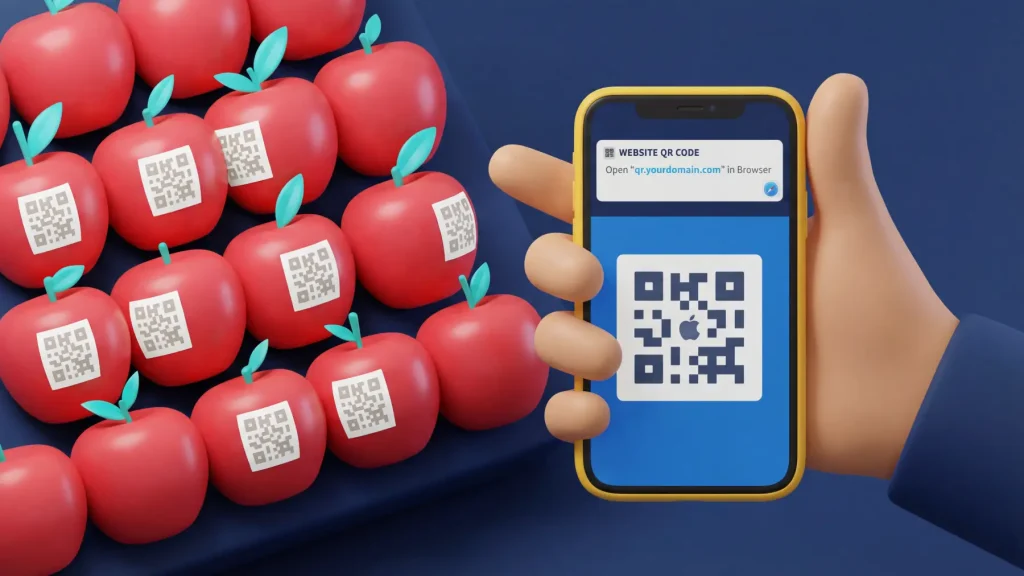
It’s easy to scan QR Codes with iPhone because the process is relatively consistent across different versions of iOS. iOS is the only operating system in use by the smartphone manufacturer Apple. To give you a bit of help, we’ve created a comprehensive guide to make scanning QR Codes with iOS easier.
What are QR Codes and why do you need to scan them?
The concept behind QR Codes originated from Japan as an answer to the demand for better technology than Barcodes. Barcodes required complicated technology to be scanned, couldn’t resist damage and held little information. The development of QR Codes was a massive improvement on product inventory systems because they had better error tolerance, could contain 100 times more data, could be read both horizontally and vertically, which is why QR Codes are square. With the invention of smartphones, this brought QR Code use to the public. Nowadays, everyone can scan QR Codes via mobile, so many companies also use them with their marketing strategies to conveniently connect users to links and other content.
Which smartphones use iOS?
iOS is an operating system that is used solely for Apple products. This includes iPhones, iPads, iPods, Mac computers, and any other Apple devices.
How to check if your iPhone or iPad camera automatically scans QR Codes
If you’re unsure about which version of iOS your phone uses or you want to try to scan QR Codes without an app and would like to try your camera, use the following steps:
- Open your Camera app and point it steadily for 2-3 seconds towards the QR Code you want to scan.
- Whenever scanning is enabled, a notification will appear.
- If nothing happens, you may have to go to your Settings app and enable QR Code scanning.
- Open your Camera app and point it steadily for 2-3 seconds towards the QR Code you want to scan.
- If QR Code isn’t an option in your settings, your device, unfortunately, can’t scan QR Codes natively. But don’t worry, this only means you’ll have to download a third-party QR Code reader app (see our app recommendations below).
Alternatively, you can follow this guide for how to check your version of iOS.
How do I enable QR Code scanning on my iPhone or iPad?
By default, this new feature is enabled in all iOS 11 devices. But if for some reason your camera doesn’t read QR Codes after the update or you have an older version of iOS, follow these steps:
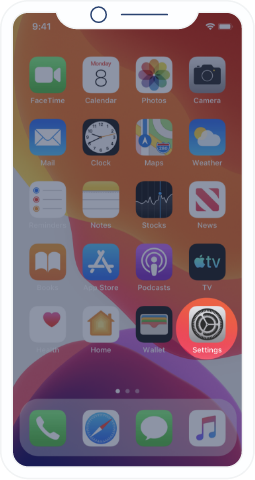
Open the Settings app from your home screen.
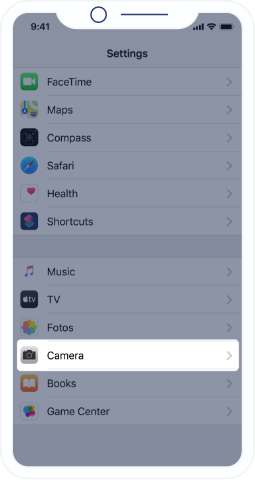
Scroll down and tap on camera.
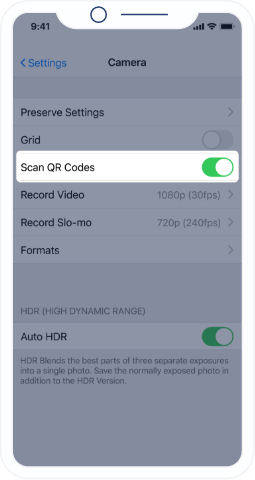
Find “Scan QR Codes” and enable it by making sure the switch is green.
That’s it! Now you’re ready to scan QR Codes. Of course, you can also disable this feature at any time.
How to scan QR Codes with iPhone camera (any version of iOS)
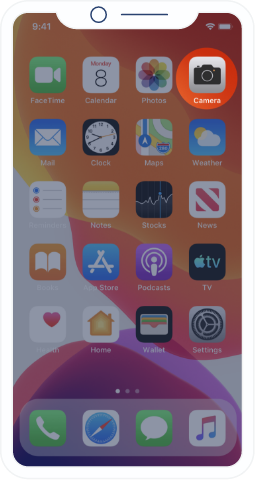
Open the Camera app by either swiping to the left from the lock screen or tapping on its icon from your home screen.
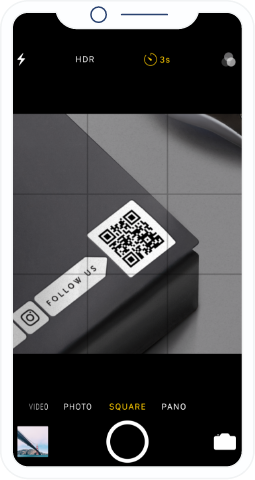
Hold your device steady for 2-3 seconds towards the QR Code you want to scan.
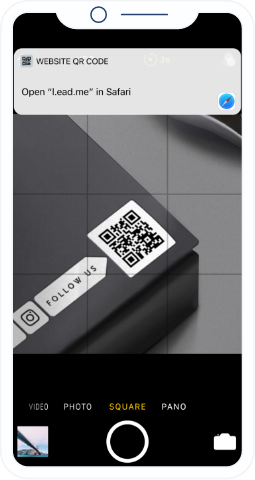
Click on the notification to open the content of the QR Code.
Depending on the type of QR Code scanned, you will be prompted with a different action. For example, any URL QR Code will give the option to open the link with Safari. If it’s a vCard QR Code, it will provide you with the option to add the details to your address book.
Alternative methods for scanning QR Codes with iPhone 4-11
The above instructions should work for any version of iOS. However, in the case that you run into issues, there are two alternative methods to scan QR Codes with iPhone as described below.
Wallet App
The wallet app can scan and save particular QR Codes, such as those needed for boarding flights or entering an event. It’s useful if you’d like to access these QR Codes later on. To scan QR Codes with the Wallet app, use the following steps:
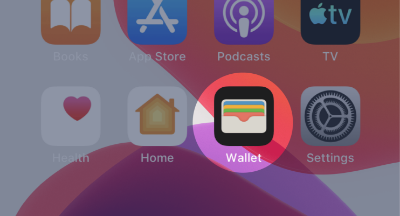
Start the Wallet app.
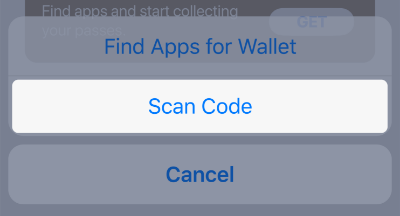
Select “Scan Code” located at the bottom of the page in blue.
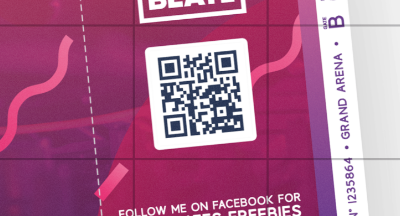
Focus your camera on the QR Code so it fits within the square.

If the QR Code can’t be saved, you’ll get a notification saying “No Pass Available for This Code.”
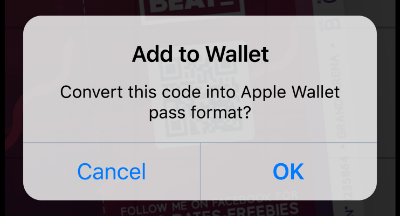
If it can be saved, click on the “+” button at the top right of the screen and select “Scan Code to Add a Pass.”
Control Center
Instead of using your camera directly, you can open a QR Code reader from the “Control Center.” Use the following steps to do so:
- Go to Settings, then Control Center, then Customize Controls.
- Tap the plus symbol next to the QR Code Reader.
- Go back to the Control Center, select the QR Code reader, and focus your screen on the QR Code.
- Optionally, you can tap the flashlight function to add more light.
Third-party QR Code reader apps we recommend

QR Reader for iPhone
This is a basic, no-fuss app that reads pretty much every type of QR Code you put in front of it. It also scans Barcodes if need be.

QR Code Reader and QR Scanner:
This app is one of the top-rated on the Apple Store and includes a built-in flashlight for scanning QR Codes in a poorly lit setting.

QR Code Reader and Barcode Scanner:
This QR Code scanner enables you to save and share your QR Code scans with synchronization on iCloud. Your favorite QR Codes can also be paired with Apple Watch.
Apps that you might already have but didn’t know can also scan QR Codes

Snapchat
With 218 million monthly active users, this popular mobile app can also read QR Codes to conveniently add new friends. Simply open the app, point your camera at the QR Code, and tap.

Shazam
Known as music recognizing app, Shazam can also scan QR Codes for interactive content, special offers, and the ability to purchase items or share them with others.

Pinterest
This social media platform added QR Code scanning in its Lens visual discovery feature to make it “more useful and actionable for brands” that are using the platform to promote their products.

Whatsapp
Whatsapp uses QR Codes to pair the desktop program with your smartphone. You just need to download Whatsapp for desktop, then select options, Whatsapp Web, and scan the QR Code.

LinkedIn
LinkedIn functions similarly to Snapchat as it conveniently adds profiles instead of having to search for the correct name. To access your profile QR Code, select the QR Code symbol in the right-hand side of the search bar and enable camera access to add someone, or select “My Code” to share yours.

Twitter
With Twitter, you can scan QR Codes to share and add profiles, as well as read QR Codes in general. To view your QR Code, select your profile icon and then the QR Code icon at the bottom right. You can then share this with a photo or tweet or directly save the image. To scan any QR Code with Twitter, access the QR Code icon and then automatically scan the external QR Code.

Facebook Messenger
Facebook Messenger is another app that you can use to add friends with a QR Code. View your profile QR Code by selecting “My Code”.
Best QR Code types you should be scanning today
The majority of QR Code solutions we’ve developed at QR Code Generator are known as Dynamic QR Codes. As opposed to Static QR Codes (no editing, one-time-use), Dynamic QR Codes have a few major benefits:
- QR Code campaign tracking.
- The ability to change from one type to another.
- Update the content connected to your QR Code without reprinting.


Marketing with QR Codes
Since QR Code scanning is now possible for anyone with a smartphone, companies from a wide variety of industries are using QR Codes in their marketing strategies—both for print and digital marketing. To give you a bit of inspiration for how this works, we’ve created a few marketing scenarios based on fictional brands.
Consumer Packaged Goods

Betty Baker is a company that sells baking goods online and in-stores. They added Rating QR Codes to all their product packaging to compare customer satisfaction among a few new products. They then compiled these ratings to decide which of their products to prioritize.
Restaurants
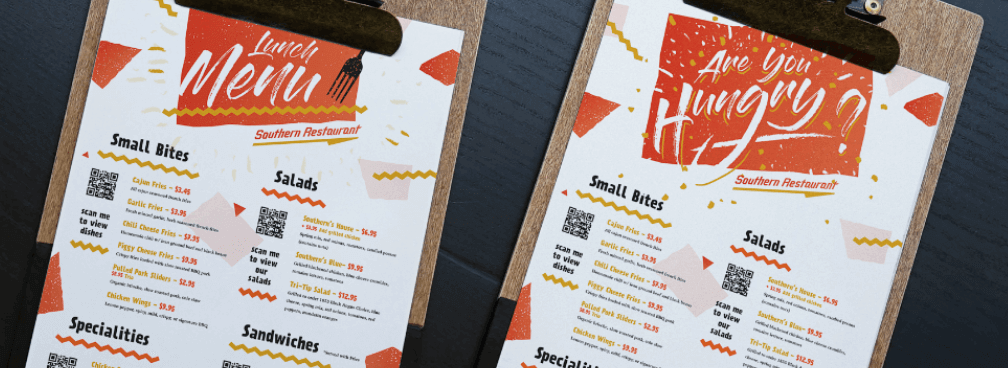
Betty Baker is a company that sells baking goods online and in-stores. They added Rating QR Codes to all their product packaging to compare customer satisfaction among a few new products. They then compiled these ratings to decide which of their products to prioritize.
Finance & Insurance Companies

A financial consultant like Global Worth Trust uses QR Codes to make their networking efforts run more efficiently. At conferences, they use vCard Plus QR Codes on event badges and business cards so contacts can save and share their contact details automatically in the form of a digital business card.
Tourism

Trekker Tours is a tour operator that uses print marketing to promote their tourism packages. They use Video QR Codes on poster ads, magazine ads, and even office windows so that users can get a visual taste of their customer experience—even outside of opening hours. What’s more, Trekker Tours can calculate print marketing ROI (return on investment) and optimize their QR Code print campaigns.
FAQ

Yes, the easiest way to do so is with your iPhone camera. Locate the instructions above.
It is possible if you open this website with Safari. However, this method is not recommended because it has been known to have bugs, and you still need an image of the QR Code. The simplest way to scan QR Codes is with your iPhone camera and as long as your default browser is Safari, the content on the QR Code will open there.
No, because you can scan QR Codes automatically with your camera. Nonetheless, you can instead choose to use a third-party QR Code scanning app. We’ve got a list of recommendations above.
Checking your version of iOS on the iPhone is very simple. You can view this guide for help. Nonetheless, your version of iOS doesn’t affect how you scan QR Codes, because, for all versions, you can use the camera.