How to Use a QR Code for Reviews to Get More Google Reviews

A QR Code for reviews sends customers straight to your review page. Customers can leave a rating in seconds instead of wasting time searching for your business. That speed matters, because 97% of consumers read reviews for local businesses. A QR Code catches customers when the experience is still fresh: At the table, the counter, or checkout.
Here’s the catch: Most happy customers plan to leave a review, then forget. This guide closes that gap. You’ll get setup steps for Google and other platforms, the right QR Code type for each goal, placement ideas, and the rules to follow.
Key Takeaways
- Link your QR Code directly to the review form, not your homepage, so every scan lands one tap from a review.
- Use a Google review QR Code for public reviews and a Rating QR Code or Feedback QR Code for private feedback you collect yourself.
- Ask every customer for an honest review, because Google and the Federal Trade Commission (FTC) prohibit incentives that reward positive reviews.
- Place codes in high-satisfaction areas like checkout counters, receipts, table tents, and follow-up emails.
- Choose a Dynamic QR Code to track scans and preserve your ability to change the destination after you print.
Why reviews matter in 2026
Review volume and recency now decide whether local customers choose you. BrightLocal’s Local Consumer Review Survey 2026 surveyed 1,002 US adults in February 2026 and found:
- 97% of consumers read reviews for local businesses.
- 47% won’t use a business with fewer than 20 reviews.
- 74% only care about reviews written in the last three months.
- 83% of people asked to leave a review went on to leave one.
The pattern is clear: Asking works. A QR Code makes the ask effortless, because one scan opens your review form.
Negative reviews happen to every business, and your reply shapes how new customers see them. The same BrightLocal 2026 survey found that 89% of consumers expect business owners to respond to reviews. Reply publicly, stay professional, and offer a solution.
How to create a QR Code for Google reviews
A Google review QR Code opens your Google Business Profile review form when a customer scans the code. Creating a QR Code for Google Business reviews takes 6 steps:
- Sign in to your Google Business Profile on a computer. Google notes that you can only generate review QR Codes in a computer browser.
- Copy your review link. Select Read reviews, then Get more reviews, and copy the link Google shows you.
- Paste the link into QRCG. Open the Google Review QR Code generator and paste your review link.
- Choose Static or Dynamic. A Static QR Code is free and never expires, but you can’t track scans or edit its destination later. A Dynamic QR Code, which requires a paid plan, tracks scans, stays editable after printing, and uses a short redirect URL instead of encoding your full path.
- Brand your code. Add your logo, brand colors, and a frame with a CTA like “Scan to review us.” Follow our guide to design a QR Code with a frame.
- Download and test. Export in high resolution, then scan the code on iPhone and Android before you print.
Why not use Google’s own code? Google’s native QR Code is plain and doesn’t track scans. A branded code from QRCG adds your design, and a Dynamic QR Code adds scan data and post-print editability. Design pays off: Our data shows customized QR Codes see a 3.8x increase in scans compared to uncustomized codes.
The same process works with any public review link, including Tripadvisor and Yelp. Copy the review URL from your business profile and paste it into a URL QR Code. Hotels, restaurants, and tour operators can also use the Tripadvisor QR Code generator.
Choose the right QR Code type for reviews
The right QR Code type depends on whether you want public reviews or private feedback. Every QR Code for business reviews serves one of these two goals. Public reviews build your reputation on Google, while private feedback helps you fix problems and collect ratings for your own site.
| QR Code type | Best for | Where reviews appear | Tracking |
|---|---|---|---|
| Google Review (Dynamic URL) | Public Google reviews | Your Google Business Profile | Yes, with Dynamic |
| Rating QR Code | Quick emoji, star, or like ratings | Your inbox; display on your site | Yes |
| Feedback QR Code | Detailed, multi-category feedback | Your inbox | Yes |
| Social Media QR Code | Pointing customers to several review profiles at once | Each linked platform | Yes |
To compare more options, browse all QR Code solutions on QRCG to match a code to any goal.
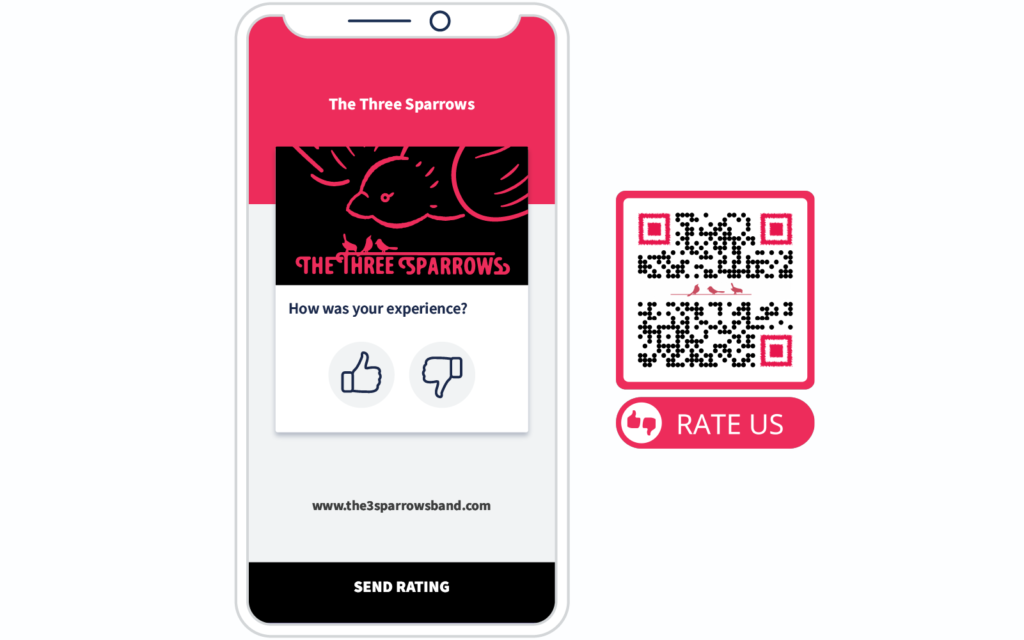
Rating QR Code
A Rating QR Code collects quick emoji, star, or like ratings in under a minute. QRCG sends each rating to your inbox, and you can display ratings on your website or landing page. Rating QR Codes collect ratings for your own use and don’t post to Google.
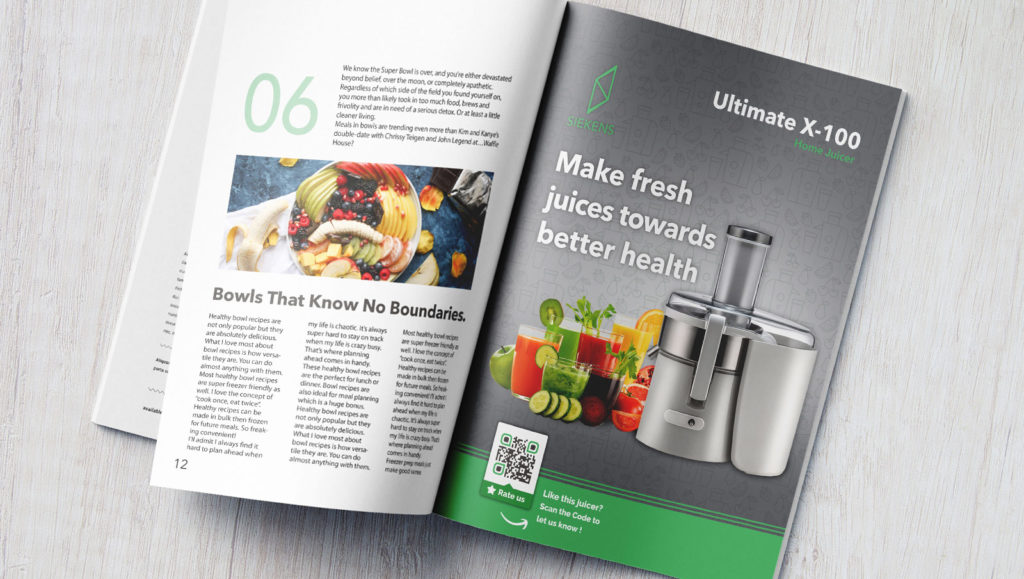
Feedback QR Code
A Feedback QR Code gathers detailed input with star ratings across several categories. For example, a hotel can ask about cleanliness, reception, and amenities on one page. For longer question sets, read our QR Code survey guide.
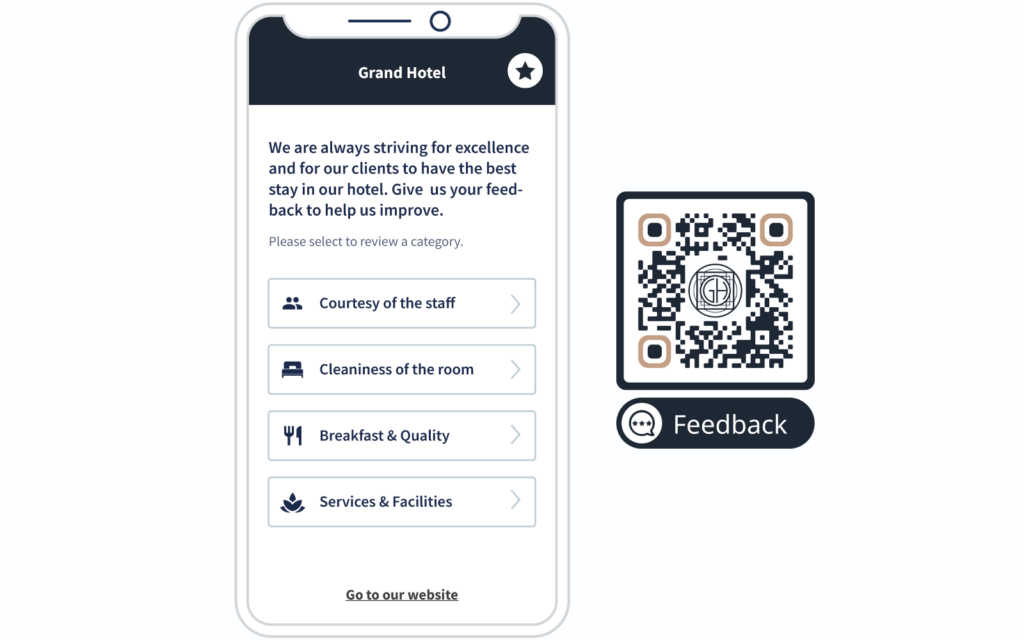
Social Media QR Code
A Social Media QR Code opens one mobile page that lists all your profiles. Add your Google, Tripadvisor, and Yelp review links so customers can pick the platform they already use.
Where to place review QR Codes: Use cases by industry
Place review QR Codes where customers feel most satisfied and have a free moment. Here’s how that looks across industries, with the QR Code type that fits each one.
Restaurants. Print a Google review QR Code on receipts and table tents. Guests can scan while they wait for the check or later at home. Delivery orders can include QR Code review cards tucked into the bag.
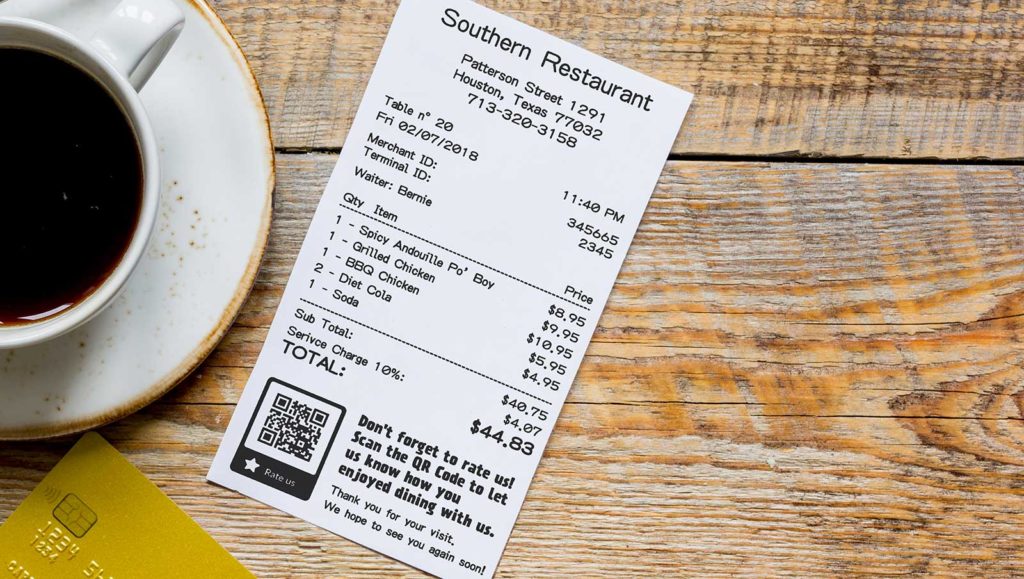
Retail. Add a Google review QR Code at checkout to capture public reviews. Place a Rating QR Code in dressing rooms to learn how shoppers feel about a new collection.

Hotels. Set a Feedback QR Code on room table cards so guests can rate cleanliness, service, and amenities. Add a TripAdvisor or Google review code at the front desk for public reviews at checkout.
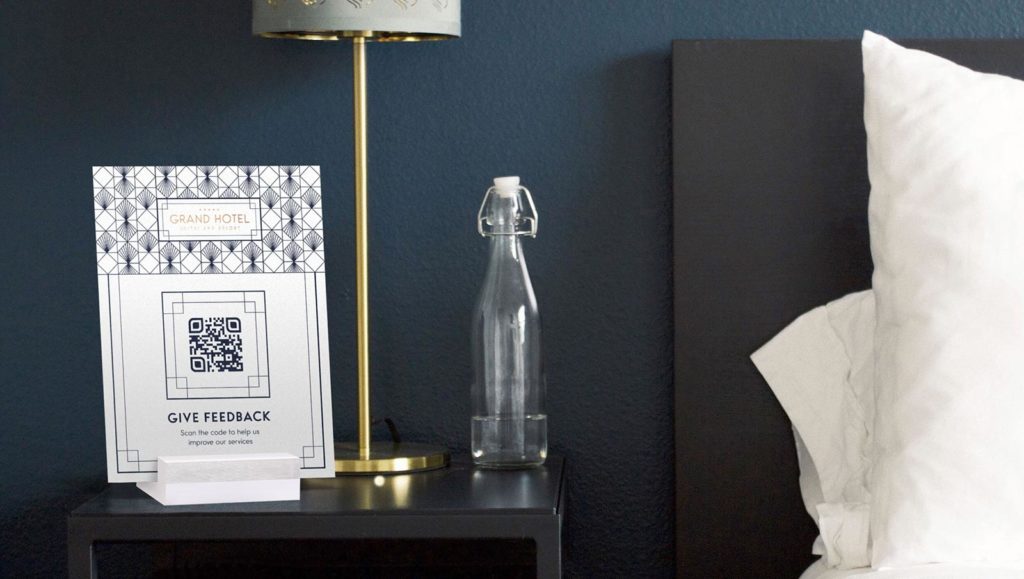
Fitness studios. Send a Rating QR Code in class follow-up emails to learn how each new class lands. Hang a Feedback QR Code in changing rooms to gather input on the whole facility.
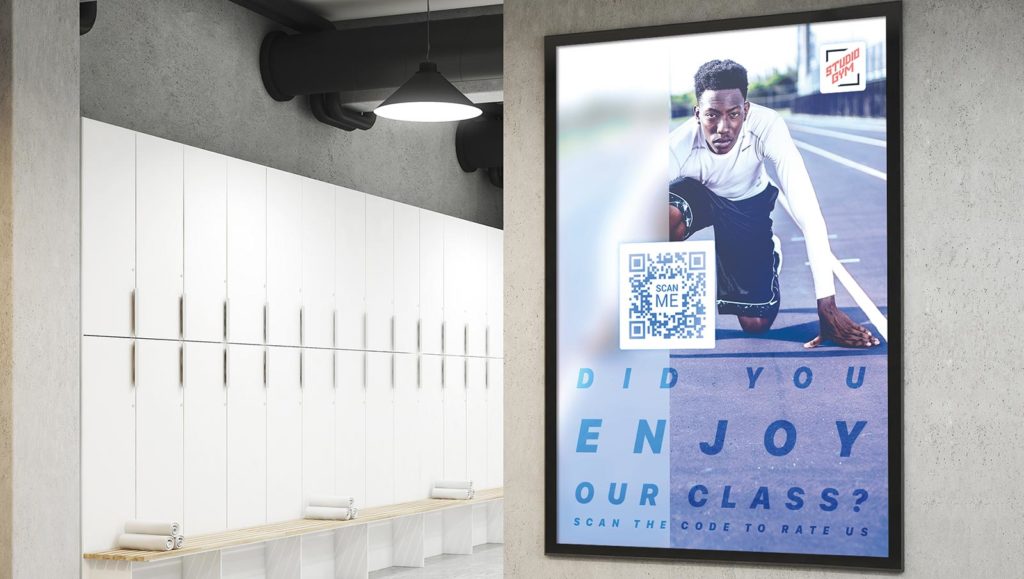
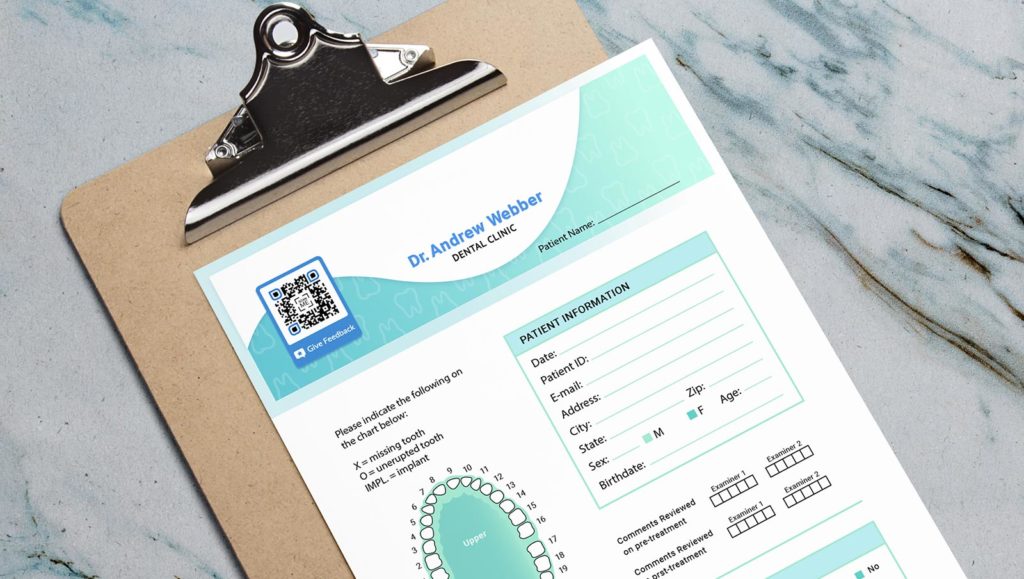
Healthcare and professional services. Print a Feedback QR Code on intake forms and business cards for detailed input on each visit. Include a Google review QR Code in follow-up emails so happy clients can share their experience publicly.
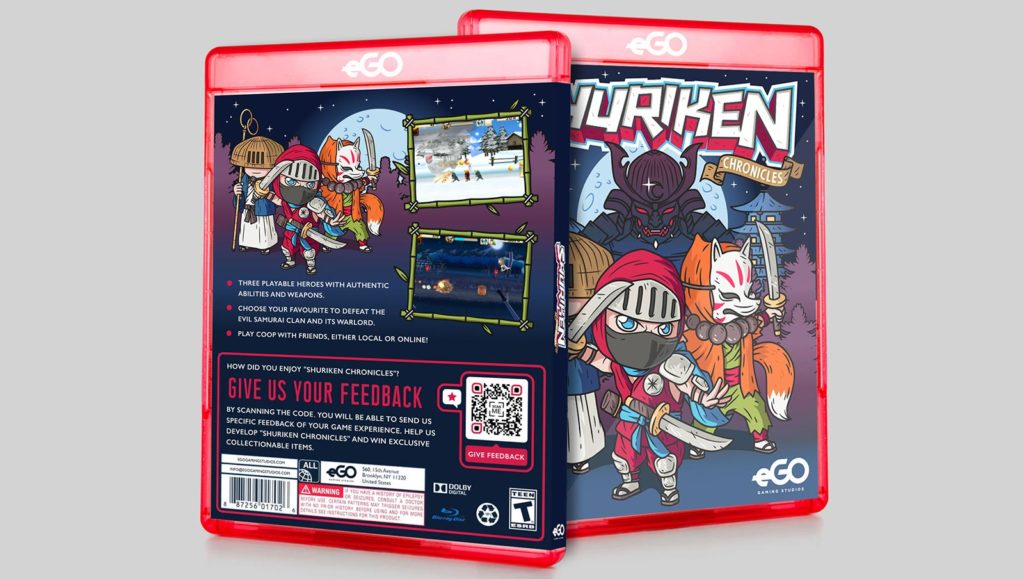
Product packaging. Print a Rating QR Code on the box so customers can rate the product after they use it. Learn more about QR Codes on product packaging and Rating QR Codes on product labels.
Software and apps. Add a Feedback QR Code to onboarding emails, landing pages, or physical packaging. Ask about specific features, then use the answers to plan your next update.
Digital placements. Add the short URL from a Dynamic QR Code to email signatures and SMS (text message) follow-ups, so customers can tap instead of scan.
Follow review rules to protect your profile
Ask every customer for an honest review, and never tie a reward to a positive one. These rules keep your Google Business Profile safe and your reviews credible:
- No incentives for Google reviews. Google strictly prohibits offering incentives like free or discounted goods for posting, changing, or removing reviews.
- No sentiment conditions. The FTC rule, effective October 21, 2024, bans incentives conditioned on positive or negative reviews.
- No screening out unhappy customers. The FTC notes that asking only customers you think are happy could violate the FTC Act.
- No undisclosed reviews from insiders. Don’t ask employees or family members to post reviews without disclosing their connection.
Reviews you earn by the rules build lasting trust. This section offers general guidance, not legal advice, so check with a legal professional about your specific situation.
Best practices for using QR Codes for reviews
Small details decide whether customers scan your code or walk past it. Use this checklist when you set up any QR Code generator for reviews:
- Link straight to the review form. Skip your homepage so every scan lands one tap from a review.
- Ask at the right moment. Share the code right after a positive interaction, like a finished meal or a solved support request.
- Add a short CTA on the frame. Text like “Scan to leave a review” tells customers exactly what happens next.
- Size codes for scan distance. Print Dynamic QR Codes at least 2 x 2 cm and Static QR Codes at least 3 x 3 cm.
- Keep the experience mobile-friendly. Choose review pages that load fast and work well on a small screen.
- Train staff to mention the code. A quick reminder at checkout turns a printed code into a personal request.
- Test before you print. Scan each code on iPhone and Android to confirm it opens the right page.
- Create codes in QRCG. Build branded Dynamic QR Codes so you can edit destinations and track scans after print.
Measure how many reviews your QR Codes drive
Dynamic QR Codes show scans by date, location, and device, so you can see which placement earns the most reviews. QRCG displays this data in your dashboard, and you can export it as a CSV (spreadsheet) file.
Compare scans per placement against new reviews per week. Use one Dynamic QR Code per placement so each location gets its own numbers.
Static QR Codes record no scan data, so choose Dynamic for any placement you want to measure. Learn how to set up reporting in our QR Code tracking guide.
Turn every happy customer into a review
Most satisfied customers will leave a review when you ask, but few will search for your review page on their own. A QR Code for reviews removes that step. Link straight to the review form, pick the right QR Code type, and place it at high-satisfaction moments.
Follow Google and FTC rules so every review counts, then track scans to see which spots work best. Your next five-star review could be one scan away.
Sign up for QRCG and create your first review QR Code today.
Frequently Asked Questions
How do I create a QR Code for Google reviews?
Copy your review link from your Google Business Profile on a computer, then paste it into the Google Review QR Code generator in QRCG. Customize the design, download your code, and test it on a phone before you print.
Does Google have its own QR Code for reviews?
Yes. Google lets you download a review QR Code from your Business Profile, but only in a computer browser. That code is plain and doesn’t track scans. A branded Dynamic QR Code from QRCG adds your logo, colors, and scan data.
Can I get a free QR Code for Google reviews?
Yes. A Static QR Code from QRCG is free and never expires. It can’t track scans or change its destination, so choose a Dynamic QR Code on a paid plan if you need those features.
Can I offer a discount for leaving a review?
No, you can’t offer a discount for Google reviews. Google prohibits incentives for posting, changing, or removing reviews, and the FTC bans incentives that require positive reviews. Ask every customer for an honest review instead.
What’s the difference between a Rating QR Code and a Google review QR Code?
A Google review QR Code sends customers to your public Google review form. A Rating QR Code collects quick ratings that QRCG sends to your inbox, and you can display them on your own site. Ratings from a Rating QR Code don’t post to Google.
Can one QR Code send customers to several review sites?
Yes. A Social Media QR Code opens a mobile page listing your review profiles, like Google, Tripadvisor, and Yelp, so customers can choose one.
Where should I put my review QR Code?
Place it where customers feel most satisfied: checkout counters, receipts, table tents, packaging, and follow-up emails.




QR Code Generator
Your all-in-one QR Code marketing platform
Now you can fully customize your QR Codes with your brand colors and company logo, get scan statistics, and even edit the content after print.