Vector QR Code Guide: Create Print-Ready SVG and EPS Files
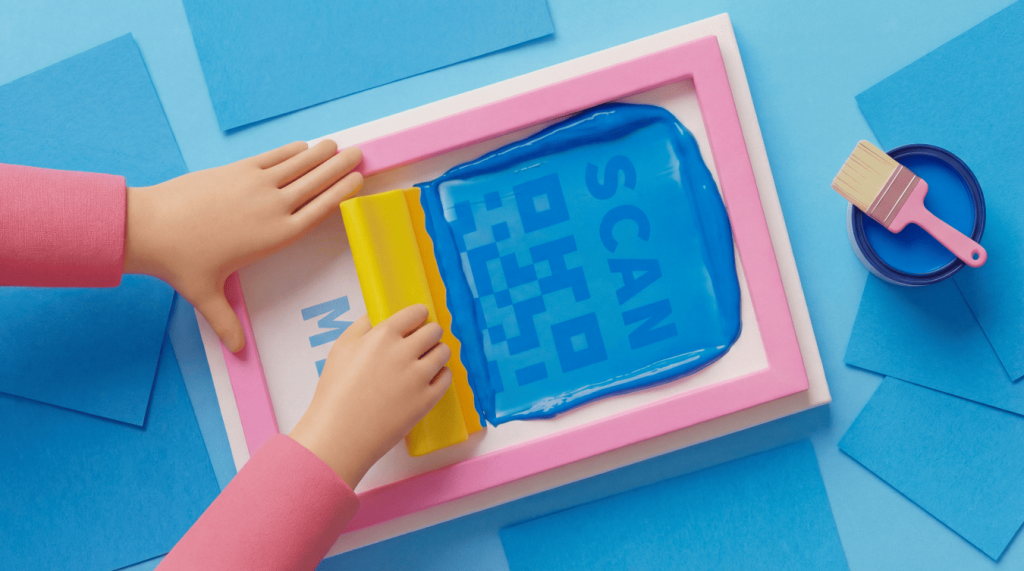
A vector QR Code is a scannable QR Code that’s saved as a collection of precise graphical instructions in a Scalable Vector Graphics (SVG) or Encapsulated PostScript (EPS) file. This setup scales without pixel blur. You can print the same file on a business card, poster, or billboard, and every module stays sharp enough to scan.
Portable Network Graphics (PNGs) and JPG files often look fine on screen, but soft edges can appear once a designer or printer enlarges them for packaging, signage, or outdoor work. This guide shows you how to create and download print-ready vector QR Codes in QRCG by Bitly and provides a handy pre-print checklist to help ensure your codes display perfectly.
QRCG is a Bitly-backed platform built for branded, high-resolution downloads and integrated dynamic tracking after print.
Key Takeaways
- Download a vector QR Code as SVG or EPS when you need infinite scaling for print without pixel blur.
- Choose SVG as the default editable vector file for design tools. Use EPS when a commercial printer specifically requests it.
- Expect black-and-white only on EPS exports from QRCG, while SVG can keep your branded colors and logo paths.
- Pair vector downloads with Dynamic QR Codes when you need to edit the destination after print and track scans.
- Test-scan a real-size proof on multiple phones before you approve a full print run.
What a vector QR Code is
A vector QR Code stores your code’s image as a collection of discrete mathematical paths rather than a fixed pixel grid. Enlarging or shrinking in this format does not soften the data modules’ boundaries, because every line is rendered at print time, ensuring crisp edges at every scale.
QR Codes are two-dimensional matrix codes defined in international standards. Modules, a quiet zone, and error-correction features help cameras read these codes and recover from imperfect scans.
The two common vector formats are SVG and EPS. Some tools will also deliver a vector file embedded into a PDF document. Vector formats such as SVG and EPS describe all these important shapes exactly, using geometry. Raster formats such as PNG and JPG just paint your code using a set number of pixels. When you stretch a raster file, the modules can blur, which puts scannability at risk.
Many “QR Code vector” search results are decorative stock art, not live codes. Clipart may look like a QR Code, but it will not open your URL or content. You need a generated export, a true QR Code vector download from a tool like QRCG, not marketplace artwork.
For export information beyond the scope of this guide, see how to download QR Codes into different file formats.
Why vector formats beat pixels for print
Vector files stay sharp at any print size. That precision protects scannability on packaging, posters, banners, and large-format outdoor pieces.
Three print benefits stand out:
- The code scales to many sizes
- Files stay smaller than appropriately scaled raster images
- Edges print more cleanly
Those benefits map to business cards and labels, flyers and packaging, then posters and outdoor boards. Review our minimum QR Code size guide for scan-distance context. Plan on about 2 x 2 cm for many close-range uses, then size up as distance grows.
Vector export alone does not fix every scan problem. Keep a clear quiet zone on all four sides of your code, and place dark modules on a light background. Pair those basics with our QR Code design rules and this DEV Community scannability playbook.
QRCG treats JPG, PNG, SVG, and EPS downloads as campaign-ready production. Teams can keep one high-resolution master that scales with the layout.
| Need | Better choice | Why |
|---|---|---|
| Scale to billboard or vehicle wrap | SVG/EPS | Resolution-independent paths stay sharp at any size |
| Hand to print vendor on legacy workflow | EPS or print PDF | Common commercial press request |
| Web, email, social, slide decks | PNG | Lightweight raster with optional transparency |
| Photography-style compression | Avoid JPG for final codes | Compression artifacts can hurt scans |
Adobe’s overview of QR Code file formats covers similar SVG, EPS, and PNG tradeoffs.
SVG vs EPS vs PNG (and when to use each)
Use SVG as the default vector master for most design workflows. Use EPS when the printer or sign vendor asks for it. Use PNG for digital or fixed small prints, but only when the code is exported at print size with full 300 DPI resolution. Avoid JPG for final print masters.
SVG follows the open web standard from the World Wide Web Consortium (W3C). An SVG QR Code works well in modern design tools. It is a strong default for web-to-print handoff and large codes. QRCG can generate SVG QR Codes, and the SVG download retains colors and logo paths.
EPS is an older vector file format that many commercial printers still request. Critical product detail: QRCG EPS exports are black and white. Customization such as colors or logo treatments will not appear in that EPS QR Code file. Choose EPS when the vendor needs it, but understand the tradeoff.
PNG is the practical raster choice for digital placements, email, social, and transparent backgrounds. Export it large enough to meet the final dimensions you need at 300 DPI.
JPG compresses photographic detail and is a weak final choice for QR Codes because artifacts can soften module edges.
If a printer wants a locked layout, designers often place a QR Code vector SVG or EPS master inside a print PDF. QRCG’s primary download options are JPG, PNG, SVG, and EPS. Keep SVG or EPS as the source and finish the PDF handoff in your design tool.
| Format | Best for | Keeps custom branding in file? | Watch-outs |
|---|---|---|---|
| SVG | Default vector master, modern design tools, large-format scaling | Yes, colors and logo paths can remain | Confirm the design app preserves paths on import |
| EPS | Printers and sign vendors that need PostScript workflows | No, QRCG EPS is black and white only | Do not expect branded colors or logos in the EPS file |
| PNG | Web, email, social, fixed small prints | Yes, as a raster snapshot of your design | Export large enough; do not upscale a tiny PNG later |
| JPG | Quick on-screen previews only | Yes, as a compressed raster | Avoid as the final print master; compression can hurt scans |
One-line export rule: default to SVG. Switch to EPS on printer request. Use a large PNG only for fixed-size rasters. Skip JPG masters for press.
How to choose for large-format jobs
For banners, wraps, and billboards, start from a vector master. Size the code for viewing distance, not for screen pixels alone.
Size large-format codes for viewing distance: Longer scan distance needs a larger physical code. Treat any distance formula as a starting point, then verify with a proof.
Outdoor pieces need durable materials, strong contrast, and solid error correction. Follow our guidance on printing QR Codes correctly when the layout moves from screen to press. Choose Dynamic QR Codes when you want flexibility after print. They let you update the destination later without reprinting and review scan activity without additional analytics tools.
How to create a vector QR Code with QRCG
To create a vector QR Code in QRCG, generate the code, brand it if needed, then download an SVG or EPS from the download menu.
- Choose your QR Code type and add the destination or content.
- Customize colors, logo, and frame when you want a branded code. Select the Dynamic QR Code option if you need edit-after-print or tracking.
- From the Download menu, select SVG for a scalable branded vector. Choose EPS when the printer needs that format (unbranded black and white).
- Place the file in your layout at its final physical size, preserve the quiet zone, and test-scan before printing. Use a hardcopy dummy to test the printed version before launching a full print run.
Free Static QR Codes fit simple, forever links that never expire. Paid Dynamic QR Codes add destination edits after print and deep scan analytics. On QRCG, high-resolution JPGs are available without an account. PNG, SVG, and EPS downloads require a sign-up.
Customized QR Codes see a 3.8x increase in scans compared with uncustomized codes, so we recommend QR Code branding exported in an SVG master with your color and logo specifications.
Print checklist before you send files to press
Never approve a print run until you scan a sample of the final artwork. Use a physical proof at real size.
- Confirm the correct destination or content on both dynamic and static codes
- Select a vector master (SVG/EPS) for scalable jobs
- Match final physical size to scan distance needs
- Keep the quiet zone intact on all four sides
- Maintain high contrast with dark modules on a light background
- Run a multi-device scan test on iOS and Android phones
- Approve one printed proof under real lighting before bulk production
If a scan fails on the proof, fix contrast, size, quiet zone, or file type before you order any more prints. Teams that need vector downloads, branding, dynamic edits, and scan insights can find them all in QRCG, along with lots of useful explainers cataloged in our guides hub.
Get print-ready vector QR Codes with QRCG
Vector exports keep QR Codes sharp at every print size. The right format choice, usually SVG, sometimes EPS, generally prevents costly reprints.
Create a vector QR Code, then download it as an SVG or EPS. Place it at final size and test before press. It really is as simple as that.
Sign up for QRCG today to generate branded codes and download high-resolution vector files for your next print run.
Frequently Asked Questions
What is a vector QR Code?
A vector QR Code is a scannable QR Code saved with path-based graphics such as SVG or EPS. You can scale it for print without the blur you get from enlarging a pixel file.
What file format should I use for a print-ready QR Code?
Use SVG as your default vector master for most design workflows. Choose EPS when your printer prompts you. Use a large PNG only when you need a fixed-size raster for a simple small piece.
Is SVG or EPS better for QR Codes?
SVG is the better everyday choice for editable, scalable codes in modern design tools. EPS fits older or vendor-specific commercial print pipelines that still need that format.
Can I download a free vector QR Code?
Yes. Create a free Static QR Code in QRCG (Static codes never expire). High-resolution JPG download is available without an account; PNG, SVG, and EPS downloads need signup. EPS files export black and white only. Start a free trial or paid plan when you need Dynamic editing after print and scan tracking.
Does an EPS QR Code keep my logo and colors?
No. QRCG EPS downloads export as black-and-white vector paths, so choose SVG when you need to keep branding inside the vector file.
How do I convert a raster QR Code image into a true vector file?
Avoid tracing a screenshot whenever you can. Generate a fresh QR Code and export SVG or EPS from the generator so the modules stay exact and scannable.
What is the minimum size for a printed QR Code?
Plan for at least 2 x 2 cm (around 0.8 x 0.8 in) for many close-range prints. Increase size for longer scan distances and always test a real proof.


QR Code Generator
Your all-in-one QR Code marketing platform
Now you can fully customize your QR Codes with your brand colors and company logo, get scan statistics, and even edit the content after print.