High-Resolution QR Code Generator for Print-Ready Files
A high-resolution QR Code is a print-ready file that maintains sharp module edges, ensuring it can be scanned by phones at final size. Modules are the small squares in the code that hold data like web addresses and vCards.
Choose format, size, and branding in a high-resolution QR Code generator like QRCG, then download pristine JPG, PNG, SVG, or EPS files. Using clean, native image files is the best way to avoid blur.
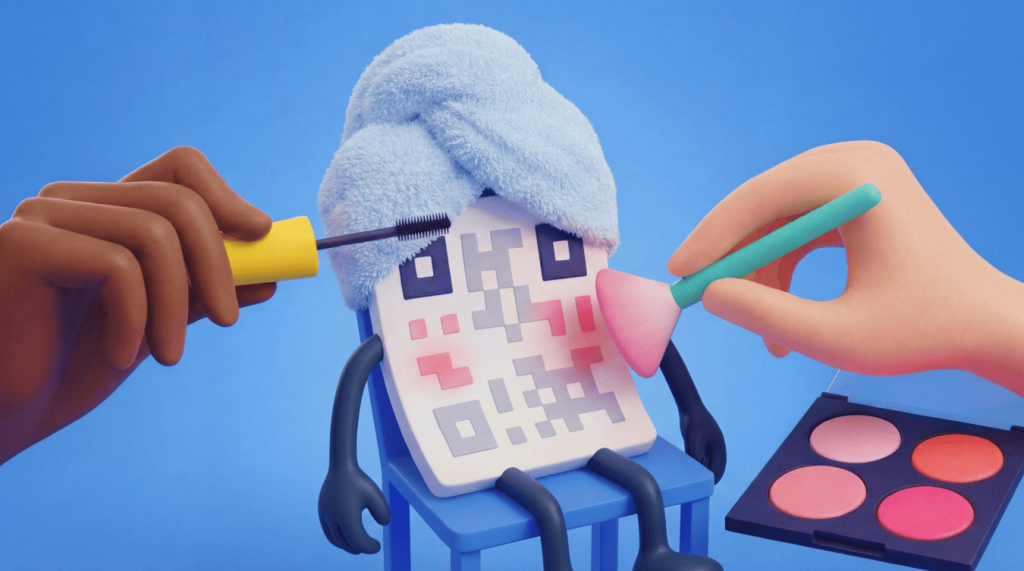
Blur has a real cost. One stretched screenshot that makes a QR Code illegible can lead to bulk reprints, failed campaigns, and codes that fail to scan on a phone. People often export a small PNG, enlarge it for a poster, and lose scannability as the image scales.
QRCG by Bitly is built for branded, high-resolution QR Code downloads in JPG, PNG, SVG, and EPS formats. Our Dynamic QR Codes let you update the destination after print, but only when you use a sharp, crisp image file that’s appropriate to your campaign medium.
Key Takeaways
- Download vector files (SVG or EPS): Use them when you need a high-resolution QR Code that scales for print without a chance of blur.
- Export PNGs at final size: Use about 300 DPI (dots per inch) at the final physical size, and avoid enlarging smaller downloads later.
- Size for scan distance: Keep codes about 2 x 2 cm for close-range scanning, and use the 10 to 1 distance-to-code ratio guideline for posters.
- Prevent blur: Never use QR Code screenshots in production; protect the quiet zone; keep dark modules on a light background; and test by scanning a physical proof.
- Create the file in QRCG: Brand it, choose JPG, PNG, SVG, or EPS, and use a Dynamic QR Code when destinations may change or you need to collect scan data.
What a high resolution QR Code actually means
High resolution means the modules stay sharp and distinct at the size and distance people will scan. That applies to vector files and to high-DPI raster exports that match the final print size.
“High res” is not a single pixel count. Vector formats stay sharp at any scale. Raster formats remain sharp only if the pixel density matches the final print size. Module clarity, contrast, quiet zone, and error correction matter as much as file type. ISO/IEC 18004 is the primary standard for the design and verification of QR Codes for printing.
A high-resolution QR Code should be a print-ready file with crisp, distinct modules at real-world size so cameras can read the pattern without guessing. The file is ready when edges stay clear after print, not only on screen.
QRCG supports high-resolution downloads across JPG, PNG, SVG, and EPS formats so codes stay sharp on the materials you print.
High-res formats: SVG vs PNG vs EPS vs JPG
For print that may change size, export a vector file first. SVG is the default for modern design tools. EPS works for older design software or print shops that ask for it. Avoid JPG when you can, because lossy compression softens module edges. Skip it unless you specifically need a smaller raster, and test a live version repeatedly before rollout.
Choose PNG only when the final size is fixed and you export at about 300 DPI at that size. For example, a 2 cm-wide business-card code needs roughly 236 pixels across at 300 DPI so modules stay sharp after print.
| Format | Type | Best for | Watch-outs | QRCG support |
|---|---|---|---|---|
| SVG | Vector | Posters, packaging, flexible layouts, sharing with a designer | Some legacy print shops prefer EPS/PDF | Yes |
| EPS | Vector | Commercial print, older raster image processors (RIPs), black-and-white production paths | QRCG EPS is black and white without design customizations | Yes (black-and-white limitation) |
| PNG | Raster | Web, email, social, fixed small print | Do not enlarge after export; aim for about 300 DPI at final size | Yes (common default download) |
| JPG | Raster | Only when you need a smaller file later | Lossy compression softens edges | Yes |
Match the format to the job. A business card often works with a carefully sized PNG or SVG at about 2 x 2 cm. A billboard or large poster should start as an SVG or EPS, sized for viewing distance. For example, a 1 m scan range requires a code about 10 cm wide under the 10x distance scanning guideline.
QRCG’s EPS export files are always black and white and drop design customizations. Use PNG, JPG, or SVG when you need logo colors and frames. For export details, see how to download QR Codes into different file formats.
Size, scan distance, and DPI for reliable scans
Physical size and scan distance matter more than DPI alone when starting from a vector file. Failed scans usually occur with codes that are too small for the viewing distance or with raster files stretched after export.
For close-range materials, plan for about 2 x 2 cm (0.8 x 0.8 in) minimum to align with our minimum QR Code size guidance. That size fits business cards people hold near a phone so the camera can resolve each module.
Then size up for distance. The practical guideline is to scan at a distance of about 10 times the QR Code size. If someone scans from about 20 cm away, plan for about a 2 cm-wide code. From about 1 m, plan for about 10 cm. Larger out-of-home placements need proportionally larger codes. DENSO WAVE module size guidance explains how printer dots support readable cells.
Protect the quiet zone. Keep at least four times the width of one module around the code free of text, borders, and artwork so scanners can find the edges. Leave that margin empty in the layout.
DPI guidance is simple: Vector files do not need a fixed DPI. If you must use a PNG QR Code, export at about 300 DPI or higher at the final printed size. A fixed 5 cm-wide print then has enough pixels for crisp modules rather than soft edges after the ink hits the paper.
Never enlarge a small QR Code file. See our scanning problems guidance and learn how to print QR Codes correctly.
| Application | Typical minimum width | Notes |
|---|---|---|
| Business card | About 2 x 2 cm (0.8 x 0.8 in) | Close-range scans; keep a full quiet zone (QRCG, February 2025) |
| Flyer or handout | About 2 to 3 cm | Held at arm’s length; SVG helps if layouts change |
| Poster | Scale with the 10 times distance guideline | Measure expected standing distance first (QRCG, February 2025) |
| Banner or out-of-home (OOH) | Larger proportional width | Prefer SVG/EPS; proof on the real substrate |
Dynamic QR Codes use a short link, which can make the code easier to scan than a code packed with smaller data modules to contain a long static URL. See our breakdowns on Dynamic URL QR Codes and Static vs Dynamic QR Codes to learn more about the benefits that Dynamic QR Codes offer.
Large-format and long-distance placements
For large-format QR Code resolution, prefer SVG or EPS. Size the code for real viewing distance, and proof at final size on the real substrate. Do not upscale a phone screenshot or small web PNG for a wall graphic. Build for standing distance, then confirm scans under site lighting before the full run.
Why QR Codes look blurry before print
Blur usually comes from upscaling a low-resolution raster, taking screenshots, low contrast, a missing quiet zone, or ink spread on the wrong finish. It does not come from “broken” QR technology. Fix the file and the layout before you print.
Do:
- Export a vector file (SVG or EPS) or a correctly sized high-resolution PNG
- Keep dark modules on a light background for strong contrast
- Leave a full quiet zone on every side
- Test on both iOS and Android devices
- Print a same-size proof on the real paper or finish
Don’t:
- Screenshot a code and enlarge it for a poster
- Use light modules on a light background
- Crowd the border with text, logos, or frames that eat the quiet zone
- Approve a full print run from a screen-only check
QRCG scanning guidance favors high-resolution files. Prefer SVG and EPS when you can. Use PNG at a high pixel density when raster is required.
How to create and download a high resolution QR Code with QRCG
Pick your QR Code type, add content, brand the design, then download it as a high-resolution JPG, PNG, SVG, or EPS.
- Start in QRCG: Choose the QR Code type that matches the destination, such as URL, vCard (digital contact card), or PDF.
- Add your content: Prefer a Dynamic QR Code when you may change the destination after printing or need scan tracking.
- Customize the design: Add brand colors, a logo, and a call-to-action frame so the scan action is clear.
- Set error correction: Select high (up to 30%) when you add a logo or expect wear.
- Download the file: Use PNG for fixed sizes, SVG for scalable work, EPS for black-and-white printer vectors, or JPG for smaller rasters only.
- Place the file: Avoid non-uniform stretching, scale from the corners, and keep the quiet zone clear.
QRCG by Bitly is the focused QR Code experience for professional customization, high-resolution downloads, and editable Dynamic QR Codes. Explore our feature set. Review our pricing. Follow our advice on how to create a QR Code.
Test before you print: A pre-press checklist
Test the digital file and a physical proof at final size before any bulk print run.
- Scan on screen with at least two phones (iOS and Android)
- Confirm the correct destination loads
- Print a proof at final size on the real paper or finish
- Scan from the real viewing distance in varying lighting
- Confirm quiet zone, contrast, and module clarity
- For large or regulated packaging runs, a professional can test print quality using ISO/IEC 15415 standards
Dynamic QR Codes let you fix the destination later. If a link breaks after print, update it without reprinting the artwork.
Get print-ready QR Codes without the guesswork
High resolution is a format-plus-size decision. Vector downloads plus real-world testing beat last-minute upscaling. Generate your high-resolution QR Code in QRCG, pick SVG, PNG, or EPS for the job, size for distance, and proof before the full run.
Create branded, high-resolution QR Codes in QRCG with optional dynamic editing and scan tracking when your campaign needs to stay flexible after print.
Ready to start producing engaging QR Codes that scan correctly every time? Sign up for QRCG today and start laying the foundation for your omnichannel engagement model now.
Frequently Asked Questions
SVG, EPS, and correctly sized PNG downloads from a high resolution QR Code generator keep print files scannable. Match format, size, and distance to the job.
What file format should I use for a high-resolution QR Code?
Use SVG for scalable print files. Use EPS when a commercial printer requests a legacy vector.
Use PNG when the final size is fixed at about 300 DPI. For example, lock a business-card code at about 2 x 2 cm so the export matches real print size.
QRCG supports JPG, PNG, SVG, and EPS downloads so you can match the format to the job.
How do I make a QR Code not blurry?
Export a vector file or a correctly sized high-resolution PNG. Keep strong contrast, protect the quiet zone, and never enlarge a screenshot or small raster for a poster. Always scan a physical proof at the final size before a full print run.
What size should a QR Code be for print?
Plan for at least about 2 x 2 cm for close-range materials like business cards. A phone held near the card can then resolve every module.
Then scale up using a scanning distance of about 10 times the code size for posters and signage. Plan for about 10 cm wide when people stand about 1 m away. Larger scan distances need larger codes.
What is the resolution of a QR Code?
A QR Code does not have one universal pixel resolution. Vector files stay sharp at any scale.
Raster files need enough pixels to meet the final print size, typically about 300 DPI when a PNG is required. Export a fixed flyer code at final width instead of upscaling a small web PNG.
Can I upscale a low-resolution QR Code?
Upscaling a small PNG or screenshot rarely restores true module sharpness for print. Recreate the code and download SVG, EPS, or a correctly sized PNG instead of stretching a blurry image.
Can I change a QR Code after I print it?
Yes, if you printed a Dynamic QR Code. Dynamic QR Codes let you edit the destination after printing without generating new artwork, which protects campaigns when links or offers change.


QR Code Generator
Your all-in-one QR Code marketing platform
Now you can fully customize your QR Codes with your brand colors and company logo, get scan statistics, and even edit the content after print.