QR Code Testing Checklist: How to Run One Correctly
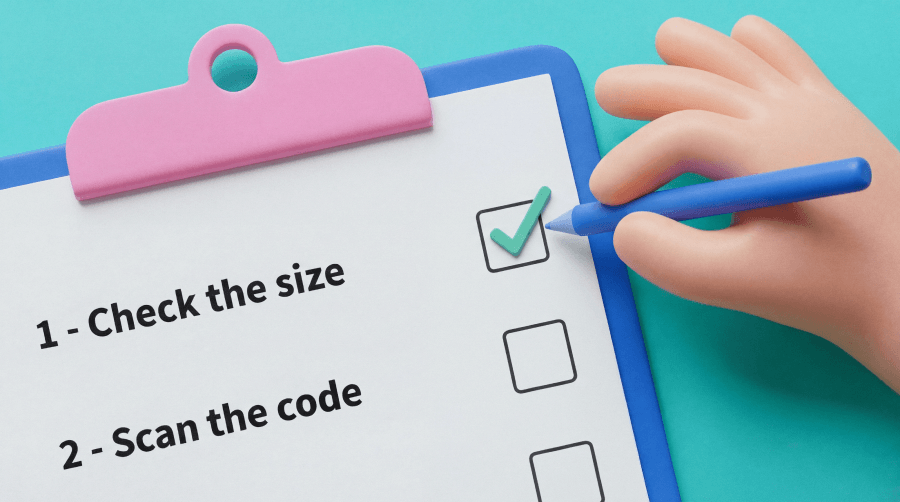
Picture this: Your team prints 20,000 flyers, ships them to stores, and then someone discovers the QR Code won’t scan. Ouch. A QR Code test gives you a systematic check that proves your quick response code functionality, ensuring it scans, opens the right destination, and works across real devices and real-world conditions.
The good news? You can run a strong test in minutes. Start with the link, scan across devices, challenge the code with lighting and distance, inspect print quality, and confirm analytics before launch. Let’s look at how it all works together.
Note: The brands and examples discussed below were found during our online research for this article.
Key takeaways
- A complete QR Code test checks three things: The destination link works, the code scans on multiple devices, and it performs in real-world lighting and print conditions.
- Testing before printing prevents expensive mistakes—always scan your final proof on the exact material you’ll use for production.
- Dynamic QR Codes simplify post-launch fixes because you can update the destination URL without reprinting if something goes wrong.
- Device diversity matters: Test on both iOS and Android phones, including older models and third-party scanner apps beyond native cameras.
- Document every test result and schedule periodic rechecks for long-running campaigns to catch issues like expired links or changed landing pages.
Why every campaign needs a QR Code test
QR Codes bridge offline attention and online action. A customer scans your poster, packaging, menu, direct mailer, or event badge for the next step. If that code fails, the journey stops cold. Your campaign loses clicks, conversions, and trust before your landing page gets a chance to shine.
Broken scans drain the budget fast. You might lose print spend, delay a launch, miss limited-time traffic, or send shoppers to the wrong page. Customers may blame your brand when they tap, wait, rescan, and give up.
A code can look crisp on a designer’s monitor and still fail on paper, plastic, glass, fabric, product packaging, or a screen if not tested with various mobile devices. Printing introduces ink spread, glare, and loss of texture and contrast. Devices add camera-quality concerns, operating-system quirks, compatibility issues, scan-distance considerations, and reader-app variability. A fast test turns those variables into a launch checklist and gives your team confidence.
Common scan failures to watch for
Most scan issues fall into two buckets: Design problems and destination problems. Design problems arise when the code is too small, crowded, blurry, or low contrast. Give every code a quiet zone, or blank space around every edge. Keep the printed code at least 2 cm by 2 cm, or 0.8 in by 0.8 in, for close-range use, and scale up for posters and signage. When your team debates sizing, a guide to minimum QR Code size can help you match the code to the scan distance.
Contrast matters too. Dark code, light background, clean edges, and high resolution give cameras the best shot, especially when designing custom QR Codes. Watch for borders, icons, photos, or coupon copy that crowd the edges. Pixelation can sabotage a small QR Code image, especially with low-resolution PNGs.
Destination issues can feel just as frustrating. The link may break, expire, or send scanners into a redirect loop. The page may load on desktop yet stall on mobile. App store links may open the wrong platform, and account lapses can turn dynamic codes into dead ends. When you need a deeper troubleshooting pass, a guide to QR Code scanning problems and solutions can help your team spot issues fast.
Step-by-step QR Code test
Use this walkthrough before every launch. The whole process takes only a few minutes, and while it doesn’t require complex automation testing, it catches the issues that matter most.
1. Verify the destination link loads quickly
Open the destination URL directly in a mobile browser before you scan the code. Your audience will land there on a phone, so test the phone experience first. Aim for a load time under three seconds; slow pages kill momentum fast.
Next, tap through the page like a customer. Check images, forms, buttons, coupons, maps, downloads, and calls to action. Make sure every element fits the screen without pinching or zooming. If the code points to an app, test the App Store path on iOS and the Google Play path on Android. If the code supports an offer, confirm the dates, promo code, and tracking parameters.
2. Read the code with multiple QR Code reader test apps
Once the destination passes, scan the code with your phone’s native camera app or a dedicated QR Code scanner. Most customers will do the same, so treat that scan as your baseline. Hold the phone at a natural distance, wait for the prompt, and follow the link.
Then bring in more devices, including various smartphones. Test at least one iPhone, one Android phone, and an older model. Download two or three popular third-party scanning apps and run the same scan. These apps can reveal problems that a native camera misses.
Log every result. Note the device, operating system, scanner app, scan distance, and errors. One failure with an old app may not demand a redesign, but patterns matter. If several scanners struggle, revisit contrast, size, quiet zone, or link behavior.
3. Print or display at final size and rescan
On-screen tests help, but final-format tests protect your budget. Print a proof at the exact size you plan to use. Use the same stock, finish, packaging material, label shape, or signage substrate whenever you can.
Scan the proof from the expected distance. Look for ink bleed, blurring, warping, low contrast, or design elements that crowd the quiet zone. Curved bottles and outdoor signs deserve extra attention. If you plan a large run, review guidance on how to print QR Codes correctly before you send final files to production.
For digital placements, display the code on the actual screen. Test the lobby display, kiosk, webinar slide, TV ad, or point-of-sale screen at the intended viewing distance. Brightness, motion, compression, and glare can all change scannability.
4. Test scans in bright, low, and glare conditions
Now push the code beyond perfect conditions. Start under bright office lights, so you have a clean baseline. Then move to a dim hallway, event space, or restaurant corner that matches real use.
Next, test direct sunlight and glare. Glossy brochures, laminated menus, plastic packaging, and outdoor signage can bounce light into a phone camera. Tilt the proof, step closer, step back, and scan from slight angles. If the code fails repeatedly, change the placement, enlarge the code, choose a matte finish, or increase contrast.
Customers rarely scan in perfect conditions. Your test should reflect that messy reality.
5. Confirm analytics record the QR Code test scan
A scan only helps your campaign if your reporting captures it. After each test scan, open your QR Code generator dashboard and look for the test hit. Check the timestamp, device type, location, and total scan count. Those details give your team confidence for launch reporting.
With QRCG, real-time dashboard data or API integration lets you verify scan activity in real time. You can confirm that your code works, data flows, and your dashboard tells the right story before launch. For teams that need performance visibility, QR Code tracking turns a simple scan into actionable campaign insight.
Post-test fixes and ongoing monitoring
Launch day should not mean the end of testing. Long-running marketing campaigns require maintenance, especially when codes appear on packaging, signage, direct mail, menus, or printed collateral for weeks or months.
Create a simple QR Code test log for every campaign. Include the destination URL, code type, print material, final size, devices, apps, lighting conditions, scan distance, analytics checks, pass or fail status, and notes. This record helps your team move faster next time.
Put a 15-minute monthly recheck on the calendar for any code that stays in the market. Open the landing page, scan the printed asset, and review analytics for sudden drops in traffic. A sharp traffic dip can signal a broken link, a changed page, an expired offer, or an account issue. Dynamic QR Codes give marketers an extra safety net because you can update the destination after launch without reprinting.
Keep every scan reliable with QRCG
A strong QR Code test takes minutes, but it can save hours of troubleshooting and a pile of reprint costs. Check the link, scan across devices, proof the final format, test real conditions, and confirm analytics.
QRCG helps your team manage the whole process with Dynamic QR Codes, real-time scan data, and an intuitive dashboard for multiple campaigns. When a destination needs a change, you can update it without touching the printed asset.
Ready to build codes you can test, track, and trust? Sign up with QRCG today and launch your next QR Code campaign with confidence.
FAQs
How do I create a reusable QR Code test checklist template?
List your standard test steps (link verification, device matrix, lighting conditions, print proof, analytics check) in a simple document or spreadsheet, then duplicate it for each new campaign. Include columns for pass/fail status and notes so you can track results consistently.
Do static and dynamic QR Codes need different tests?
Both need the same scanning and environmental tests, but dynamic codes require an extra step: verify in your dashboard that the code is active and pointing to the correct destination. Static codes can’t be edited after creation, so destination accuracy matters even more before printing.
What is the quickest way to run a QR test online before printing?
Scan the code on your screen using your phone’s camera app to confirm it detects and links correctly, then open the destination URL in a mobile browser to verify the page loads properly. This two-step check takes under 30 seconds and catches most issues before you print.



QR Code Generator
Your all-in-one QR Code marketing platform
Now you can fully customize your QR Codes with your brand colors and company logo, get scan statistics, and even edit the content after print.