The Best QR Code Readers to Scan Codes Instantly
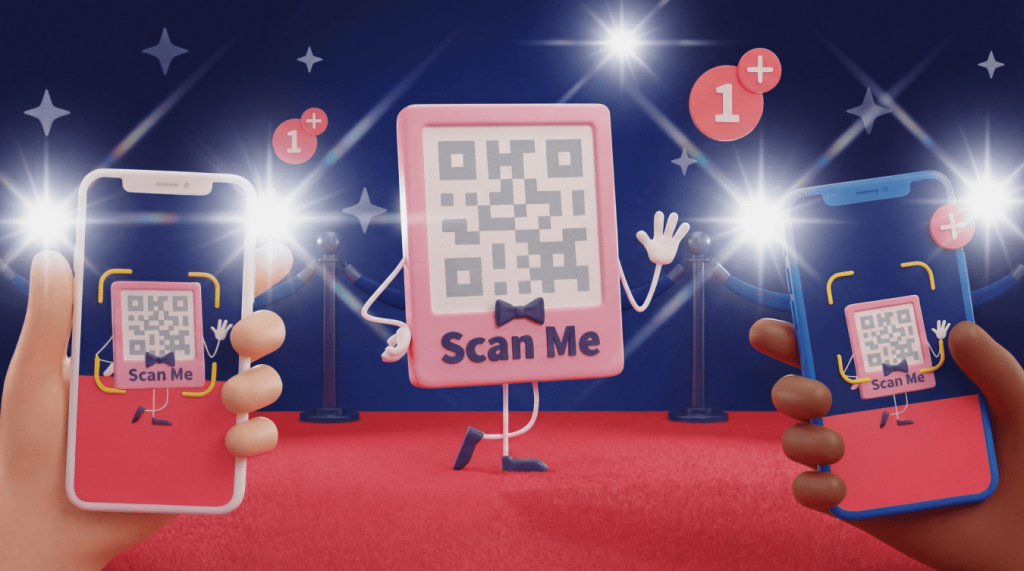
QR Codes show up on menus, payment gateways, event check-ins, packaging, print ads, tickets, and retail displays, so every scan should feel fast and effortless. Your decision comes down to one question: Can your built-in camera handle the job, or do you need a dedicated QR Code scanner with stronger safety, privacy, or workflow features?
Note: The brands and examples discussed below were found during our online research for this article.
Key takeaways
- Most people can scan QR Codes fastest with their phone’s built-in tools (iPhone Camera or Google Lens) without installing anything extra. This is usually enough for menus, tickets, and basic links.
- If you scan codes from unknown sources, a security-focused scanner like Trend Micro Safe QR Code Reader can reduce risk by warning about suspicious destinations before you open them. This helps protect against phishing and malicious links.
- If privacy matters most, choose scanners that work offline and avoid ads or tracking, such as the open-source Android app Binary Eye. Fewer permissions and less data collection generally means less exposure.
- The “best” QR Code reader depends on what you need beyond scanning speed, such as scan history, CSV export, or support for many barcode formats. Match the app to your most common scanning scenario.
- Preview the destination (especially URLs) before tapping, even when using a trusted scanner. A two-second check of the domain can prevent many QR-Code scams.
Do you need a third-party QR reader, or is your camera enough?
For most everyday scans, modern smartphones already give you the fastest path. Open the iPhone Camera, point it at the code, and tap the banner. Apple added automatic QR detection in iOS 11, so iPhone users rarely need a separate app for menus, tickets, contact cards, or Wi-Fi logins.
Android users can usually rely on Google Lens. Lens often appears in the Google app, Google Photos, or the default camera app, depending on your compatible Android device. It recognizes QR Codes quickly, connects with the Android ecosystem, and removes the friction of an app store search.
A third-party reader earns its place when it solves a specific problem. Choose one when you scan unknown links, need scan history, export scan logs, handle many barcode formats, or support field teams. For higher-risk or higher-volume scans, pick a reader that matches the job.
What makes a QR reader the best?
The best QR Code scanner balances four elements: Speed, safety, privacy, and workflow power. A restaurant menu scan needs speed. A parking meter sticker needs caution. A warehouse audit needs records. A privacy-minded Android user wants minimal permissions. Consider these criteria before you install anything.
Speed and low-light performance
Scan speed depends on a combination of factors. Your camera hardware, autofocus, image processing, and the app’s decoding library all matter. Most modern readers decode clear codes quickly in good light. Differences show up when a code looks tiny, sits on a glossy screen, appears on curved packaging, or lives under dim event lighting.
Look for practical tools that help in the real world: A flashlight toggle, zoom control, steady autofocus, and quick recognition after you open the app.
Security and URL preview
A QR Code hides its destination until your reader decodes it. That creates both convenience and risk in a single tap. Scammers can place a fake sticker over a legitimate code, send users to a lookalike login page, or route people through a suspicious short link.
A strong reader shows a clear URL preview before it opens your browser or another app. Better security-focused scanners also check link reputation and warn you before you visit a dangerous destination.
Privacy and ad-free design
Free scanner apps often monetize by displaying ads, and some collect usage data. That tradeoff may feel fine for occasional scans from trusted sources, but it deserves a closer look if you scan work materials, event attendee materials, or private operational codes.
Privacy-forward readers usually decode offline, request fewer permissions, store history locally, or skip history tracking altogether. Open-source apps offer another advantage: Public code lets reviewers inspect how the app and its security features work. If privacy tops your list, choose simple tools that do the job without extra tracking hooks.
Top QR Code scanner apps for instant scanning and safety
This shortlist focuses on real use cases, not bloated app lists. Each option wins for a different reason, so start with your scanning scenario.
Trend Micro Safe QR Code Reader
Trend Micro Safe QR Code Reader suits anyone who worries about malicious QR Codes, phishing pages, and scam links. Instead of opening every scanned URL immediately, it checks destinations against Trend Micro’s threat intelligence and warns you about suspicious results.
The user experience stays simple: Scan, review the destination, check the safety classification, and decide. The app also avoids ads, which keeps the scanning moment clean. Its main limitation, a slightly slower passthrough, comes from the same feature that makes it valuable. Full link reputation checks need an internet connection, and the app does not focus on export-heavy workflows.
QR & Barcode Scanner by Gamma Play
QR & Barcode Scanner by Gamma Play works well as a free, general-purpose Android scanner. It decodes quickly, supports many barcode formats, keeps scan history, and includes practical tools like autofocus and a flashlight toggle.
This pick makes sense when you need a versatile all-in-one barcode reader that scans QR Codes, product barcodes, shipping labels, coupons, and other formats. It runs ads, so privacy purists may prefer another option. It also lacks built-in URL threat screening, so you should preview links and verify domains before you tap.
QR & Barcode Scanner by TeaCapps
QR Code & Barcode Scanner by TeaCapps fits teams and professionals who need records, not just one-off scans. Its standout feature, CSV export, helps with inventory checks, field audits, and attendance tracking.
The app also offers a searchable scan history, zoom, flashlight support, and configurable actions by code type. That utility-first approach gives busy operators more control. Expect a practical interface rather than a flashy consumer experience, and review the version on Google Play in your region, as monetization can vary.
Binary Eye for privacy-first Android users
Binary Eye gives Android users a strong privacy-first choice. It works offline, uses open-source code, avoids ads, and skips tracking. That combination makes it appealing for people who want quick scans without handing extra data to a scanner that runs ads.
It also supports formats beyond QR Codes, including Data Matrix, Aztec, PDF417, and common 1D barcodes. The trade-off: Binary Eye serves only Android users, and its interface can feel more technical than that of mainstream consumer apps.
Best QR Code reader apps for Android phones
Android users have several solid paths. Start with Google Lens for everyday scanning, then add a dedicated app only when you need more control.
| App | Best for | Key features | Limitations |
| Google Lens | Everyday scanning | Fast recognition, deep Android integration, no extra app | No scan history or export |
| QR & Barcode Scanner by Gamma Play | Multi-format scanning | Broad barcode support, scan history, free access | Runs ads, no URL safety checks |
| Binary Eye | Privacy and offline use | Open-source code, no ads, no tracking, offline scans | Technical interface, Android only |
Best QR Code reader apps for iPhone
Most iPhone users can stick with the built-in Camera app. Add Trend Micro when you scan codes from unknown sources and want stronger link screening.
| App | Best for | Key features | Limitations |
| iOS Camera | Everyday scanning | Instant recognition, URL preview, deep iOS integration | No scan history or export |
| Trend Micro Safe QR Code Reader | Security-focused scanning | URL threat checks, ad-free scans, clear warnings | Needs internet for full protection |
How to choose the right QR reader for your needs
Use this simple decision path:
- For speed and simplicity, use the iPhone Camera or Google Lens when scanning trusted sources like menus and event tickets. You get fast recognition without another app.
- For scanning when you have security concerns, use Trend Micro Safe QR Code Reader. It adds link reputation checks before you open URLs, which helps when you scan codes in public spaces, on flyers, or in messages from unfamiliar senders.
- For data logging and export, use QR & Barcode Scanner by TeaCapps. It helps when scanning history matters and CSV files can support reporting, audits, or operations.
- For privacy and transparency, use Binary Eye on Android. It gives you offline scans, no ads, no tracking, and open-source visibility.
- For multi-format barcode scanning, use QR & Barcode Scanner by Gamma Play or a similar general-purpose reader when you scan 1D barcodes and other 2D formats alongside QR Codes.
Quick safety tips before you scan any code
Follow these tips to help keep your scanning safe:
- Preview the URL before you open it. Check the domain, look for misspellings, and confirm that the destination matches the context. A payment code on a parking meter should lead to the official parking provider, not a strange lookalike domain.
- Avoid random, contextless codes in public spaces, especially stickers that cover existing signage. Scammers count on speed and curiosity, so slow the tap by two seconds.
- Keep your phone’s OS and browser up to date. Security updates help block known threats and reduce risk after you land on a page.
- Use a security-focused scanner when you scan unknown sources often. That extra link check can protect teams that work events, handle print materials, or scan codes from customers and vendors.
- Trust your gut. If the placement, message, or destination feels off, don’t scan. Search for the official link, ask staff, or use another official method.
Move from reading to creating with branded QR Codes
Once you know what makes a scan feel safe, fast, and trustworthy, you can apply the same thinking to your own QR Code campaigns. Great codes use strong contrast, clear placement, branded design, and destinations that make sense the moment someone previews the URL.
Before your next launch, review how to create a QR Code, then use our custom QR Codes with colors and logos guide to keep scans on brand. During QA, keep information on QR Code scanning problems and solutions close so your team can catch print, sizing, contrast, and placement issues before customers do.
With QR Code Generator, you can create polished codes, customize them with logos and brand colors, track scans, and edit destinations when campaign details change. Sign up now and start producing custom codes today!
FAQs
Which QR Code reader is best?
For most people, the built-in iPhone Camera or Google Lens on Android is the best option because it’s fast, free, and doesn’t require another app. If you want extra protection, Trend Micro Safe QR Code Reader adds URL threat checks before opening links.
What is the difference between a QR scanner and a QR reader?
In everyday use, there’s no difference; both terms refer to tools that decode a QR Code and display its contents. Some apps use “scanner” to emphasize speed, while “reader” highlights viewing or handling the decoded content.
Is there a truly free QR Code reader for iPhone?
Yes, the iPhone Camera app scans QR Codes for free, with no separate download required. If you want an additional layer of security, Trend Micro Safe QR Code Reader is also free and includes link safety checks.
Can a QR reader track what I scan?
Yes, some apps keep a scan history, and ad-supported apps may collect data to personalize ads or measure usage. For better privacy, use the built-in camera tools or a privacy-focused app like Binary Eye, which works offline and without tracking.
Do QR reader apps work offline?
Most apps can decode a QR Code offline because decoding happens on your device. However, opening web links requires internet access, and security scanners typically need connectivity to check links against threat databases.


QR Code Generator
Your all-in-one QR Code marketing platform
Now you can fully customize your QR Codes with your brand colors and company logo, get scan statistics, and even edit the content after print.