How to Create Your Contactless Menu With a PDF QR Code
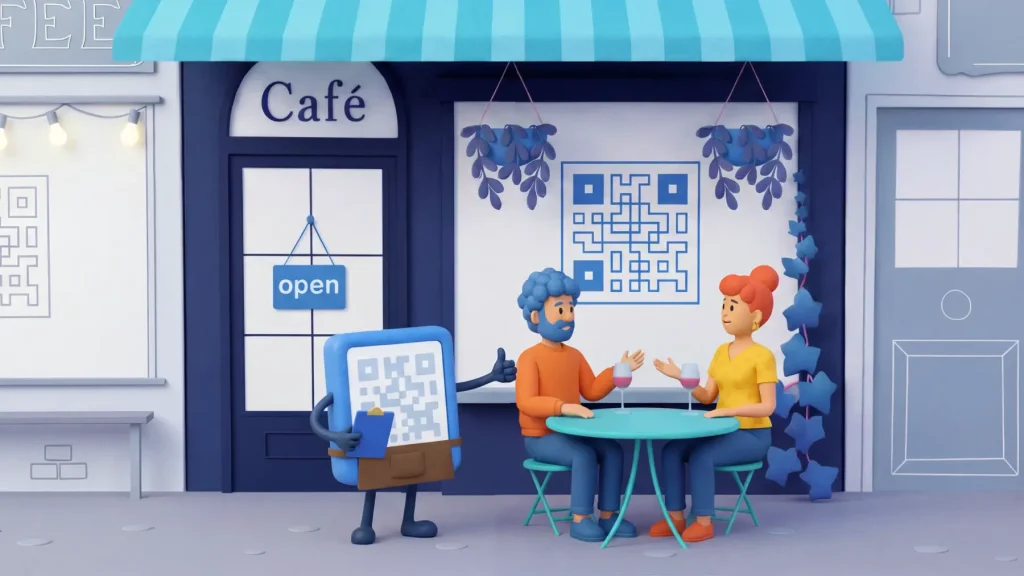
Contactless menus have become common post-pandemic, so much so that many diners don’t think twice about scanning a QR Code. They’re a more hygienic option than physical menus, and they let restaurants update menus instantly without reprinting.
Ready to go contactless with your menu? Here’s what you need to know about PDF QR Codes.
How to convert your digital menu into QR Code
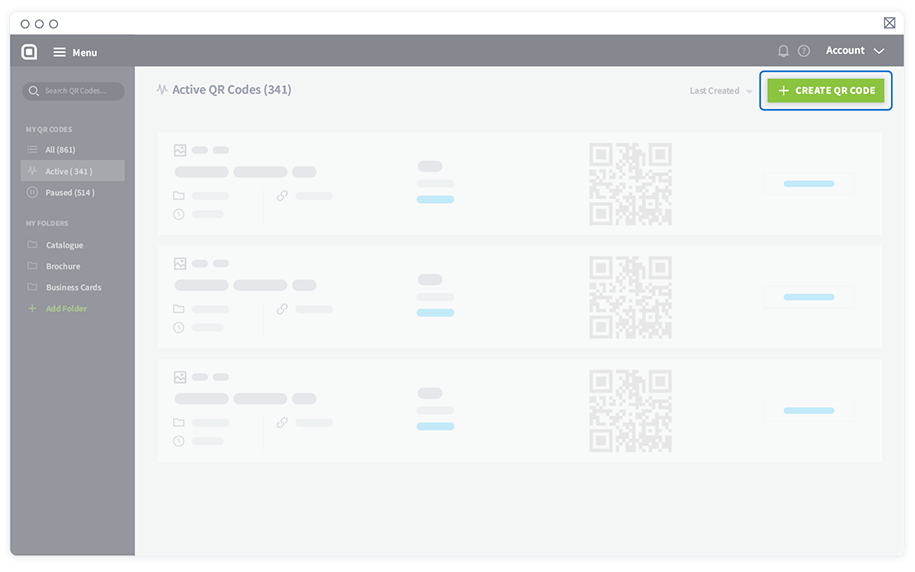
1. Once logged in, navigate to the dashboard and select Create QR Code.
2. First, log in to your QR Code Generator PRO account. Don’t have an account? Sign up for a 14-day free trial.
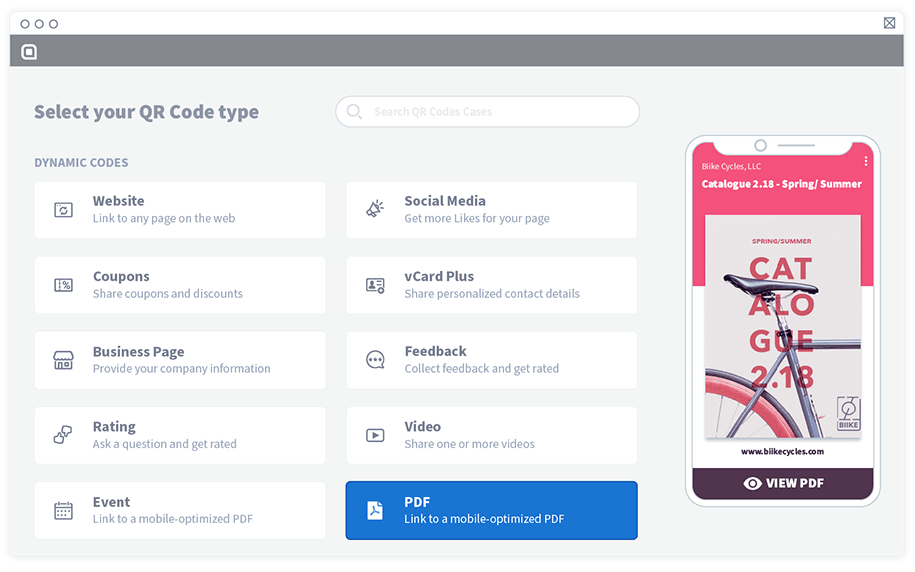
3. Under Dynamic Codes, select PDF and then Next.
4. Create a name for your QR Code (for example, “My Restaurant Menu”)
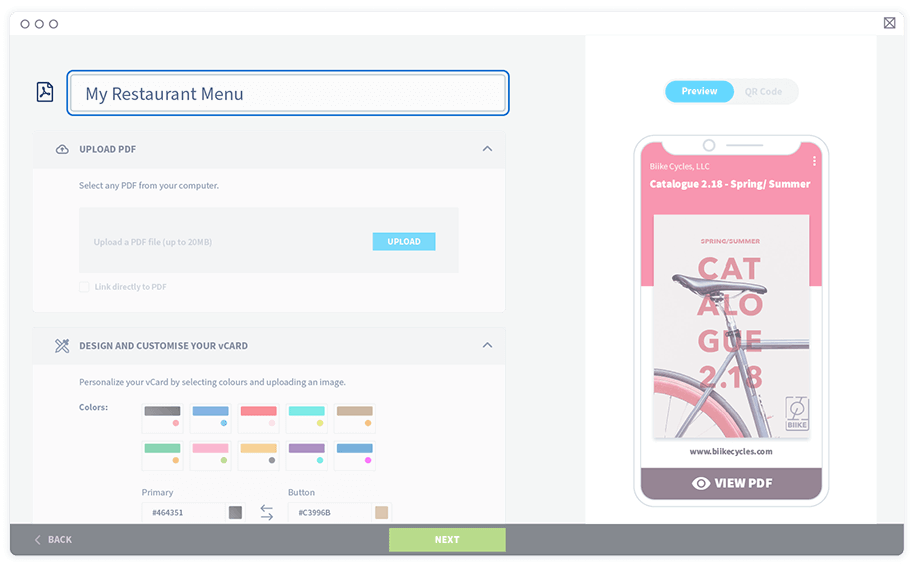
5. Upload a PDF version of your menu by selecting the Upload button.
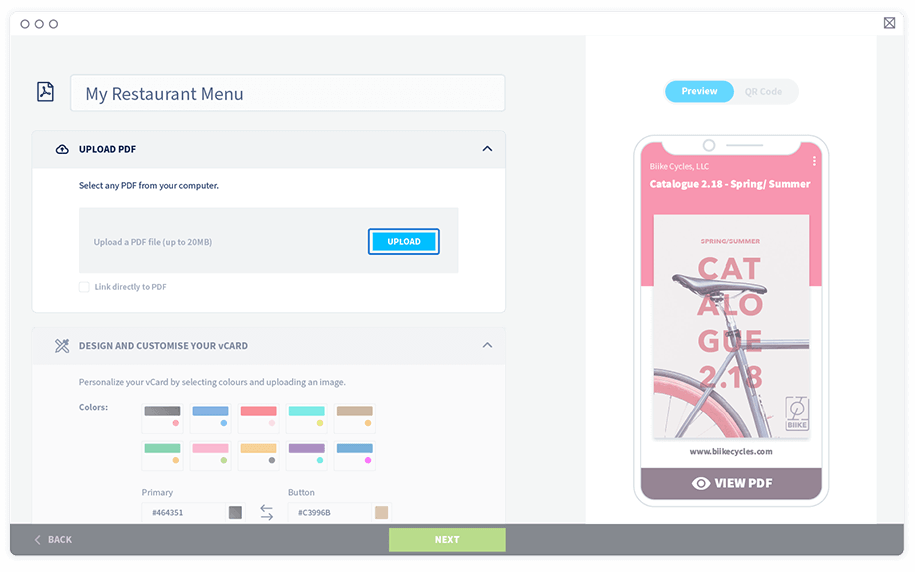
6. After your menu is uploaded, you’ll have two options:
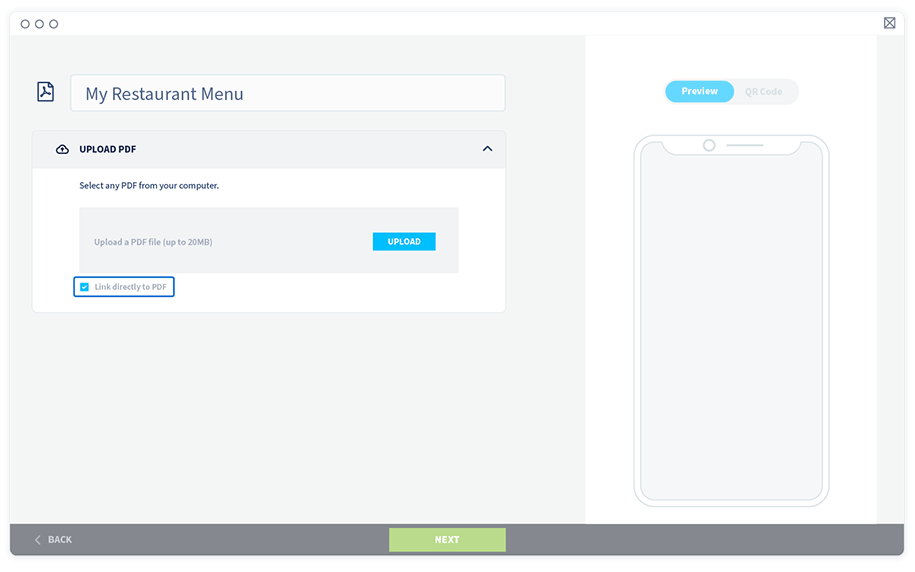
- Select Link directly to PDF so customers can download your PDF to their phones when they scan the QR Code. *If you choose this option, skip steps 7 through 9.
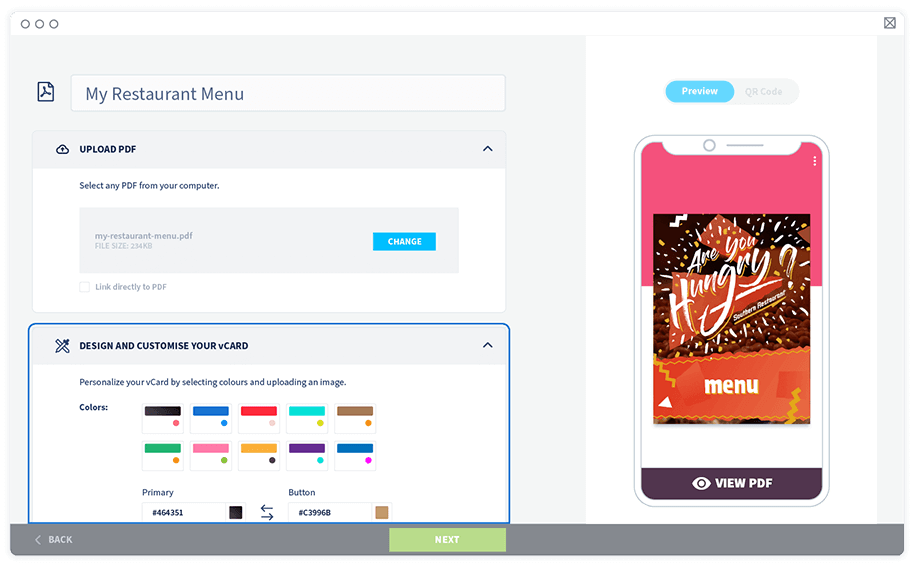
- Continue to the next section to design and customize your menu landing page.
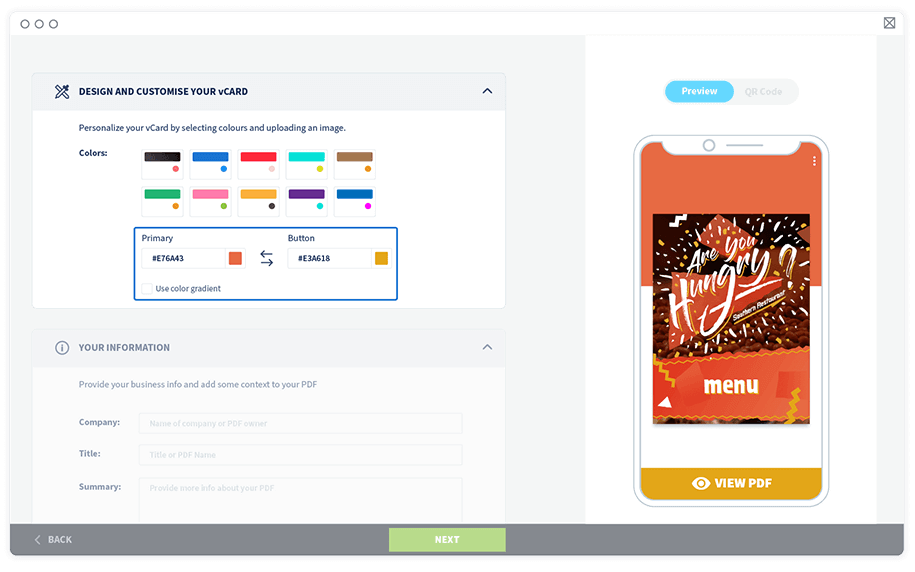
7. Next, choose a pre-selected color option for your PDF landing page background, or customize a color option using your restaurant or bar colors. You can choose from over 6 million color combinations and use the Hex color codes to match your brand colors and menu design.
8. Fill in your basic business information, including your business name, the title of your PDF menu, a description of the menu, and your website address.
9. Add your logo to the welcome screen to foster brand awareness and improve the customer experience.
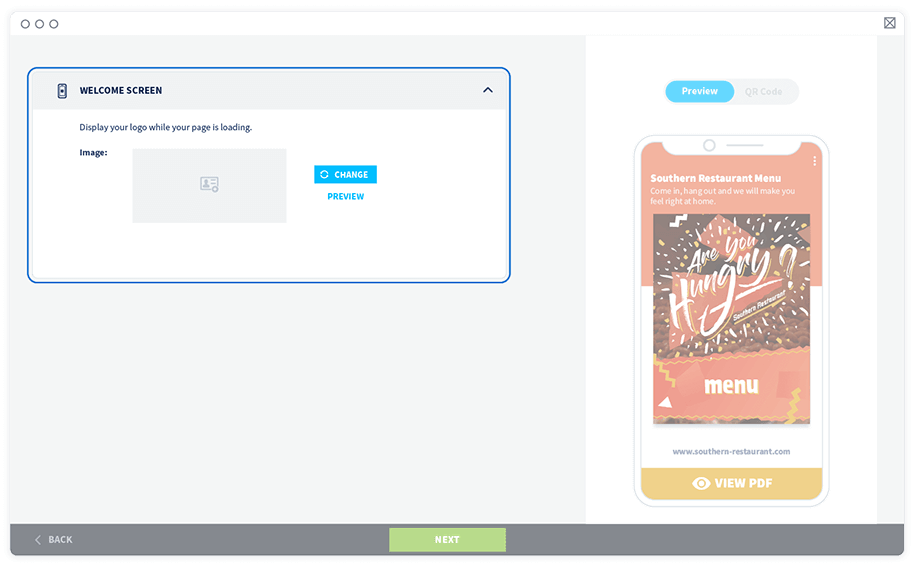
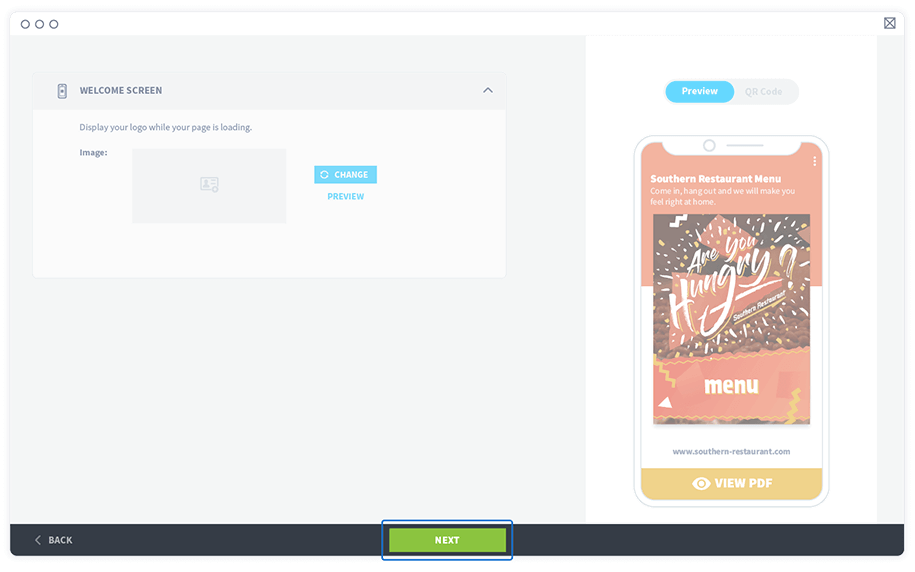
10. Select Next to proceed with designing your QR Code.
frew
Customize your QR Code menu to catch diners’ attention
Your menu can do more than just list items. It should also draw diners in! Vibrant images and detailed descriptions not only highlight your drinks and dishes but can also tempt diners to try new items or add to their orders.
We’ve included a few ideas below to help you customize your QR Code menu.
Create a custom short URL
Short URLs are easier to read and share. Additionally, branded URLs build trust better than a URL with a string of random characters. When patrons scan your QR Code and see a familiar URL, they’re more likely to browse your menu. Default URL redirects like l.ead.me, qrco.de, and q-r.to can seem impersonal, suspicious, or untrustworthy.
With QR Code Generator PRO, you can customize the back half of your shortened URLs to give visitors more confidence that the link is legitimate and let them know what to expect when they click. If you want to personalize your URL’s domain name as well, you can upgrade your plan and access more customization features.
Choose a frame with call-to-action text
Now that you’ve created the URL for your menu, it’s time to design the actual QR Code for customers to scan.
1. Select the Frame tab.
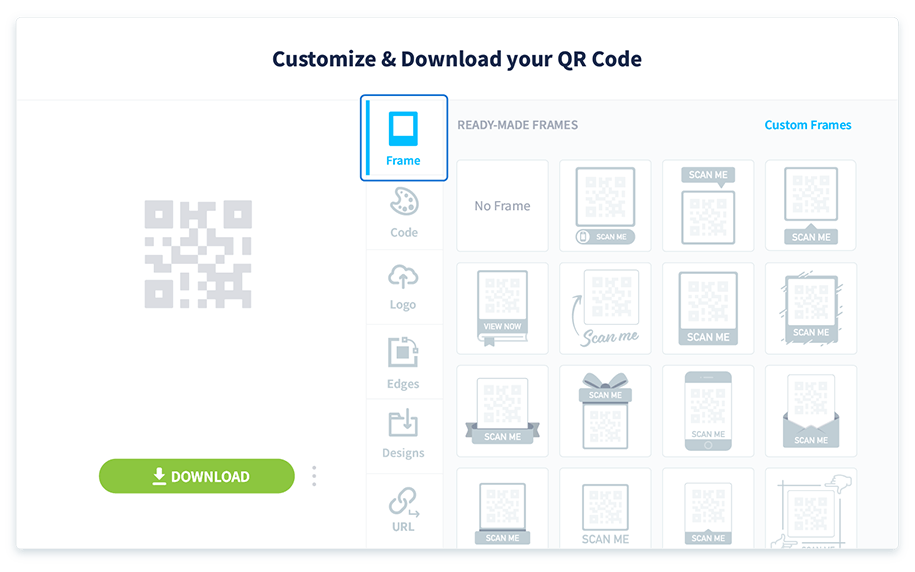
2. Start by choosing one of our ready-made frames to make your QR Code stand out.
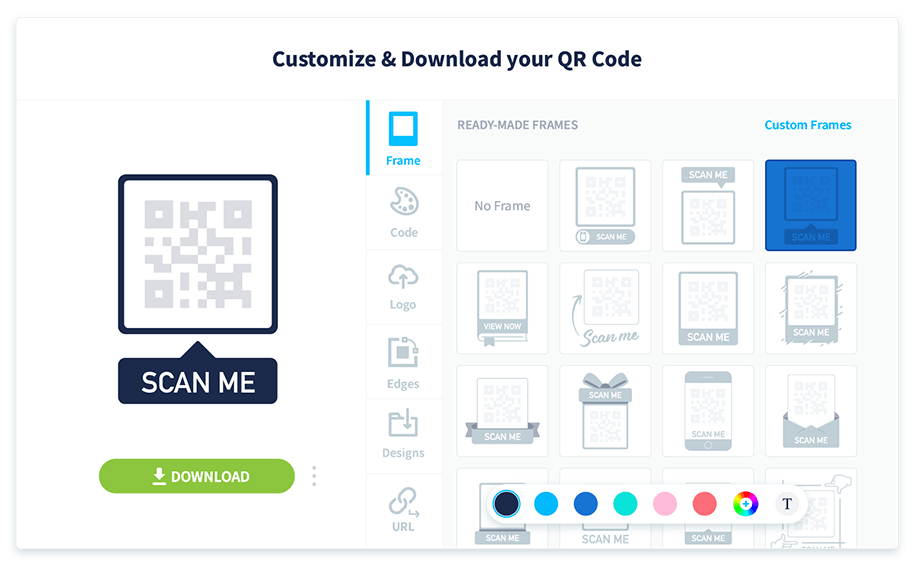
3. All frames have an editable call-to-action to urge your customers to scan the QR Code. Right under the frame choices, you can enter your CTA text. You’ll want something short and simple like “View Menu” or “Scan for Menu.”
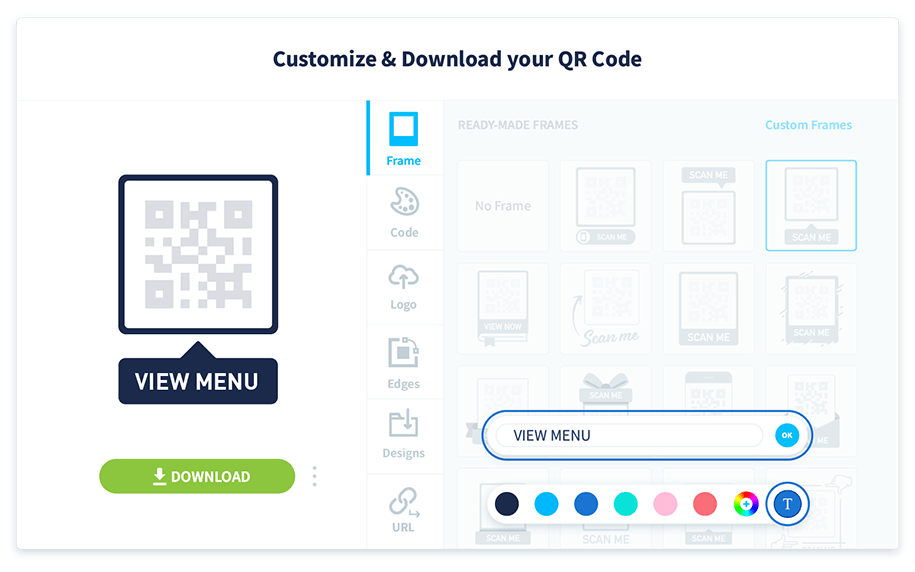
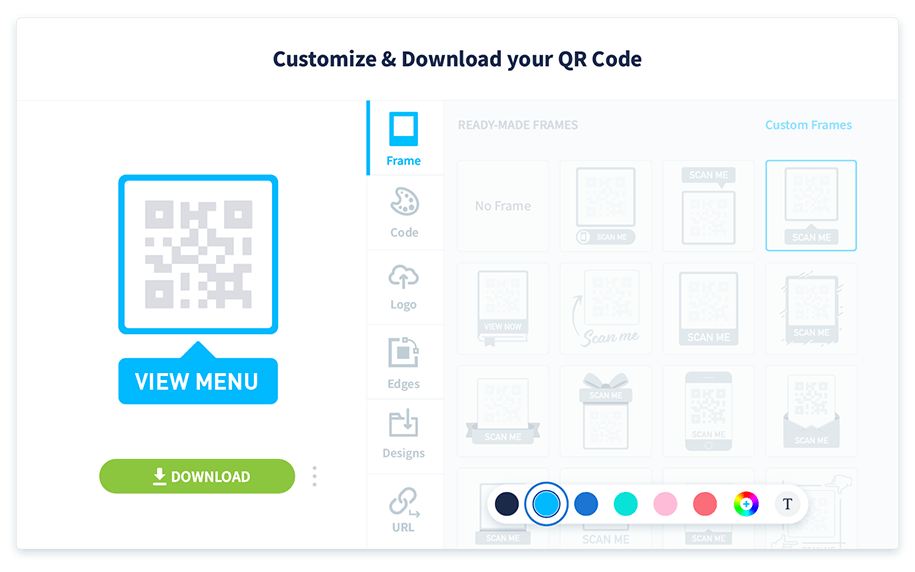
4. Next, change the color of the frame to match your restaurant’s branding. You’ll find the color selector right under the frame choices as well.
Change the code’s shape and color
You can also change the design and color of the small black-and-white squares in your QR Code.
1. On the customization page, right below the frame options, you can view the different design choices and select one for your code.
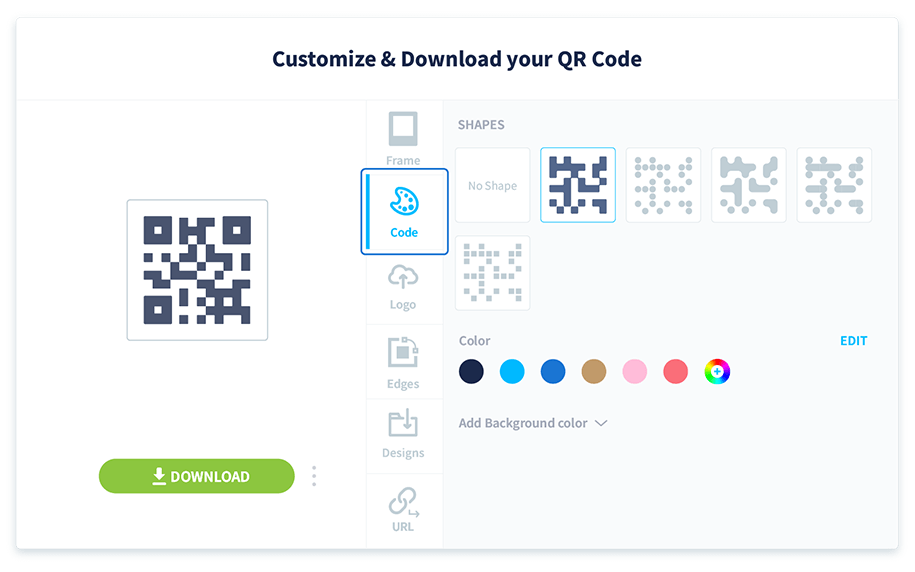
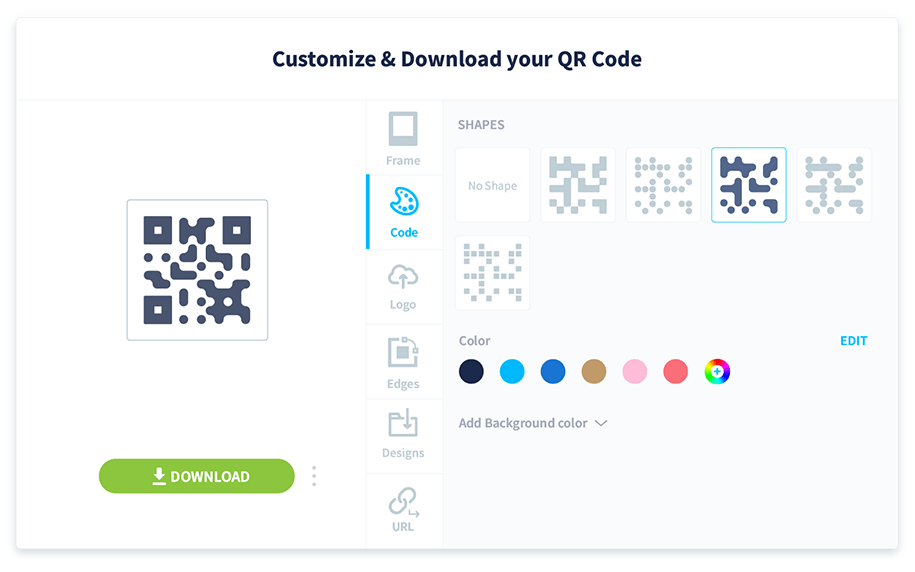
2. Customize the color of your QR Code to match your frame or pick another contrasting color that complements the design.
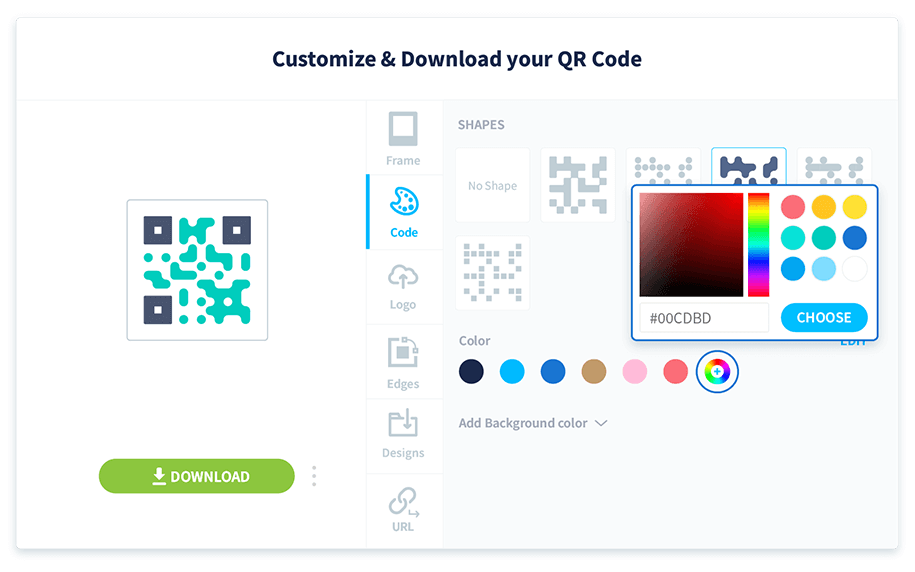
3. Select More options next to QR Code to customize the edges.
Add your logo in the center
Displaying your restaurant or bar logo directly on the QR Code is a great way to tie it back to your brand.
1. You’ll find the logo upload button right under the pattern options on the customization page.
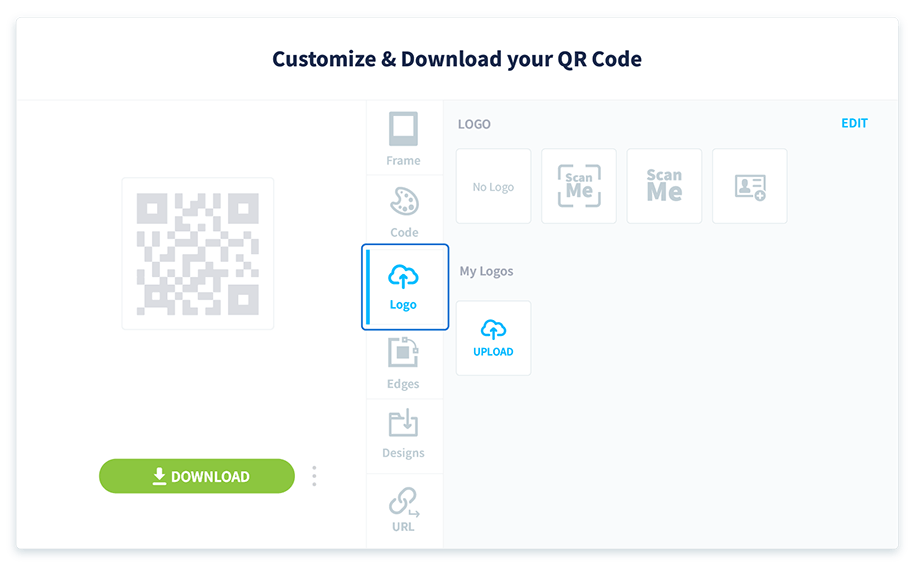
2. Select the Upload link to add your logo to the center of your QR Code.
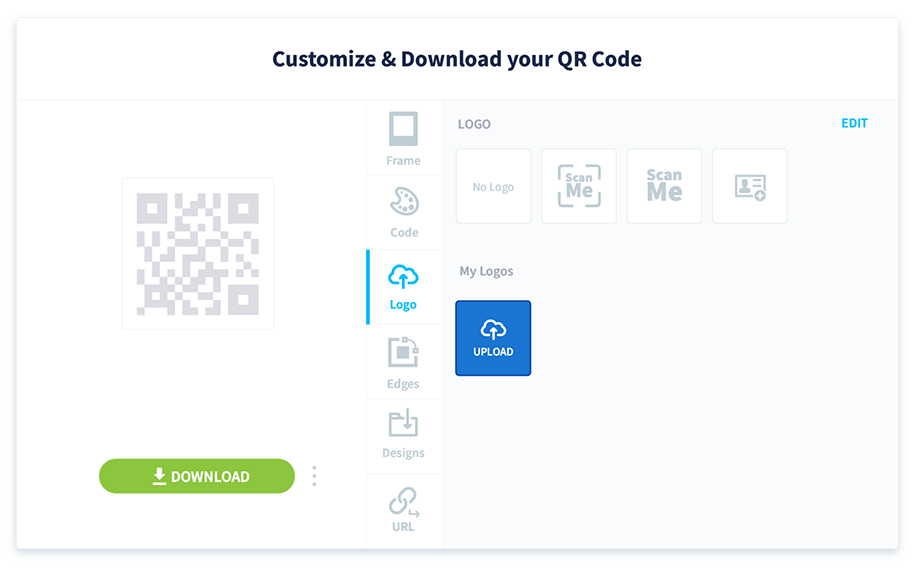
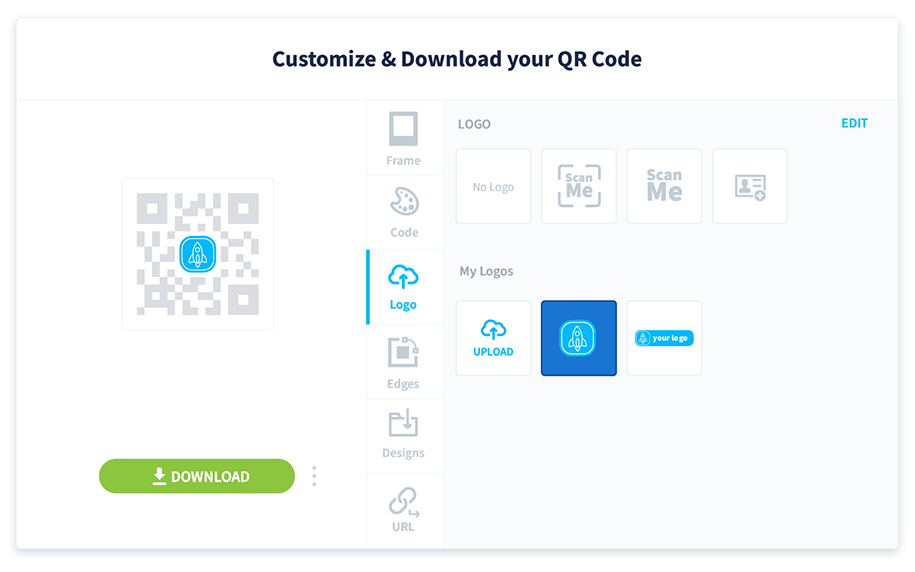
3. Your logo will be resized and adjusted automatically to fit.
Download in high quality
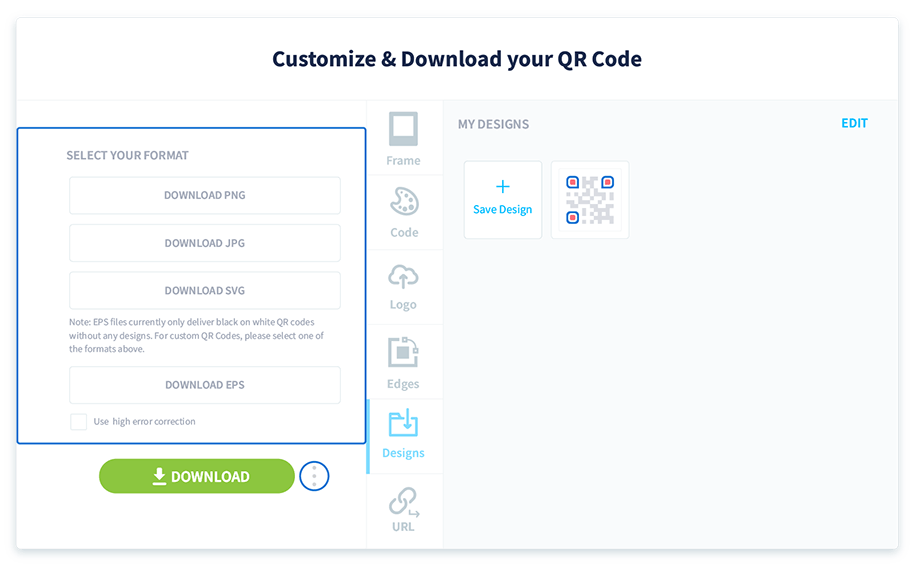
You can download the QR Code in four file formats: JPG, PNG, SVG, and EPS.
1. Select the Download button to download your QR Code file in PNG format automatically. You can use this file format on any design to add your QR Code.
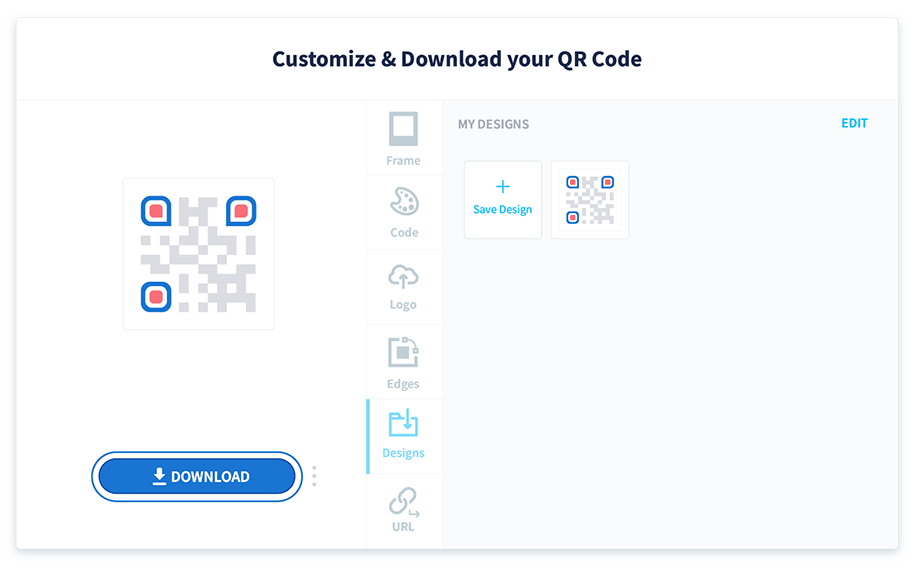
2. Select the three vertical dots next to the Download button to download your code in other file formats.
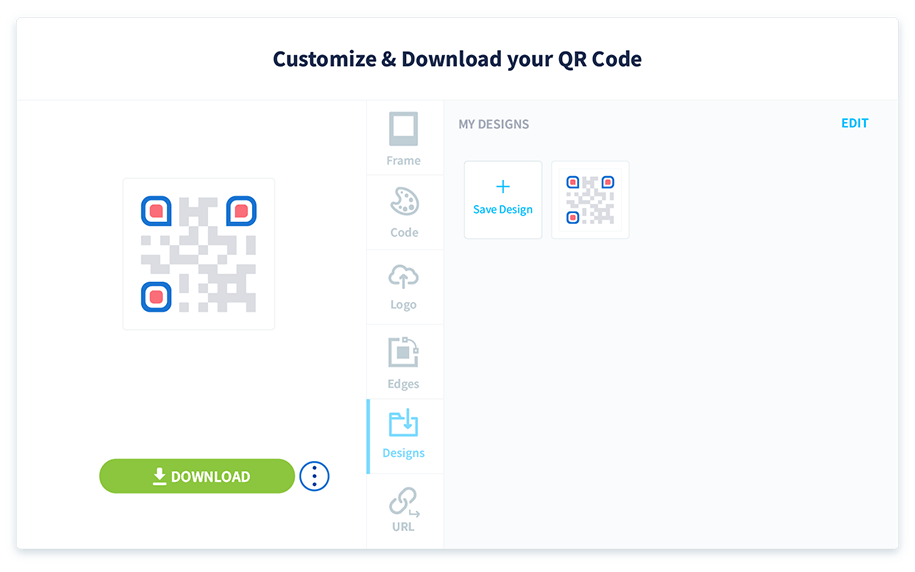
3. Choose the QR Code format you want to download.
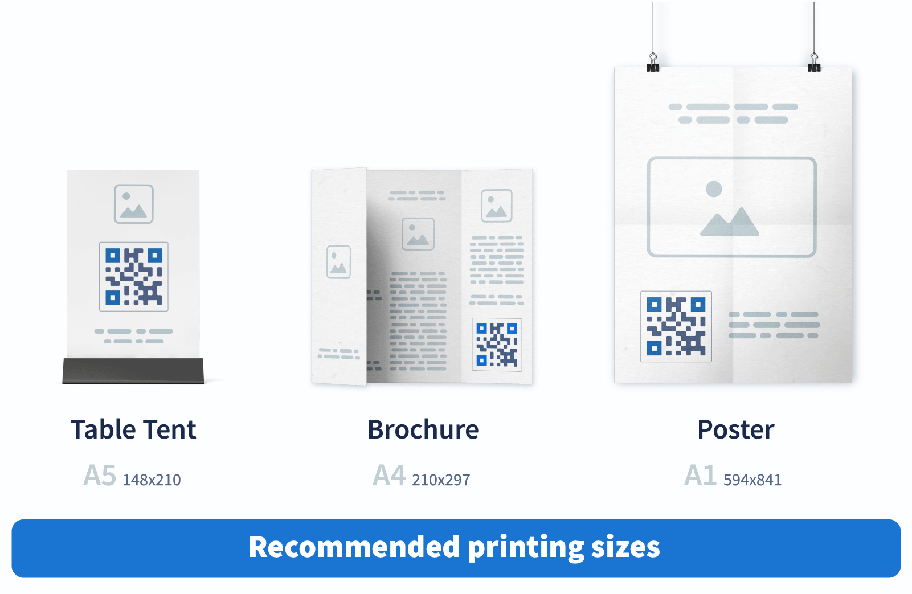
Display your PDF menu QR Code on table tents, posters, and more!
QR Codes can attract even more attention when you add them to your existing designs. Below, we’ve included a few of the most common places to print QR Codes for restaurants, along with standard file sizes.
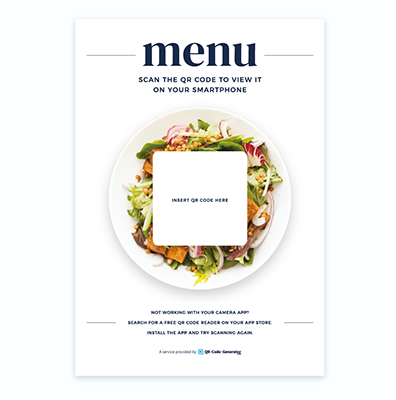
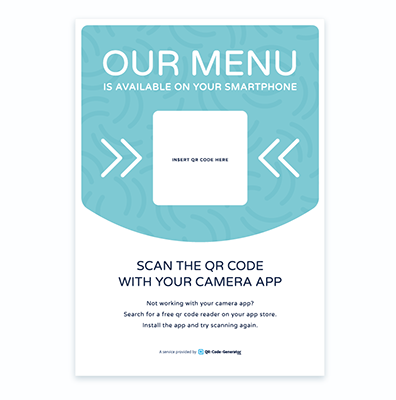
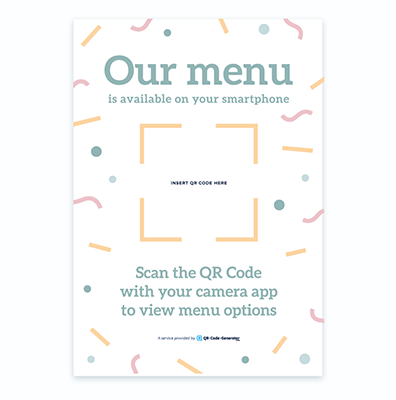
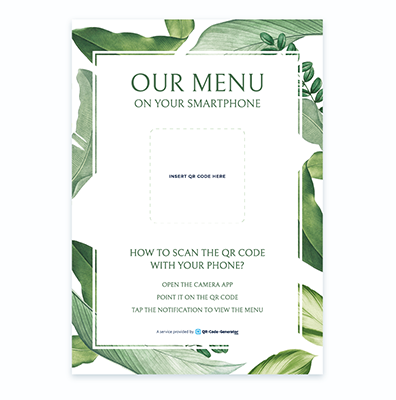
To make the process even easier, we have pre-built templates that you can use. Each one includes instructions that make it easy for customers to scan your QR Code. Here’s how to use them to create eye-catching signage in seconds:
- Select a template and download it.
- Open the template with any image editing tool.
- Insert your QR Code in the empty box provided.
- Adjust the size of your QR Code by dragging the corner to fit the empty box. Drag from the corner—not the top, bottom, or sides—to maintain the code’s original shape.
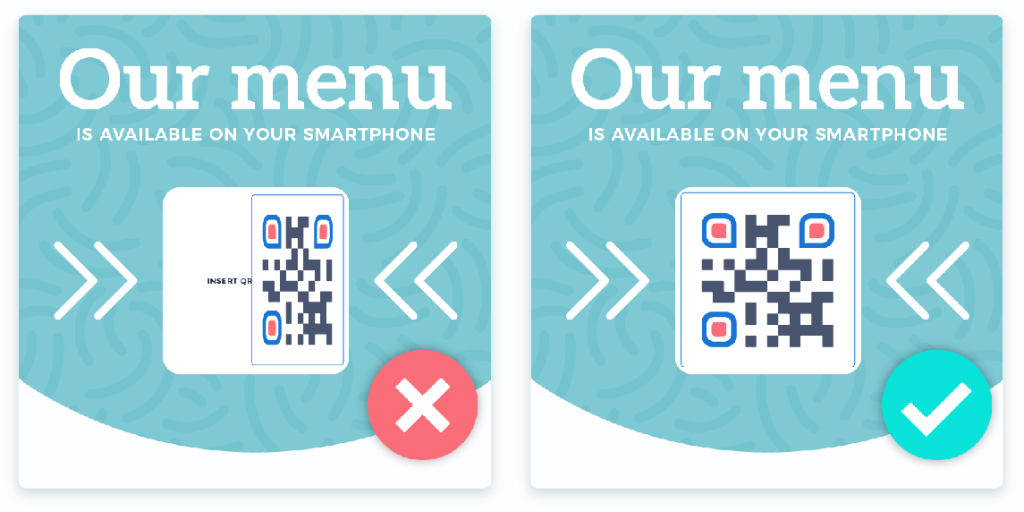
- Save and export the image in a high-quality print format.
Important: Test your QR Code to make sure it’s scannable. Dragging or resizing your QR Code can sometimes create blurry or unrecognizable shapes.
Choose which template you’d like to use below:
Restaurant menu QR Code examples
Need a little inspiration? Here are a few ways to showcase your new QR Code menu and make it easy for customers to scan it.
Why trade printed menus for PDF QR Codes?
Easily share a PDF with a single scan
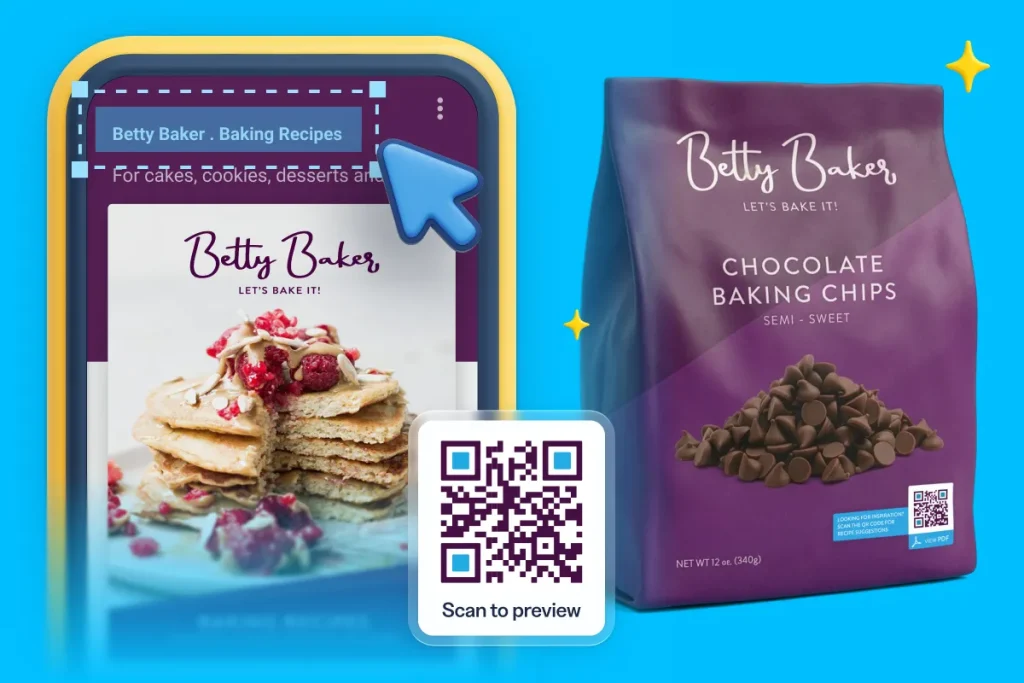
Expand your marketing materials with this QR Code type, and display a digital brochure, product manual, catalog, menu, and much more.
Save on menu printing costs
Paper menus are high maintenance. Drinks spill, sauces smudge, and printing and reprinting are costly. Many restaurants have actually increased profits with digital menus.
When you replace physical menus with a PDF QR Code, you only have to print the code on surfaces where it’s easily accessible—walls, windows, doors, and even tables—eliminating the need to toss out your menus after every spilled drink. In the restaurant industry, where the average profit margin is 10.66%, every penny counts. QR Code menus are also a more sustainable option, cutting down on paper waste.
Update the menu at any time
Adding a new dish or launching a seasonal menu? Just upload a new PDF. People will see the updated menu when they scan your QR Code, eliminating the need to print a new one. The PDF QR Code is a type of Dynamic QR Code that allows you to replace and edit the PDF whenever you want in just a few clicks.
Updating your menu can be time-consuming and costly, especially when changes need to be made on the fly—like when a dish sells out or a special is discontinued. The PDF QR Code is ideal, allowing you to make updates in real time, so your servers don’t have to keep delivering the bad news to customers.
Reduce demands on wait staff
The COVID-19 pandemic taught us just how germ-filled menus can be. Creating a PDF QR Code for your menu limits germ-sharing and keeps your staff members from spreading those germs as they serve customers.
When customers can scan a QR Code from their table, your staff members no longer have to hand out physical menus and explain the specials. You can add as much information as you want about your menu items directly in the PDF.
Plus, many customers prefer the convenience of contactless solutions at restaurants. They can scan the online menu as soon as they arrive at a bar or restaurant and explore their options in greater detail from their mobile devices.
Create a more diner-friendly menu
Including images on physical menus can be costly, so restaurants often skip them. With PDF QR Codes, you can add appetizing images so customers know exactly what to expect when they order. Nearly 3 in 4 diners say pictures on a menu influence their order decisions.
Pictures are worth a thousand words, especially when you have young children, visually impaired customers, and multilingual patrons viewing your menu.
Track and measure QR Code menu scans
Unlike paper menus, PDF QR Code menus can give you valuable data about your customers. You can track peak dining times, popular items, and repeat customers. These insights can help you make more strategic decisions about staffing, menu options, and how to keep customers coming back. Ultimately, tracking scans from their QR Code menu helps restaurant owners create the best dining experience for patrons.
FAQ
Yes, you can upload one PDF file with a maximum limit of 20 MB.
Your PDF QR Code comes with a short URL you can use to promote your menu on social media, email, or your website.
No, you don’t have to create a new QR Code. Simply upload your updated PDF to the same QR Code, and it will automatically link to the latest version when scanned. For detailed instructions, you can refer to our Help Center.
There are a couple of different ways diners can use your QR Code menu. If they’re dining in, they can simply scan the code to browse a digital version of your menu, then place their order with their server. But, you can also make it easier for them to order takeout online by linking to your website, either through a short URL on your digital menu or by linking your website on the PDF QR Code landing page.
No, you can only embed one PDF. If you have multiple menus that vary depending on the time of day, we recommend combining them into one PDF. You can also use a Dynamic URL QR Code that points to your website, where visitors can access each menu.