How to Generate QR Codes in Bulk

Tired of creating QR Codes one by one? With the Bulk Create feature, you can now create and update multiple QR Codes by simply uploading a CSV file. Try now for free!
What is bulk create QR Codes?
Bulk create QR Codes is the process of generating and creating multiple QR Codes in one go. By creating QR Codes in large amounts, you save time and effort from having to create them individually and manually.
Why should you generate QR Codes in bulk?
Depending on your goals, you might benefit from creating QR Codes in bulk. This feature is especially useful when you need to create multiple QR Codes all at once, each with its own unique content.
Employee business cards
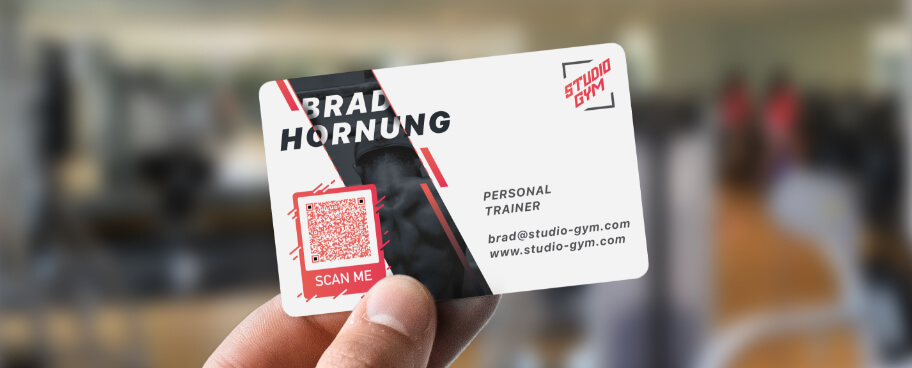
Companies that want to add QR Codes on business cards for their employees will greatly benefit from generating QR Codes in bulk with each employee’s information. This is the fastest way to create unique vCard QR Codes in one go.
Event IDs/Badges

Event organizers who would like to create unique QR Codes on ID badges for their on-ground staff will be able to create multiple QR Codes with the corresponding contact info. Or, if you need to create unique QR Codes on behalf of businesses participating in your event, you can also use the bulk create feature to save time.
Inventory systems
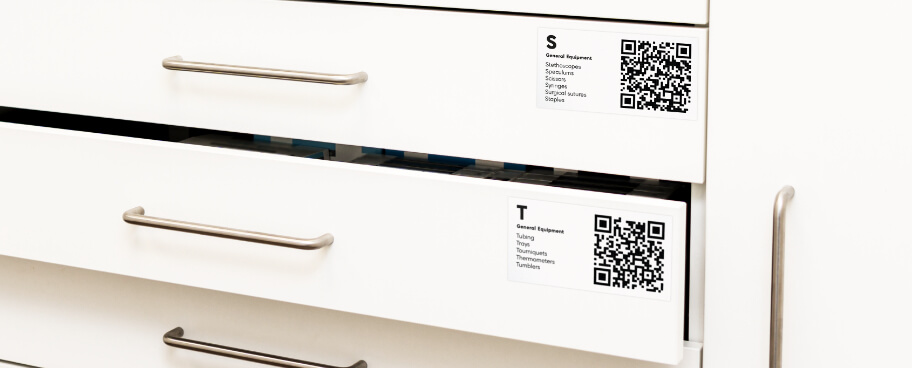
Restaurants, retailers, or hotels that want to track their inventories using a QR Code system will find that generating QR Codes in bulk saves time and effort. All you need to do is use the Plain Text QR Code to create inventory lists and have them printed on stickers or labels.
Which QR Code types can I generate in bulk?
With QR Code Generator PRO, you have the option to select from over 20 QR Code types, each with its own unique features. But for now, there are only four QR Code types you can create in bulk: Dynamic URL, Static URL, vCard (static), and Plain Text (static).
Dynamic URL QR Code
Use this QR Code type to allow your audience to access a web page when scanned. Its dynamic functionality lets you track the scans and gives you the ability to edit or replace the link at any time, even after print. Learn more about this type.
Static URL QR Code
This QR Code is similar to Dynamic URL, minus the tracking and editing features. Once generated, the link in the QR Code can no longer be changed and any typos in the URL will cause this QR Code to no longer work. Learn more about this type.
vCard QR Code
Also known as a virtual business card, this QR Code type stores your contact information so that when scanned, your customers can save the stored data on their smartphones without having to type each field manually. Learn more about this type.
What information can you store inside a vCard QR Code?
A single vCard QR Code can contain basic information such as your full name, company, job title, phone numbers (mobile, home, fax), email address, personal/office address, and your birthday. Below is an example of a ready-made vCard QR Code for a fictional person, John Smith.
| Field | Example |
| First name | John |
| Last name | Smith |
| Company/Organization | Smith Designs LLC |
| Job title | Lead Designer |
| Mobile | 111 555-1212 |
| Phone | 404 386-1017 |
| Fax | 866 408-1212 |
| smith.j@smithdesigns.com | |
| Website | https://www.smithdesigns.com |
| Street and number | 151 Moore Avenue |
| Zip | 49530 |
| City | Grand Rapids |
| State | Michigan |
| Country | United States of America |
| Birthday | 05.03.1981 |
Plain Text QR Code
Perfect for inventory or to store any alphanumeric data, this QR Code type can be accessed without using an internet connection as it opens the default text viewer or note application in the scanner’s device. Learn more about this type.
How to generate Dynamic URL QR Codes in bulk?
1. Log in to your QR Code Generator PRO account. If you don’t have one, create one for free.
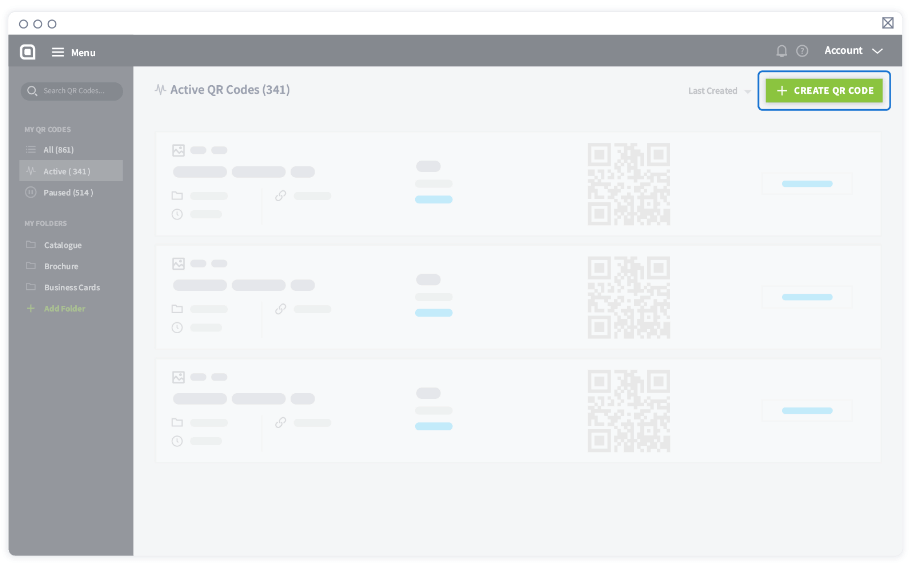
2. On the Dashboard, select Create QR Code.
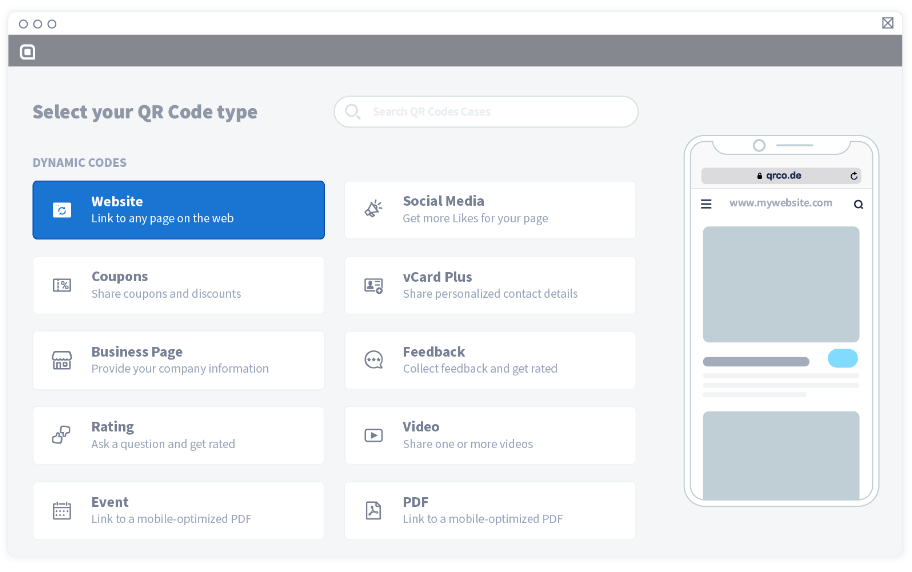
3. Under Dynamic Codes, choose Website.
4. Then, select Bulk Create > Upload CSV.
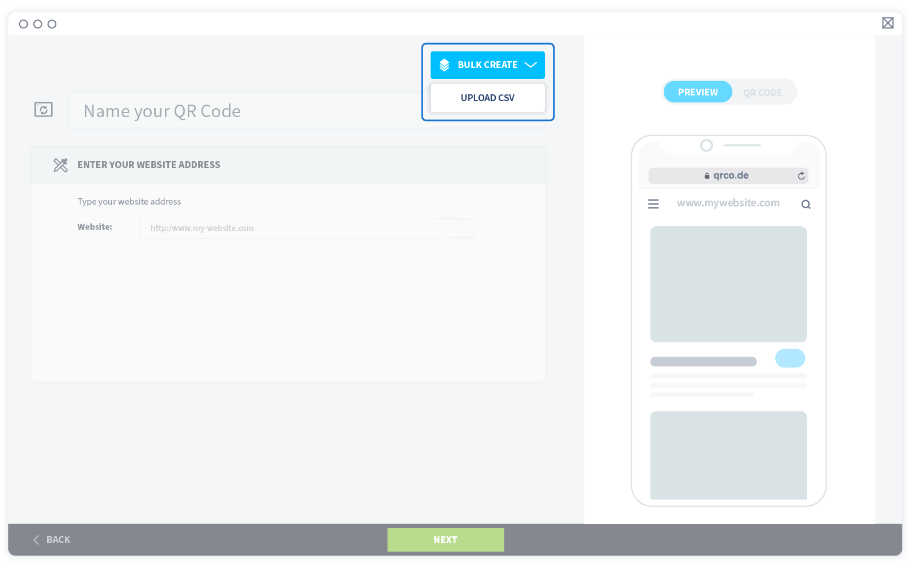
5. A new window will appear. Download the CSV file and open it.
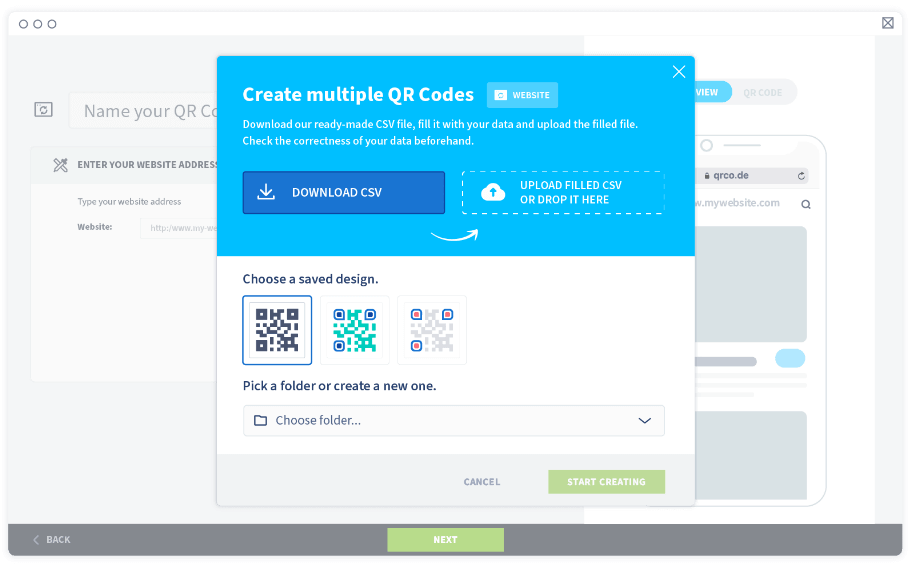
6. Enter all the website URLs and the names of the QR Codes in one column, with one new URL and name in each row as shown below.
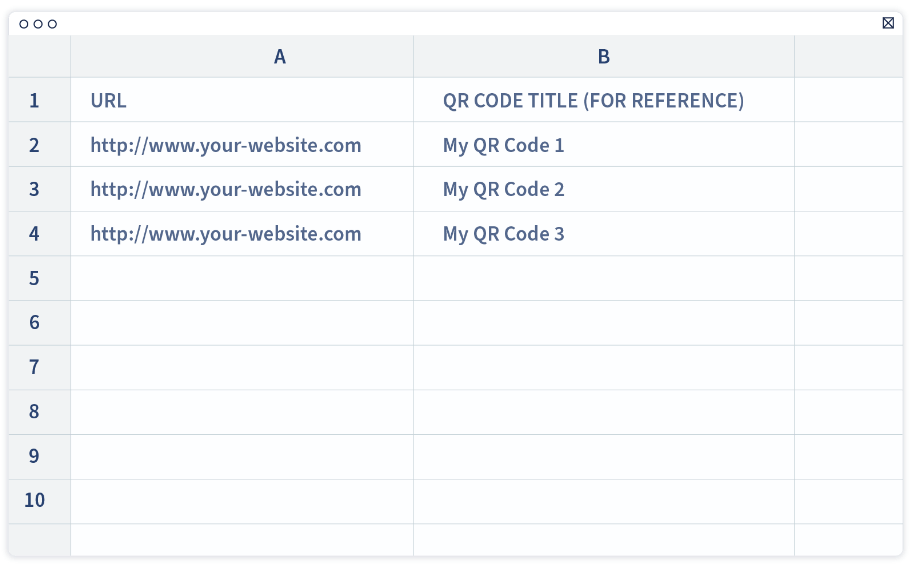
Important: Website URL and QR Code name must be inside quotation marks, separated by a semicolon without spacing.
7. Ensure all the website addresses are accurate and check for typos or broken links. Now, save the CSV file and upload it.
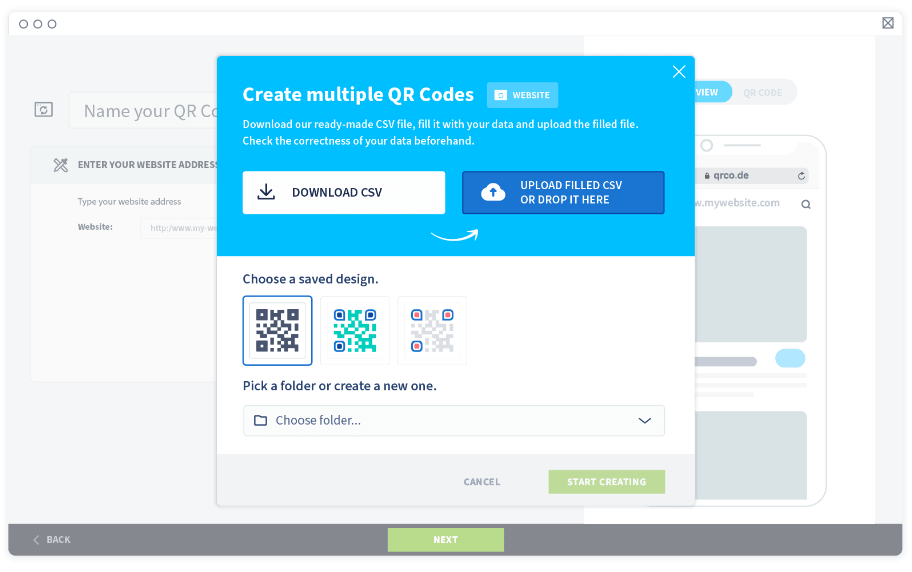
8. Wait until the tool has validated the uploaded file. Please observe the warning errors and follow the instructions to fix them, if any.
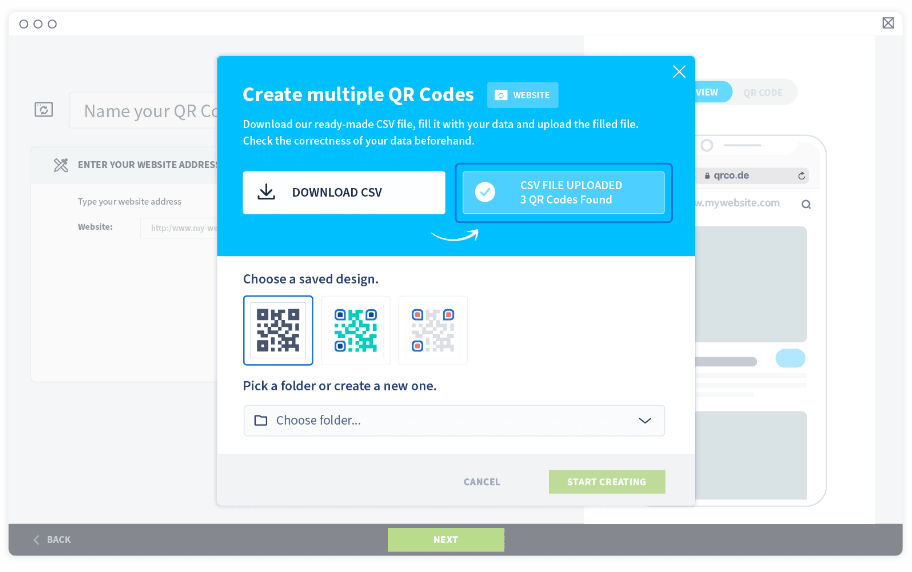
9. If there are no warning errors, proceed with selecting a saved QR Code design and a folder to store the new QR Codes in.
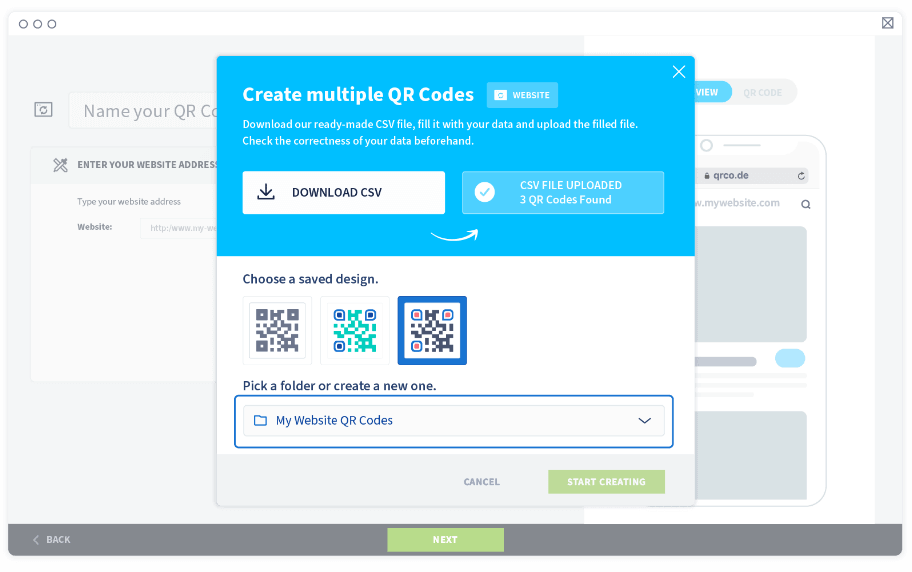
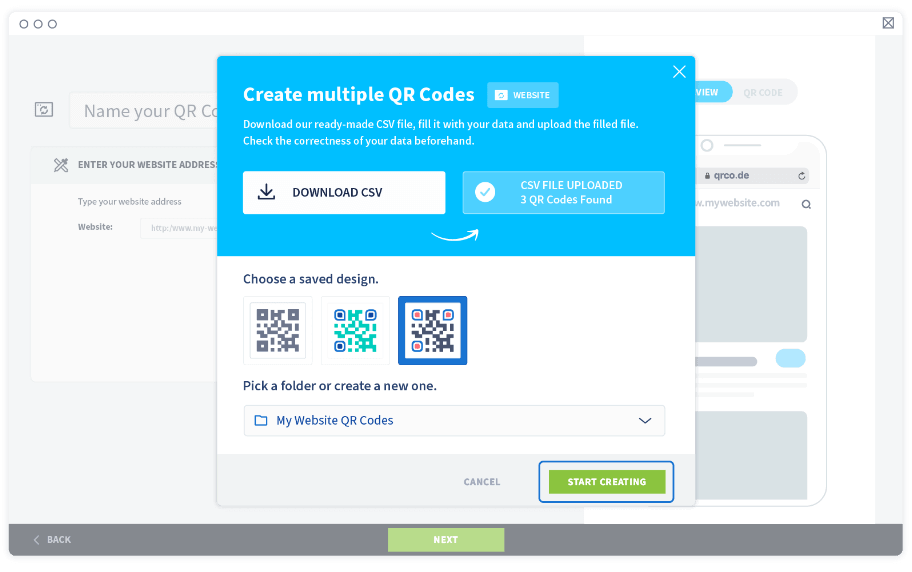
10. Select Start creating to generate all the QR Codes in one go.
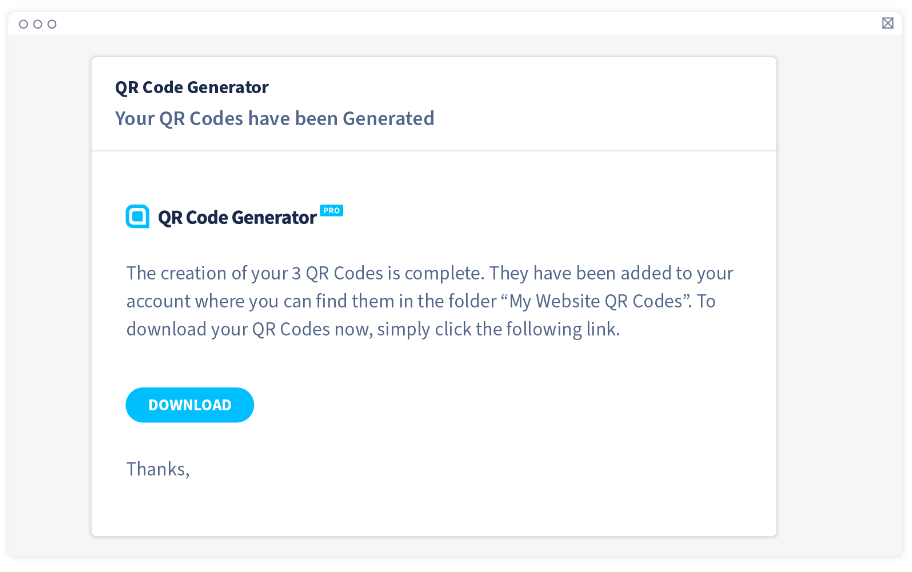
11. Wait for the confirmation email where you will receive a link to download all the finished QR Codes or check the folder you’ve assigned for the finished QR Codes.
Pro tip: Dynamic URL can be replaced even after print. To update these URLs in bulk, simply follow the steps below.
How to update Dynamic URL QR Codes in one go:
1. Go to the folder where the Dynamic URL QR Codes are stored.
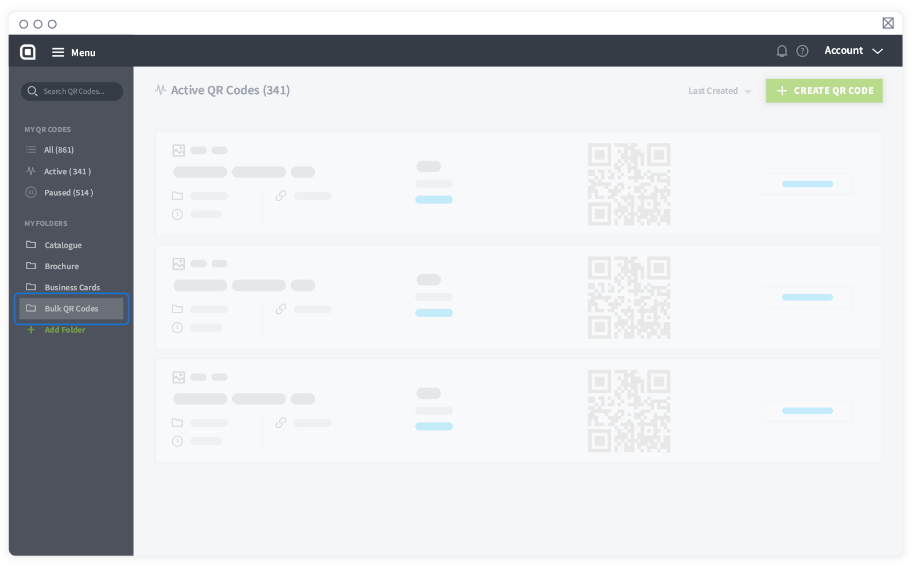
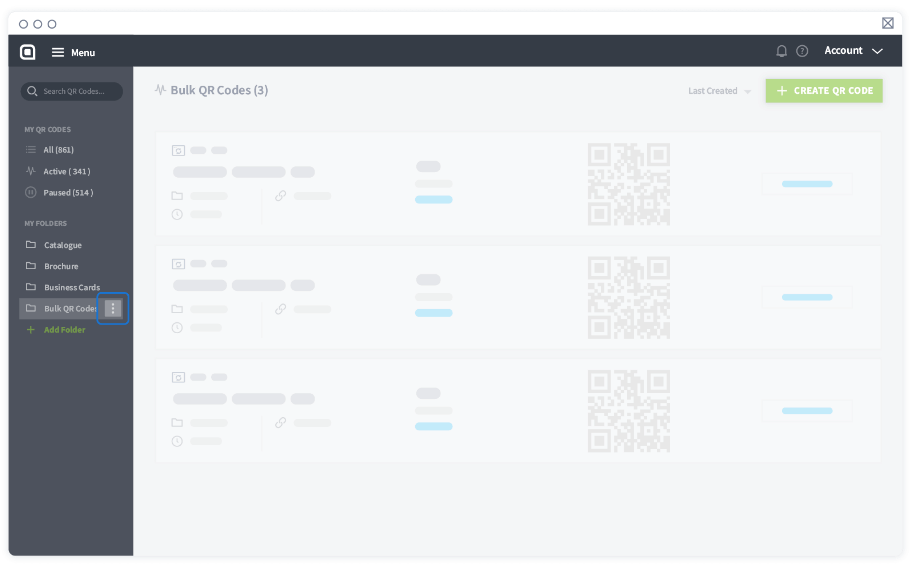
2. Select the three dots icon next to the name of the folder.
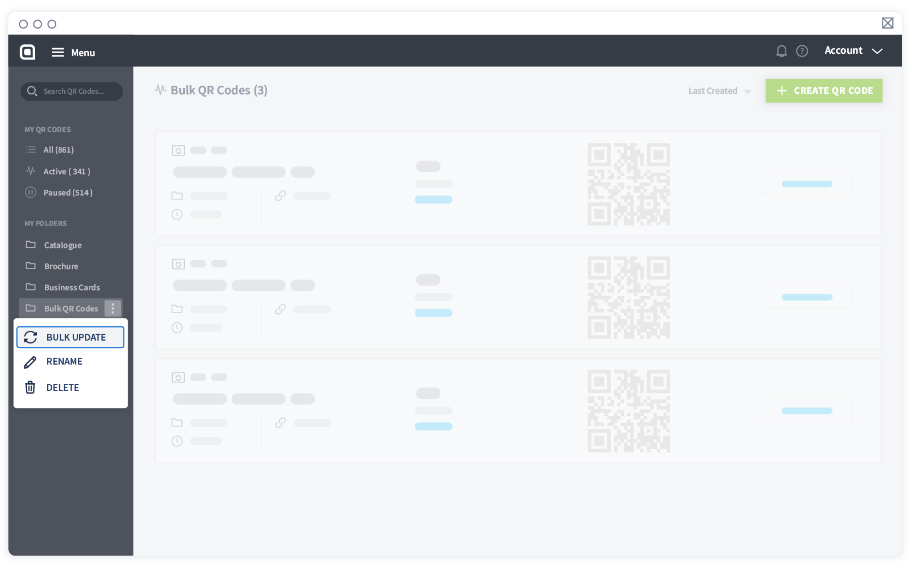
3. Select Bulk Update and follow the same instructions above, starting from step 5 to step 11 carefully.
Important: Do not edit the short URLs assigned to each QR Code. This will cause your already printed QR Codes to be unreadable by scanners. Editing the original website URLs and QR Code names, however, will not affect the scannability of the existing QR Codes.
How to generate Static URL QR Codes in bulk?
1. Log in to your QR Code Generator PRO account. If you don’t have one, create one for free.
2. On the Dashboard, select Create QR Code.
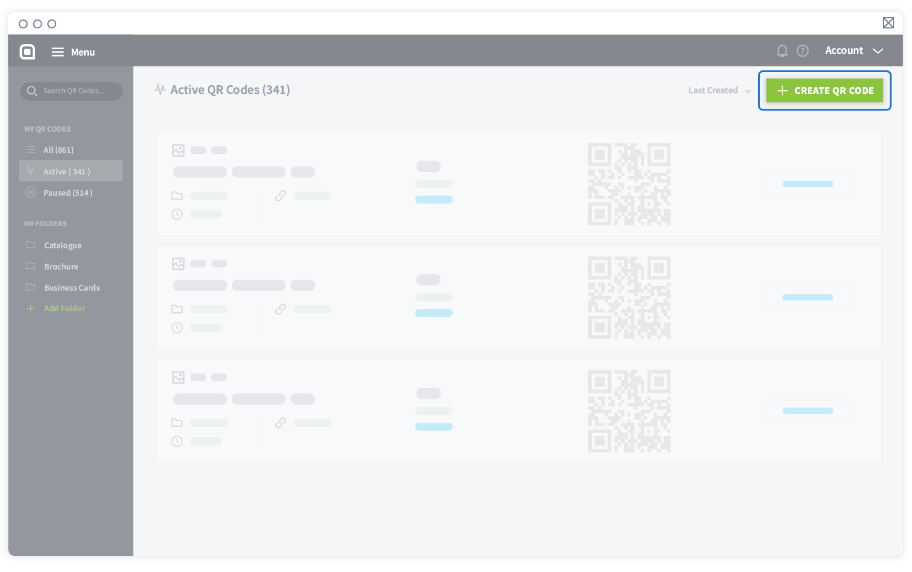
3. Under Static Codes, choose Website.
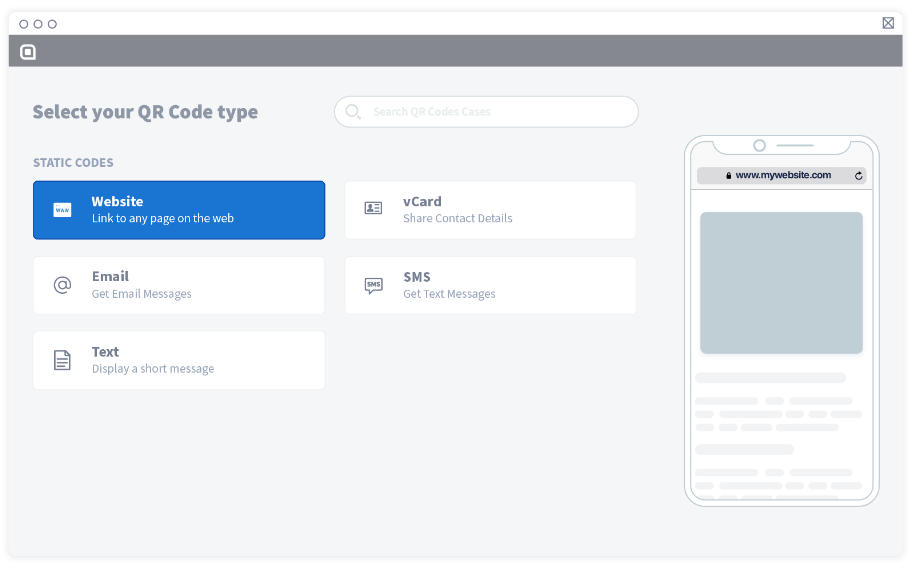
4. Then, select Bulk Create > Upload CSV.
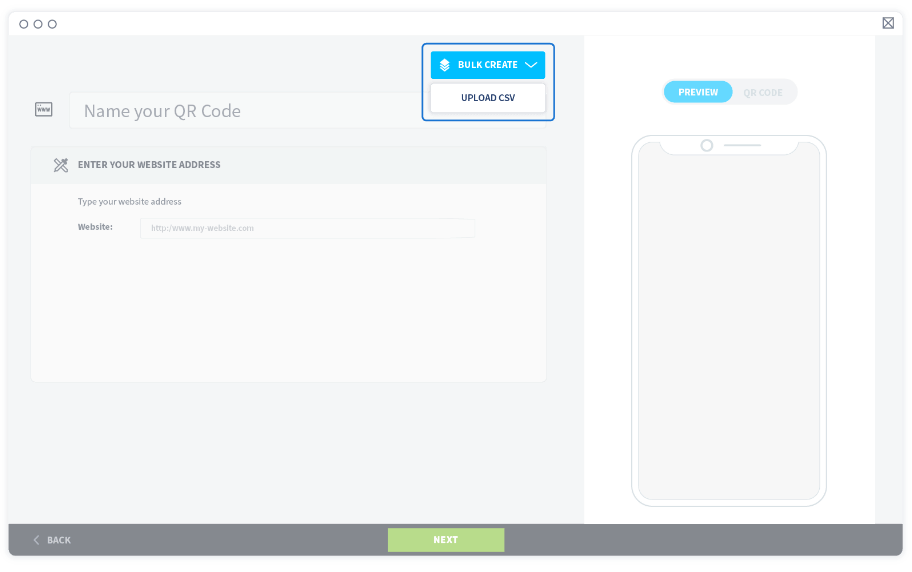
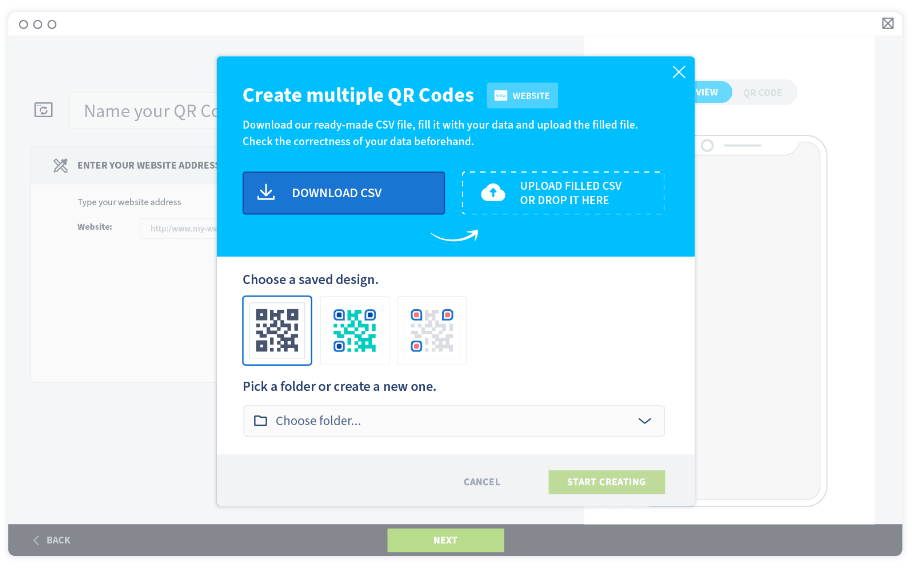
5. A new window will appear. Download the CSV file and open it.
6. Enter all the website URLs and the names of the QR Codes in one column, with one new URL and name in each row as shown below.
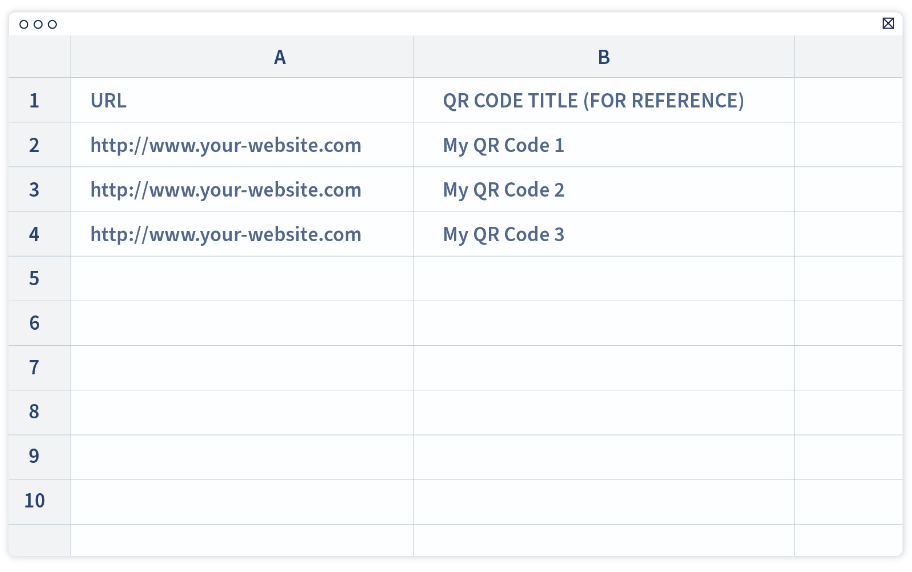
Important: Website URL and QR Code name must be inside quotation marks, separated by a semicolon without spacing.
7. Ensure all the website addresses are accurate and check for typos or broken links. Once these QR Codes are generated, you will not be able to edit the links or fix any mistakes. Now, save the CSV file and upload it.
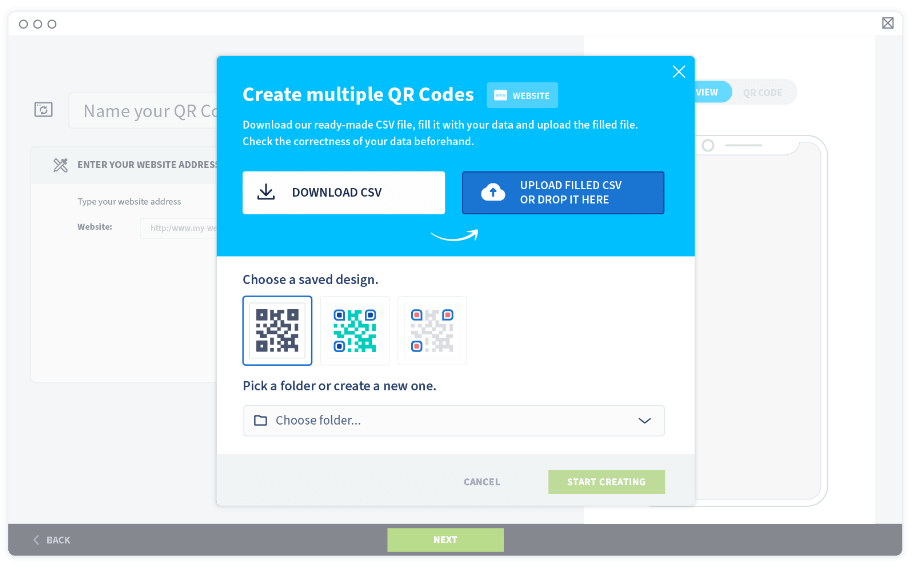
8. Wait until the tool has validated the uploaded file. Please observe the warning errors and follow the instructions to fix them, if any.
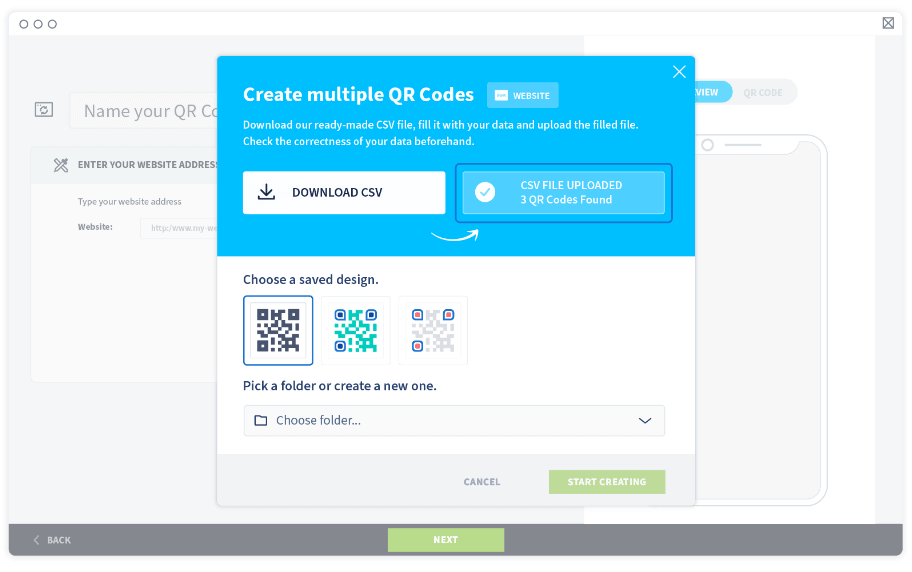
9. If there are no warning errors, proceed with selecting a saved QR Code design and a folder to store the new QR Codes in.
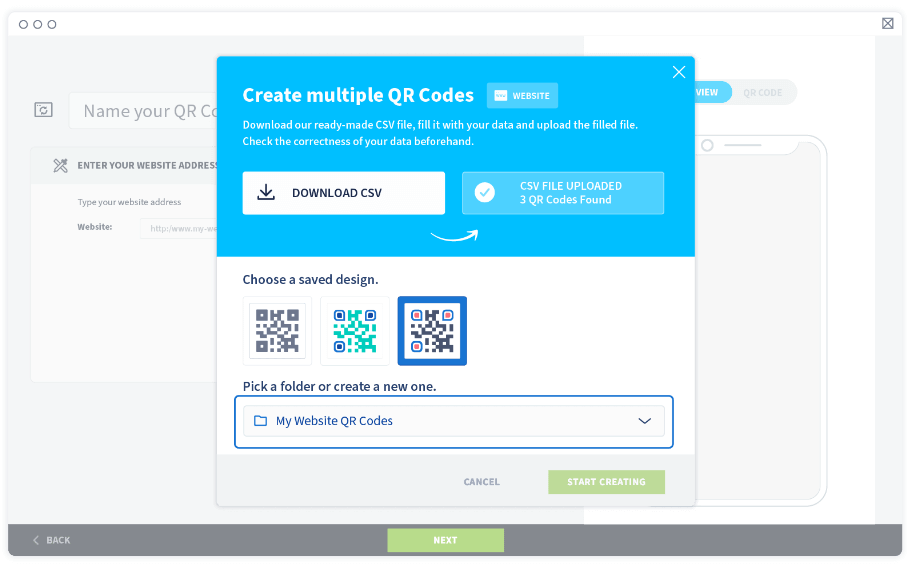
10. Select Start creating to generate all the QR Codes in one go.
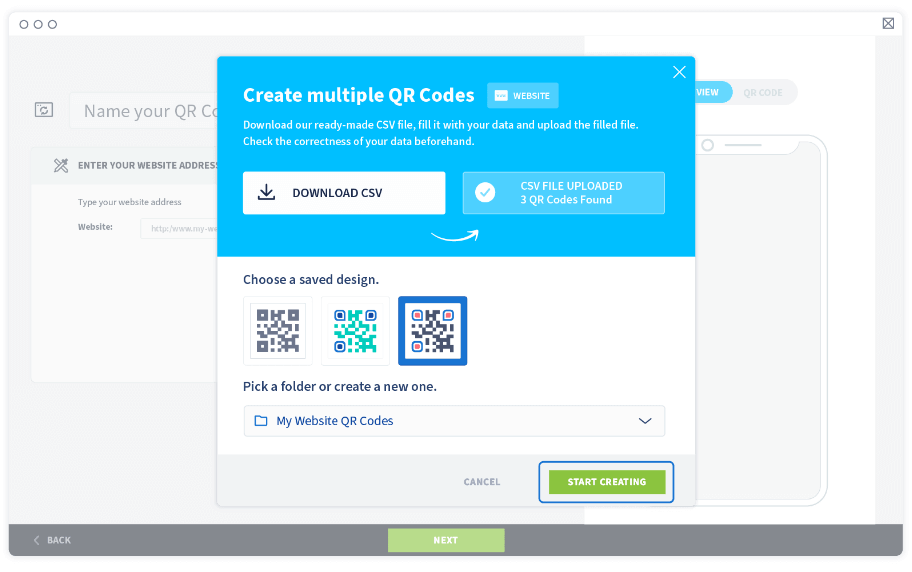
11. Wait for the confirmation email where you will receive a link to download all the finished QR Codes or check the folder you’ve assigned for the finished QR Codes.
How to generate vCard QR Codes in bulk?
1. Log in to your QR Code Generator PRO account. If you don’t have one, create one for free.
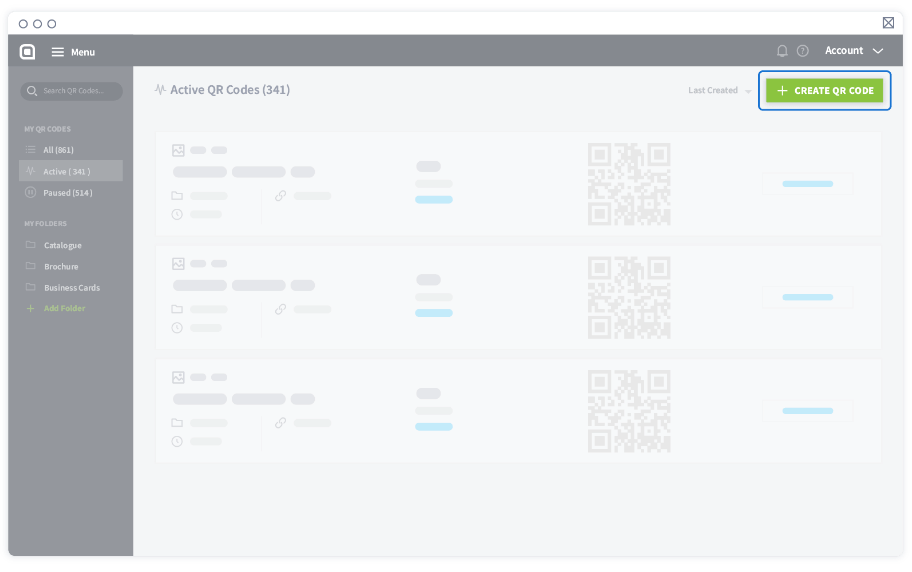
2. On the Dashboard, select Create QR Code.
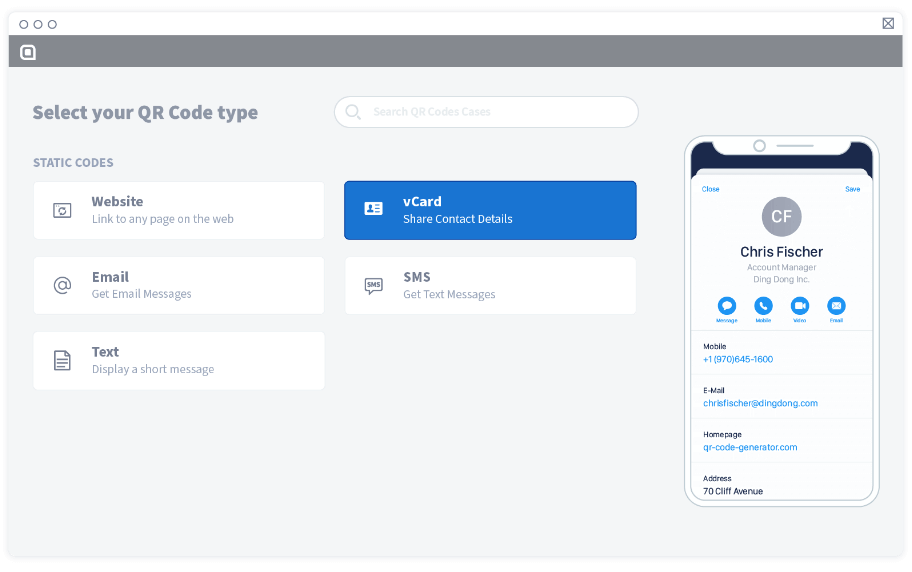
3. Under Static Codes, choose vCard.
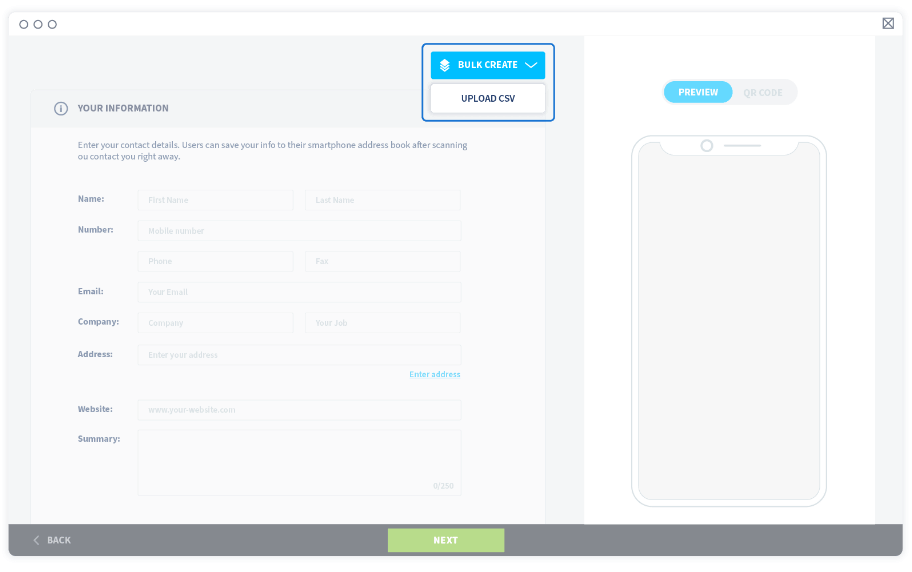
4. Then, select Bulk Create > Upload CSV.
5. A new window will appear. Download the CSV file and open it.
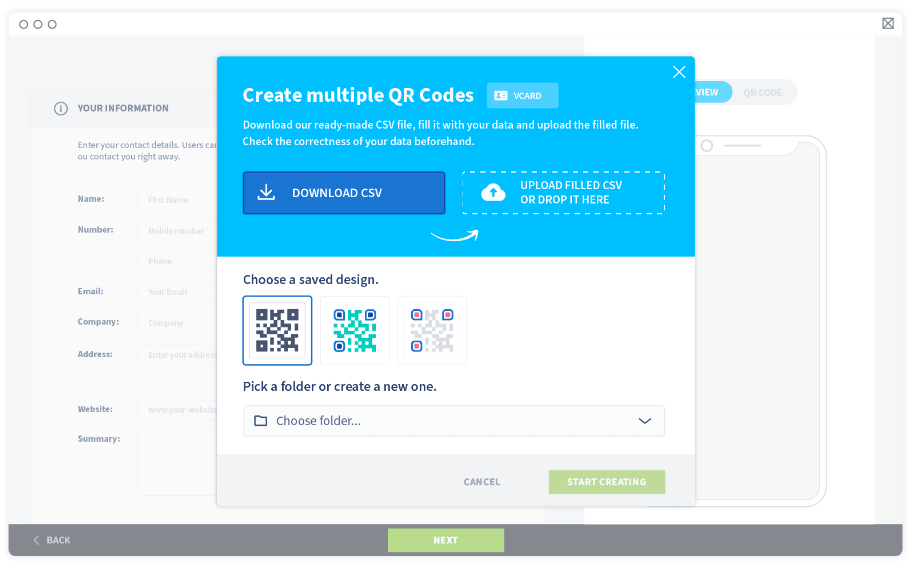
6. Enter all the contact information you’d like to have in one column, with one new contact info in each row as shown below.
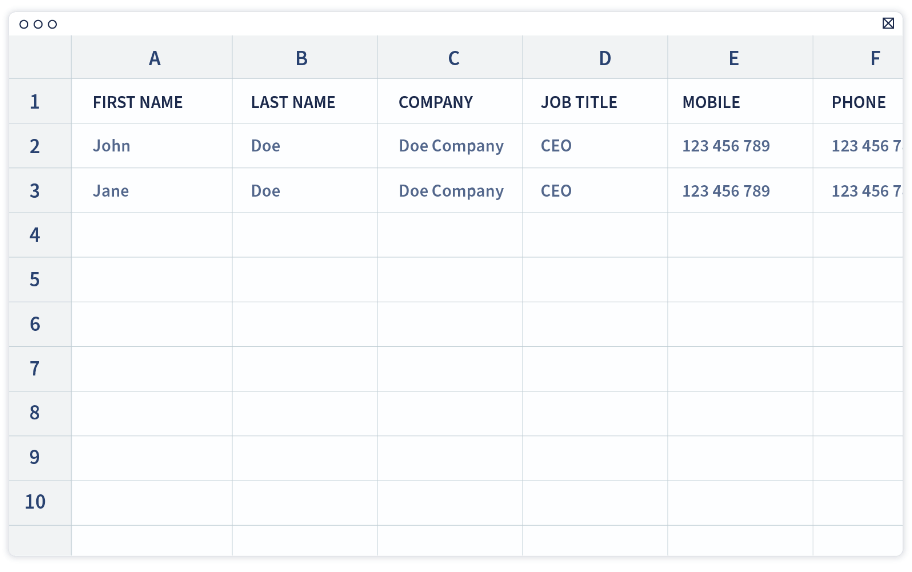
Important: Each contact information must be inside quotation marks, separated by a semicolon without spacing
7. Ensure that all the information is accurate and check for typos. Once these QR Codes are generated, you will not be able to edit or fix any mistakes. Now, save the CSV file and upload it.
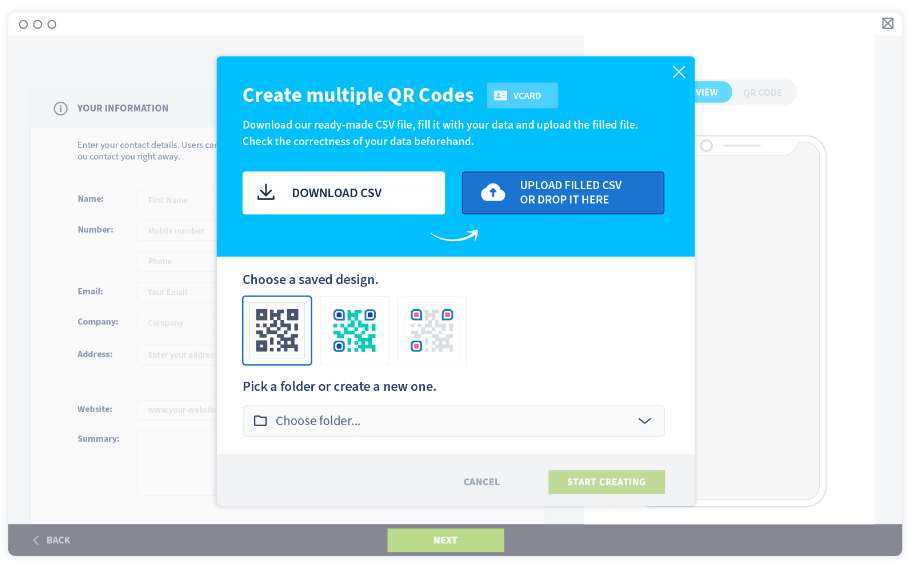
8. Wait until the tool has validated the uploaded file. Please observe the warning errors and follow the instructions to fix them, if any.
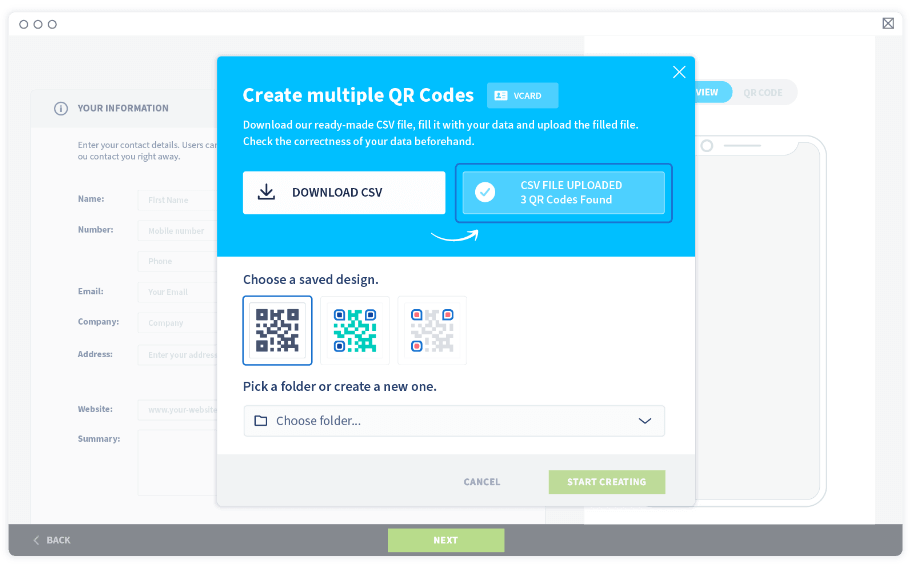
9. If there are no warning errors, proceed with selecting a saved QR Code design and a folder to store the new QR Codes in.
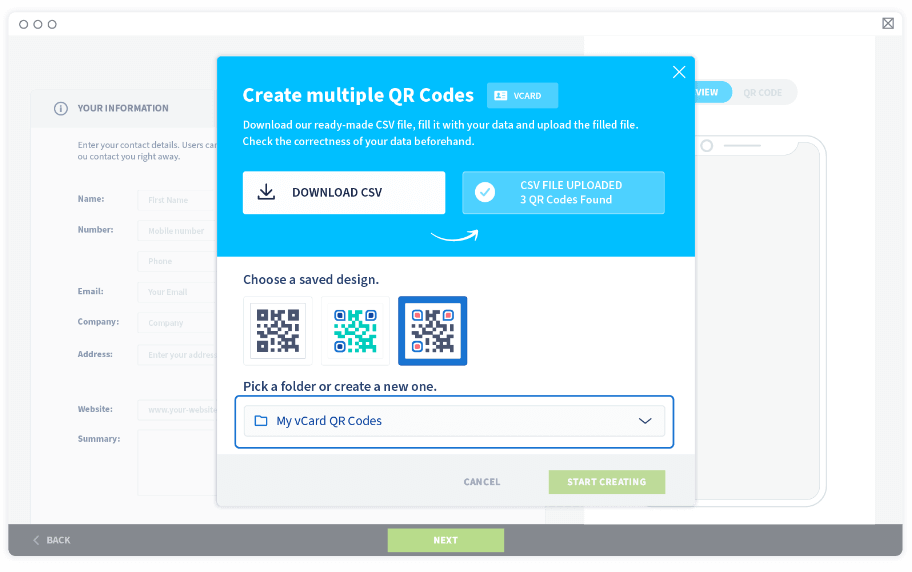
10. Select Start creating to generate all the QR Codes in one go.
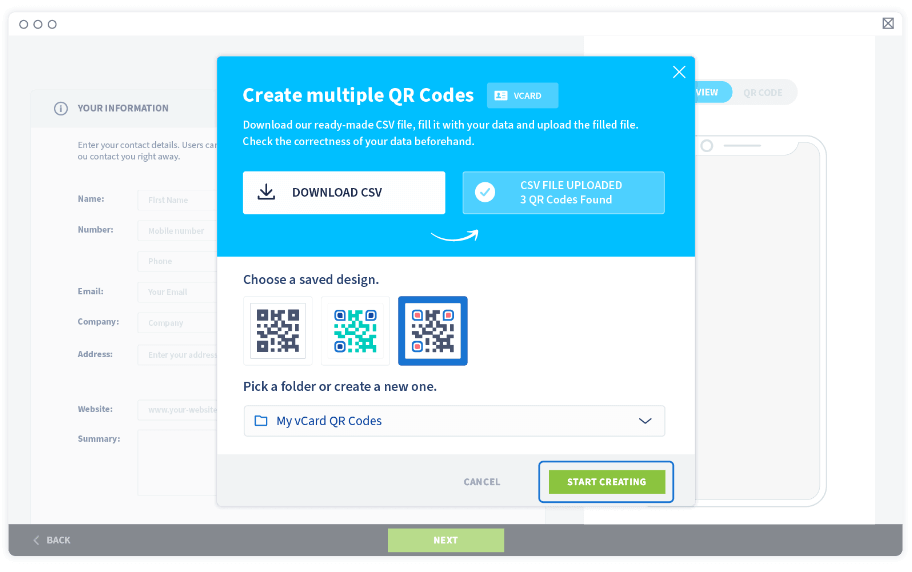
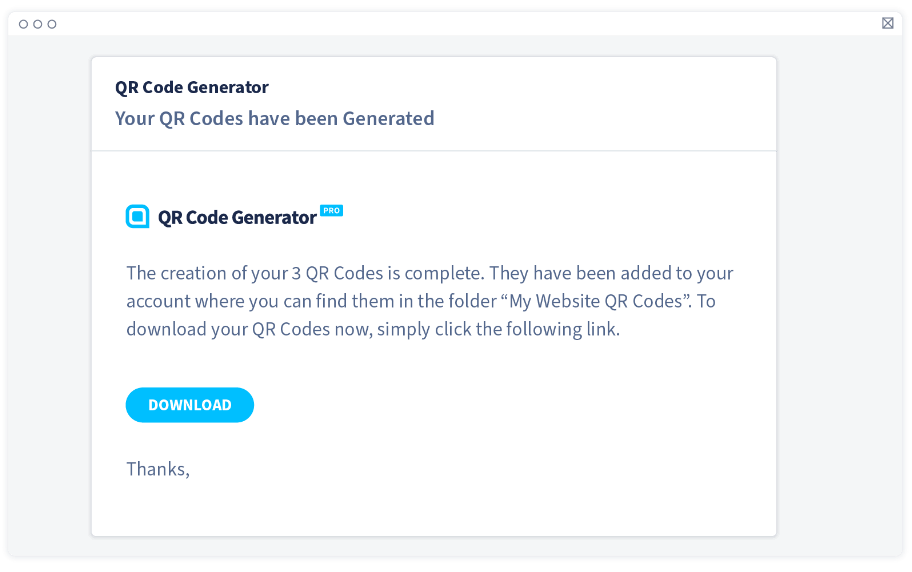
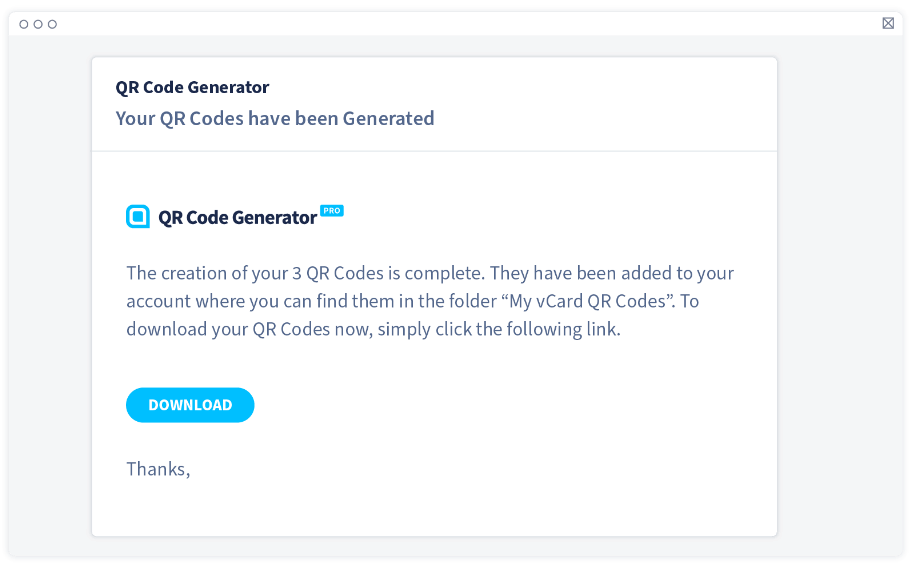
11. Wait for the confirmation email where you will receive a link to download all the finished QR Codes or check the folder you’ve assigned for the finished QR Codes.
How to generate Plain Text QR Codes in bulk?
1. Log in to your QR Code Generator PRO account. If you don’t have one, create one for free.
2. On the Dashboard, select Create QR Code.
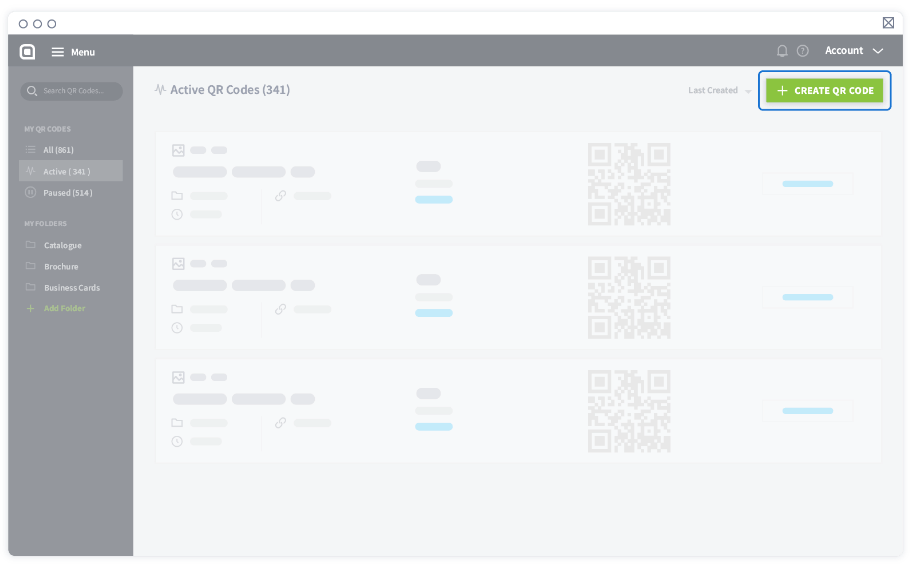
3. Under Static Codes, choose Plain Text.
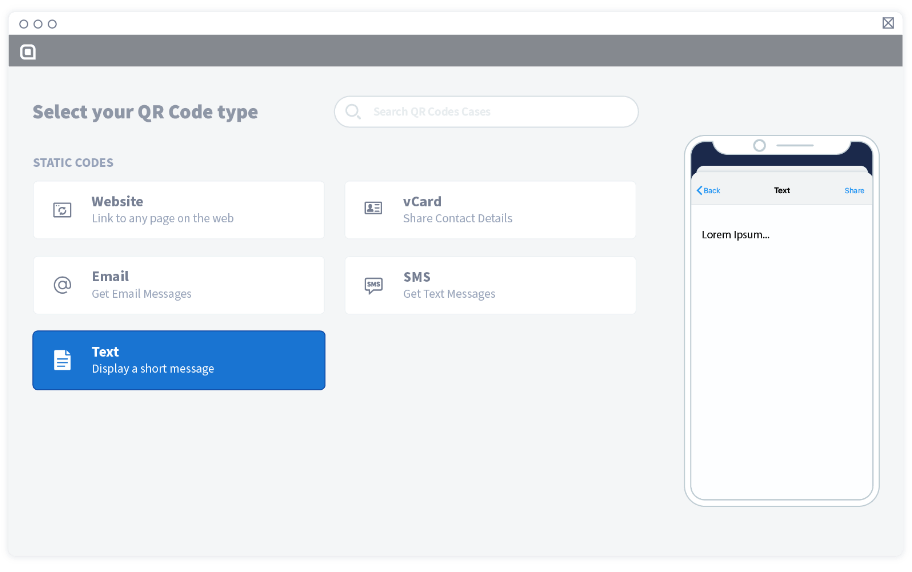
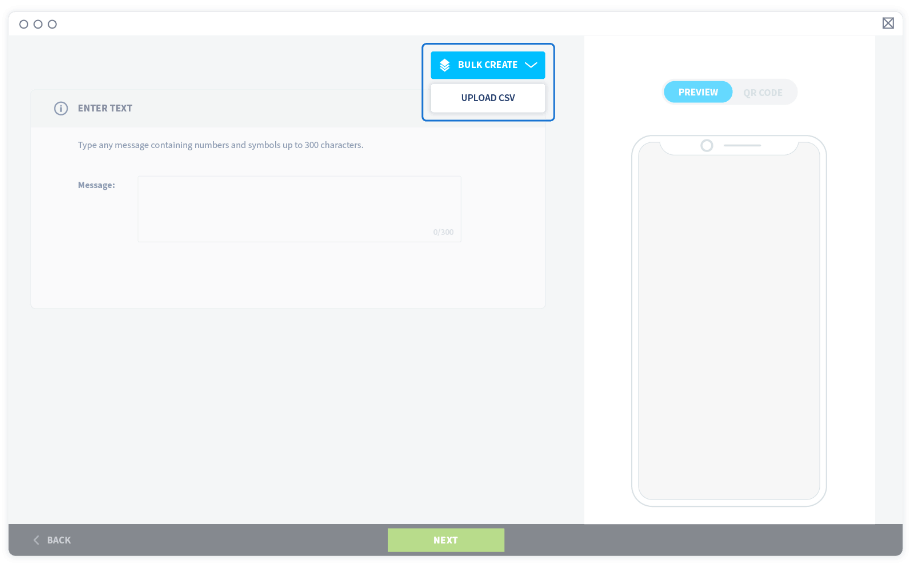
4. Then, select Bulk Create > Upload CSV.
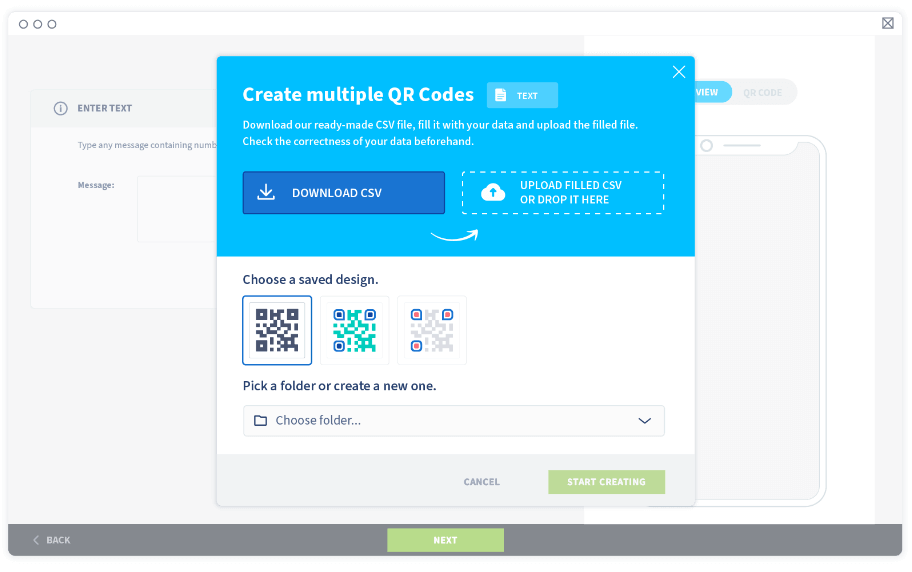
5. A new window will appear. Download the CSV file and open it.
6. Enter all the text you’d like to have and the names of the QR Codes in one column, with one new text and QR Code name in each row as shown below.
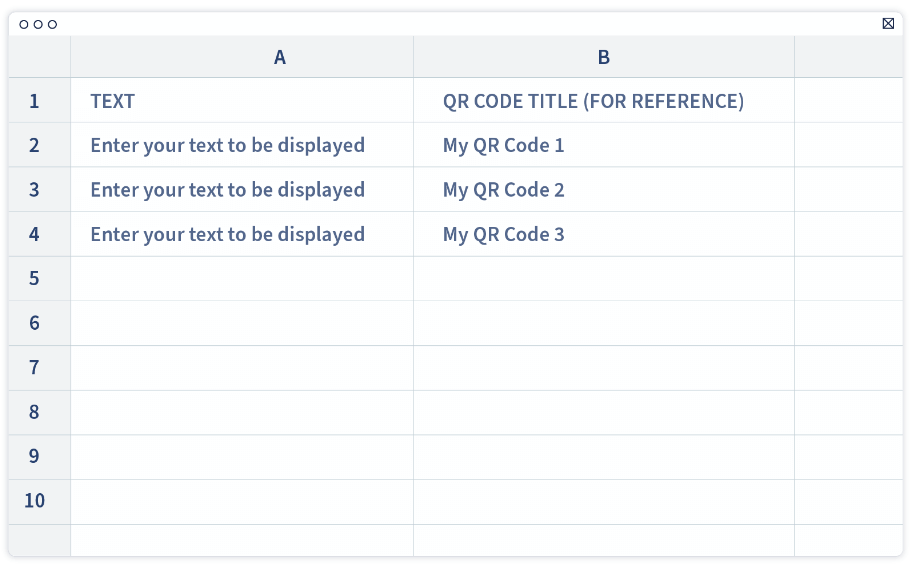
Important: Each text and QR Code name must be inside quotation marks, separated by a semicolon without spacing
7. Ensure all the content and texts are accurate and check for typos. Once these QR Codes are generated, you will not be able to edit or fix any mistakes. Now, save the CSV file and upload it.
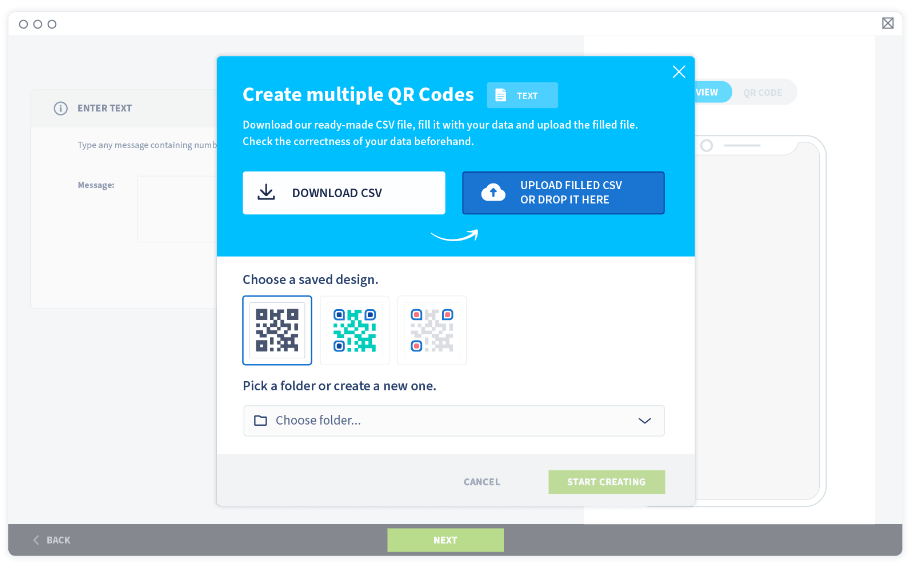
8. Wait until the tool has validated the uploaded file. Please observe the warning errors and follow the instructions to fix them, if any.
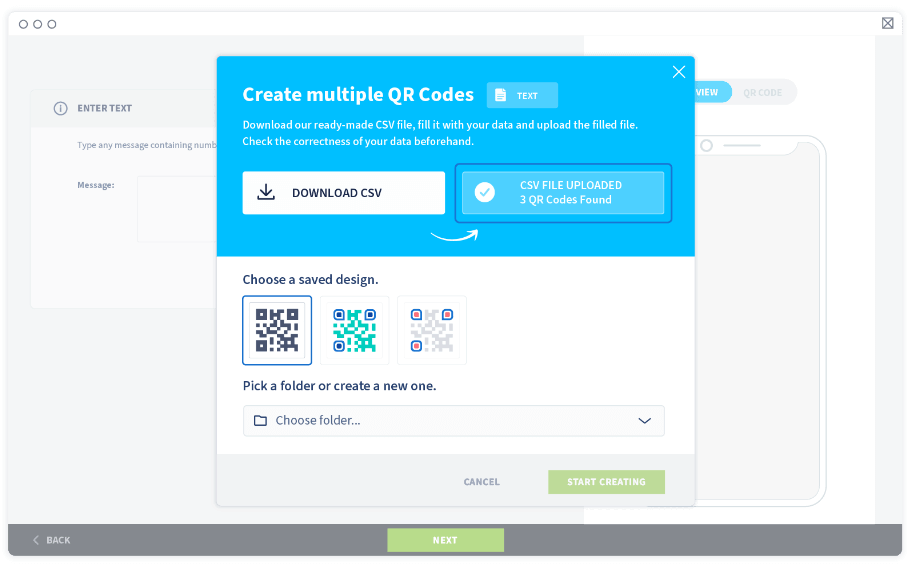
9. If there are no warning errors, proceed with selecting a saved QR Code design and a folder to store the new QR Codes in.
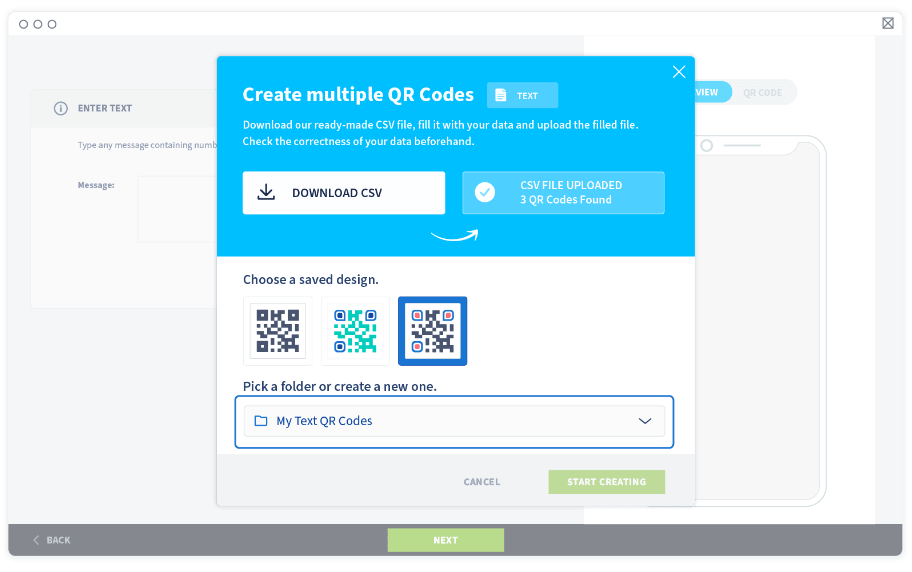
10. Select Start creating to generate all the QR Codes in one go.
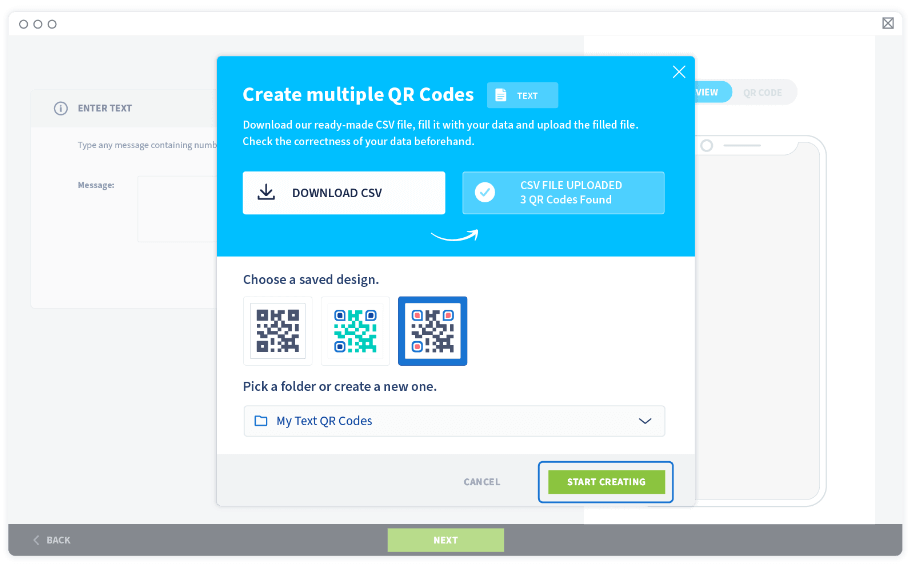
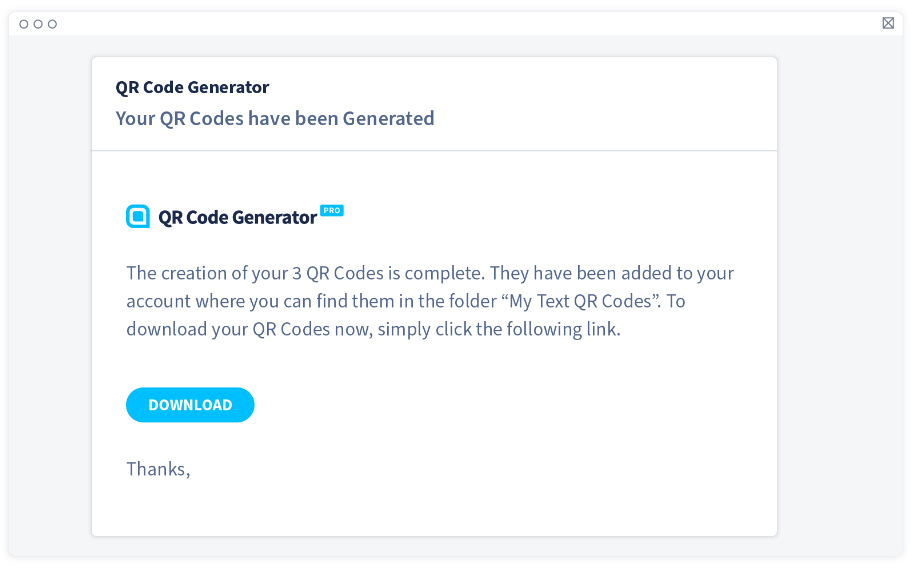
11. Wait for the confirmation email where you will receive a link to download all the finished QR Codes or check the folder you’ve assigned for the finished QR Codes.
Best practices for generating QR Codes in bulk
It is important to observe these best practices when it comes to generating QR Codes in bulk. We want to ensure that all your QR Codes are working properly before and after you print them.
Save a QR Code design to use repeatedly
Designing a beautiful QR Code takes a lot of time and effort. That’s why we’ve added a Save Design feature so you can reuse a favorite QR Code design that can be replicated with a single click. Not only will you save time by generating multiple QR Codes at once, but you also avoid having to design each QR Code manually after they’re created.
Edit your short URL for Dynamic URL QR Codes
Did you know that you can edit the short URL generated from Dynamic URL QR Code to make your brand stand out even more? So instead of qrco.de/xxbcg, you can edit it to become qrco.de/companyname. This will create trust among your audience or customers as well as fostering brand loyalty. Just take note to avoid changing the short URL after printing as you will need to reprint the QR Code again.
Displaying contact info in vCard QR Code
The more information you add in a vCard QR Code, the “busier” the QR Code gets. This is because it is a form of Static QR Code, which means all the information is contained within the small pixelated squares. We recommend only adding essential information and avoid unnecessary details such as birthday, fax, and full address.
Observe the character limit on Plain Text QR Code
The Plain Text QR Code is suitable for inventory management as it can store up to 300 characters of text. While 300 is a large chunk of information you can store, we recommend going way below the limit so that your QR Code can be read faster by scanners and will look less “busy.”
Check for typos and broken links for Static QR Codes
Static URL, vCard, and Plain Text QR Codes are all categorized as Static QR Codes. Once generated, the content can only be accessed with a scanner. Always ensure the information is accurate before generating them or you’d have to start over. Dynamic URLs can be changed at any time, and yes, even after print.
FAQ

If you’ve signed up for the free 14-day trial, there is a limit of 5 QR Codes you can create at once so you can test this feature. After that, there is a limit of 100 in the Advanced plan, and 500 in the Professional plan. We currently do not offer the Bulk Create feature in the Free and Starter plans because of the QR Code limits.
Currently, you can only create one type of QR Code in multiples at a time. Once those are done and generated, you can start creating other types offered in the bulk creation feature.
Please be sure to download our CSV template and follow the instructions to add the information clearly. If it’s still not working, please email our support team using the email you’ve used to sign up where you will be assisted further.